
This recipe helps a support lead take Service Center from "not activated" to everyday use within a week: when a member asks for a real person, the conversation goes to the right organization and agent automatically, the agent gets a notification on their phone, and resolved conversations close on their own instead of piling up in the list.
Who this is for
- Support leads whose brand is starting one-on-one support on its LINE Official Account and who want to settle who handles which conversations before going live.
- Workspace admins who've been told to "turn on Service Center" but don't know what else needs setting up after activation.
By the end you'll have two agents, an organization dedicated to VIP members, a chatbot that transfers members to Service Center when they type "live agent", a rule that closes resolved conversations after 24 hours, and APP notifications on agents' phones.
The examples use a skincare brand, Sunleaf. Service Center activation, the organizations and the chatbot were all actually created in the OakMega manual demo workspace. For the organization's automation settings and Auto Distribute to Agent, we only captured the filled-in screens and didn't click Save (see "Before you start" for why).
Before you start
- Only workspace admins can open Service Center Setting, and only admins can complete activation. Other members who open Service Center see "Service Center Not Activated" with the button "Please contact the account owner for setup".
- Anyone you add to Service Center must already be a workspace member. Invite teammates to the workspace first if they aren't in it yet.
- Agent seats are activated separately for each workspace and don't depend on your plan. The setup wizard shows them as "Agent Seats Used".
- Members need a tag that VIP Support can match on. This recipe uses the tag "VIP Member" (see Create and manage tags).
- After activation, you adjust each organization's settings in Service Center Setting. In this demo, the "Auto Distribute to Agent" and "Automation" steps only show the filled-in screens; we didn't click Save. The manual's screenshot tool can only change data created in the same run, and these two organizations were created by the setup wizard. When you follow along in your own workspace, remember to click Save.
Features you'll use
| Feature | Its job in this scenario | Minimum plan | Needs activation? |
|---|---|---|---|
| Service Center Setting | Activate Service Center and add agents and organizations | All plans | Agent seats are activated separately |
| Assignment rules | Use the assigned tag to send VIP conversations to VIP Support, then pick an agent | All plans | No |
| Automatically close after resolved | Close conversations automatically 24 hours after they're resolved | All plans | No |
| LINE chatbot | Reply and transfer to Service Center when a member types "live agent" | All plans | No |
| Tag Management | The "VIP Member" tag decides which organization gets the conversation | All plans (Free: up to 10 tags) | No |
| Notification Settings | Agents get new messages and status changes in the OakMega APP | All plans | No |
Flow
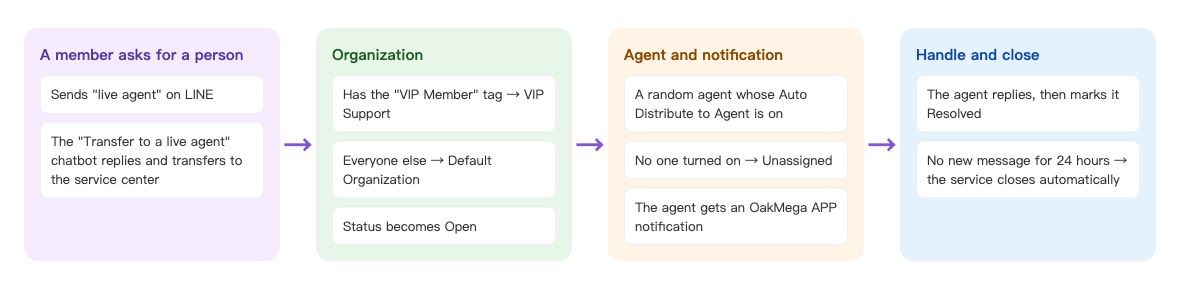
- A member sends "live agent" on LINE. The "Transfer to a live agent" chatbot replies with a short explanation and transfers the conversation to Service Center.
- The system picks an organization: members with the "VIP Member" tag go to "VIP Support", everyone else goes to "Default Organization". The conversation status becomes "Open".
- The system randomly picks one agent in that organization who has "Auto Distribute to Agent" turned on. If no one has it on, the conversation stays "Unassigned". The assigned agent gets a notification in the OakMega APP.
- The agent replies and marks the conversation "Resolved" when done. If the member doesn't send anything within 24 hours, the system closes the service automatically. The next time the member needs help, the whole flow starts again.
How to set it up
Here's the week, in order:
| When | What to do | Where |
|---|---|---|
| Day 1 | Go through the setup wizard: add agents, create VIP Support and activate Service Center | Service Center › Service Center Setting |
| Day 2 | Turn on Auto Distribute to Agent for your agents | Service Center Setting › Organization › Edit › Organization Info |
| Day 2 | Close conversations automatically 24 hours after they're resolved | Service Center Setting › Organization › Edit › Automation |
| Day 3 | Create a "live agent" chatbot and turn on Service center transfer | LINE › Chatbot |
| Day 4 | Each agent turns on Service Center notifications in the APP | Settings › Notification Settings |
| Day 5 | Send "live agent" yourself and check assignment and notifications | LINE app on your phone, Service Center |
Day 1: Go through the setup wizard
In the navigation bar, click Service Center. Until it's activated, the page shows "Service Center Not Activated". As an admin, click "Service Center Settings" to see "Welcome to the Service Center!", then click "Start Setting" to open the wizard. The wizard has three phases: "Basic Tutorial and Setting", "Advanced Tutorial and Setting" and "Complete Setting".
Step 1: Agent Setting
- The first row already has you in it. Choose the role "Manager" on the right.
- Click "Create Agent", pick a teammate, and choose the role "Agent".
- Check that "Agent Seats Used" below still has room, then click "Next Step".
The screenshot below shows the finished Agent Setting: two rows, Emma Wang as Manager and Jason Chen as Agent, with Agent Seats Used: 2/10 below.
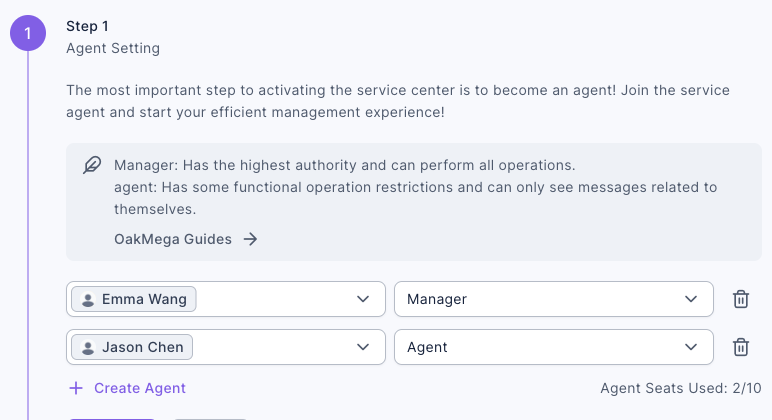
If you remove yourself from the list, you'll see "Are you sure you want to remove yourself from the agent settings?". After removing yourself you can't use Service Center and can only keep editing the settings. A manager can do everything; an agent can only see messages related to themselves.
Step 2: Organization Basic Tutorial is just an explanation. Click "Next Step".
Step 3: Organization Management
- The first row is "Default Organization". Choose Emma Wang and Jason Chen as its agents. The default organization catches every conversation that doesn't go to another organization. It can't be deleted, and you can't give it an assigned tag.
- Click "Create Organization", name it "VIP Support", choose Emma Wang as its agent, and choose "VIP Member" as its assigned tag.
- Click "Complete Basic Setting", then click "Confirm" in "Confirm to complete the basic setting?".
You need at least one organization besides the default one, otherwise you'll see "Please create at least 1 non-default organization". The animation below creates VIP Support: it clicks Create Organization, types the name, picks an agent, then chooses "VIP Member" from the tag menu.
Phase 2: Advanced Tutorial and Setting
After the basic setting, you'll first see "Congratulations on completing the basic setting, let's learn more about the advanced features!". Click "Confirm" to start an 8-step tour of agents, roles, the organization list and distribution conditions, automation and more. To skip it, click "Skip All". You can reopen it any time from "Set Tour Guide" in the bottom-left.
The top of Service Center Setting now shows "Setup complete — you're ready to start using the Service Center". The screenshot below shows the Organization tab: VIP Support now sits below the default organization, with Accept System Auto-assign set to "Accept" and the Responsible Tag "VIP Member".
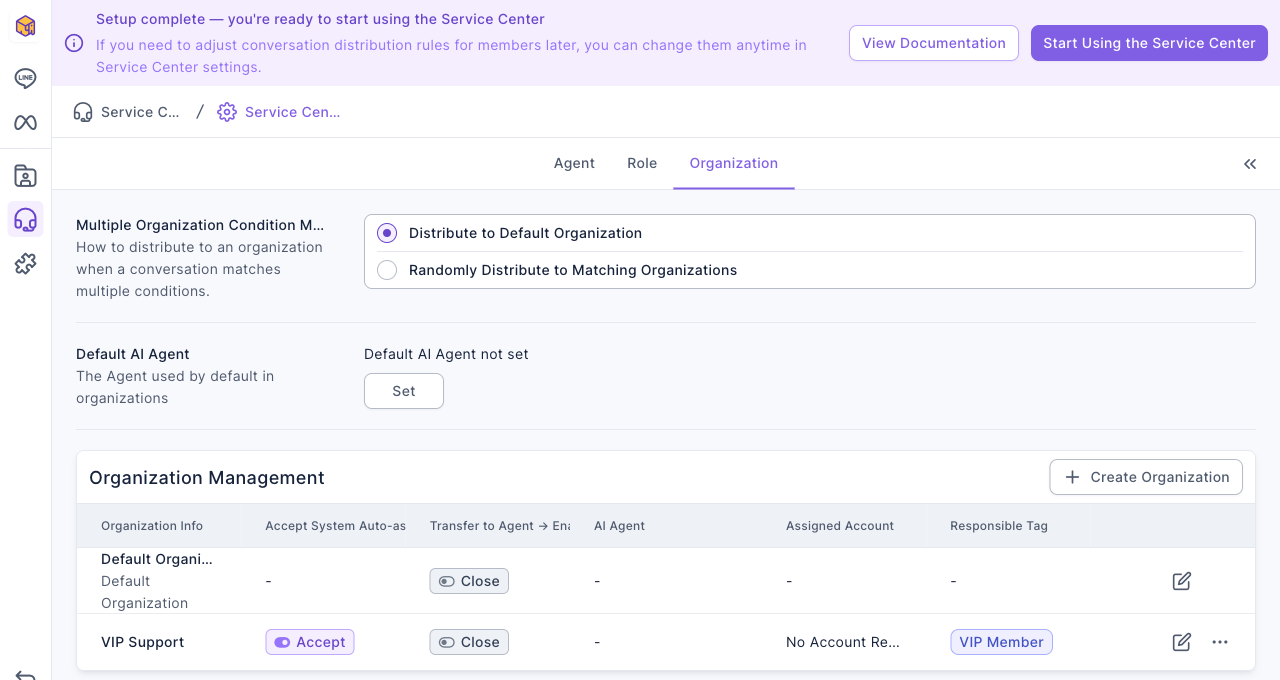
Click "Start Using the Service Center" in the top-right, then click "Confirm" in "Are you sure you want to enable the Service Center?". Service Center is now live, and agents can start replying to conversations.
Day 2: Turn on Auto Distribute to Agent
This is the step people most often miss after activation. Agents added to organizations through the setup wizard all start with "Auto Distribute to Agent" set to "Do Not Distribute". Conversations reach the organization but aren't assigned to anyone, so they sit in the list as unassigned.
- Go to Service Center › Service Center Setting, open the "Organization" tab, and click edit at the right of "VIP Support".
- On the "Organization Info" tab, under "Organization Members", click edit on the agent's row and turn on "Auto Distribute to Agent".
- Click "Save" in the top-right. Do the same for the default organization.
The screenshot below shows VIP Support right after activation: Emma Wang is in Organization Members, but Auto Distribute to Agent is "Do Not Distribute".

When several agents in the same organization have it turned on, the system picks one at random; it doesn't rotate. A conversation that already has an assigned agent keeps that agent. For the full rules, see Understand how conversations are assigned to organizations and agents.
Day 2: Close conversations 24 hours after they're resolved
On the same organization's "Automation" tab:
- Under "Automatically Close After Resolved", choose "Automatically Close" and enter 24 hours.
- If you like, under "Member Sends Message Auto Change Status", change "Resolved → Send Message" to "Change to Open". If a member writes again after the conversation is resolved, it goes back to Open so nobody misses it.
- Click "Save".
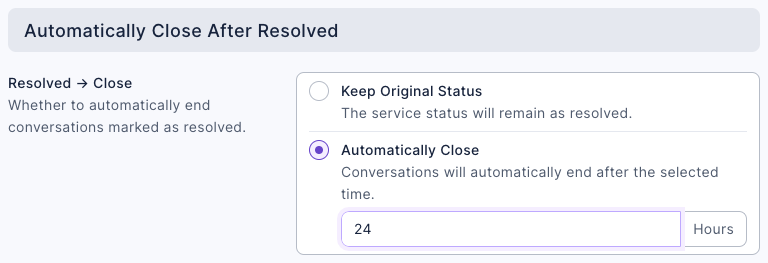
The 24 hours count from the conversation's last message, and only conversations that are still "Resolved" are closed. For details and the "Close → Change Organization" options, see Automatically close resolved conversations.
Day 3: Give members a way to reach a person
Once Service Center is active, members' messages show up in Service Center, but ordinary messages aren't transferred to Service Center automatically. Unless something triggers a transfer, the conversation stays a non-service conversation and no agent gets notified. So members need a way in.
Under LINE › Chatbot, create a chatbot in the keyword chatbot folder "FAQ":
- Name it "Transfer to a live agent" and enter "live agent" in "Trigger Keyword (Contains)".
- At the bottom of the "Bot Settings" tab, under "Follow-up Actions", turn on "Service center transfer".
- On "Edit Message", add a text message: "Got it! We're connecting you to a Sunleaf agent. We'll reply as soon as possible on weekdays 10:00–18:00. Messages sent after hours will be handled first thing on the next business day."
- Click "Save" and leave the chatbot status on.
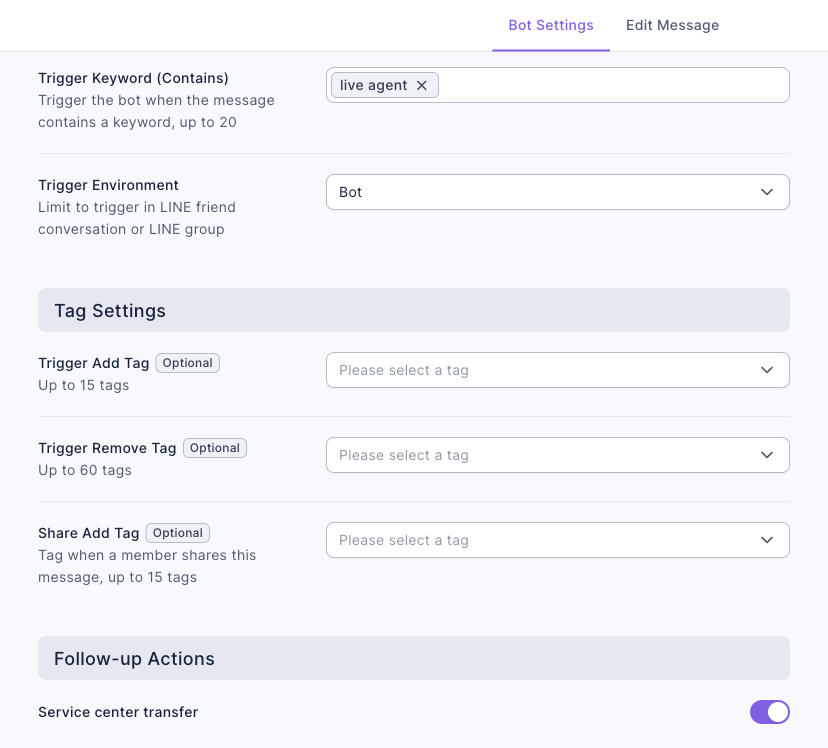
Service center transfer can only be turned on in Bot Settings; the module with the same name in the message editor isn't available for chatbots. Besides chatbots, forms ("Automatically transfer this member to customer service after form submission") and passes ("Automatically transfer this member to customer service after pass use") can also transfer members to Service Center.
Day 4: Each agent turns on APP notifications
Service Center notifications only go to the OakMega APP, and each agent sets them up for themselves:
- Go to Settings › Notification Settings and turn on "Service Center Notifications" (off by default).
- Under "Receiving Organizations", choose "All Organizations" or "Specific Organizations".
- "Notification Types" only has "Member Messages" ticked by default. Managers who want to see who picked up which conversation can also tick "Support Status Changes".
- Click "Save".
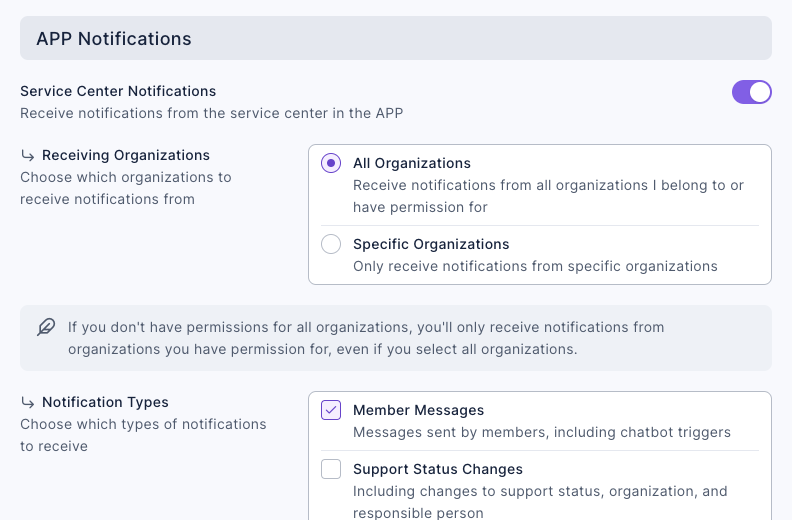
In Service Center on a computer, you can also use "Browser Notifications" to flash the page title or play a sound when a message arrives. This only applies to the device you're using.
Day 5: Test it yourself
From the LINE app on a phone that's a friend of your official account, send "live agent":
- The phone receives the chatbot's reply.
- The conversation appears in Service Center with the status "Open", in the default organization (you don't have the "VIP Member" tag).
- An agent with Auto Distribute to Agent turned on is assigned and gets a notification in the APP.
- Reply in Service Center and mark it "Resolved". After 24 hours, check that the conversation closed automatically.
Then give yourself the "VIP Member" tag, close the service, and send the keyword again to check that this time it goes to VIP Support.
What members see
Right after the member sends the keyword, the chatbot replies: their request is being passed to an agent, who will reply on weekdays 10:00–18:00, and after-hours messages are handled on the next business day. At that moment, the conversation in the Service Center is already in the Default Organization, assigned to the agent with auto distribution on, with the status Open. The screenshot shows the Chinese demo.
When an agent replies in the Service Center, the member sees an ordinary official account message on LINE, just like the chatbot's reply. It doesn't show which agent sent it (unless the organization turns on avatar and name display). The screenshot below shows the member's side after an agent replied the next morning: "Hi, this is Emma from Sunleaf! We've received your message. Which product are you asking about, or what issue did you run into with your order?" (Chinese demo.)
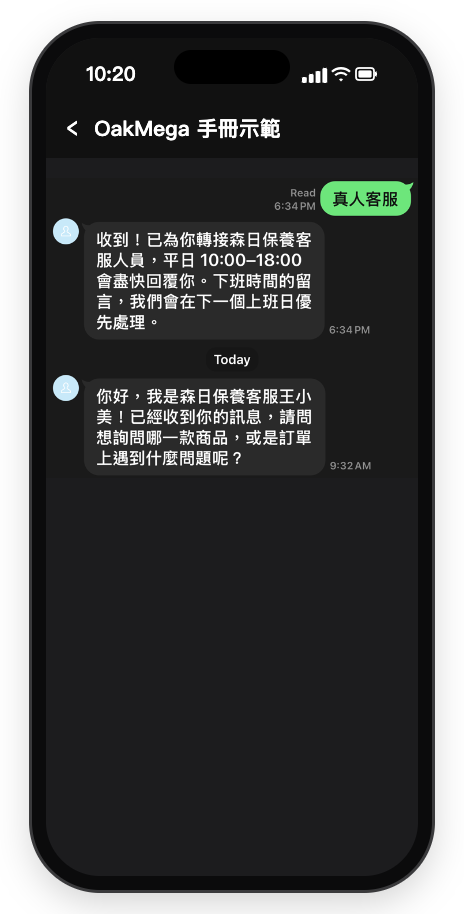
Members only see the chatbot's reply and the agents' messages on LINE. They can't see the organization, the assigned agent or the conversation status. This table shows what happens when different members send "live agent":
| Member | Goes to | What they receive |
|---|---|---|
| Has the "VIP Member" tag | VIP Support | The chatbot's reply, then a reply from Emma Wang |
| No tag | Default Organization | The chatbot's reply, then a reply from an agent in the default organization with auto distribution turned on |
| Already in service (not closed yet) | Keeps the same organization and agent | The chatbot's reply; not redistributed |
| Only sends ordinary messages, never "live agent" | Not distributed; the conversation stays non-service | No reply unless a chatbot is triggered, and no agent is notified |
How to check it's working
| What you want to know | Where to look |
|---|---|
| Whether conversations reach the right organization and agent | The conversation list in Service Center, filtered by organization and assigned agent |
| Whether conversations are going unanswered | "Unassigned" conversations in the Service Center list. If there are many, check Auto Distribute to Agent again |
| How often the chatbot is used | Total Trigger Count and Total Number of Triggered People under LINE › Chatbot |
| How much each organization and agent handled | Workload and conversation status breakdown in the Service Center Data Center |
Variations
- One organization per store: create an organization for each store, tag members with a store tag such as "Store: Downtown" through Tag Routing Links or forms, and set each store's tag as that organization's assigned tag.
- After-hours messaging: make the chatbot's reply depend on the time of day (for example, "we'll reply to after-hours messages the next day"), and lengthen the automatic close time so conversations aren't closed overnight. See Reply automatically after hours and pick up the next day.
- Add AI support: turn on "Transfer to Agent → Enable AI Agent" on the organization's Automation tab, so AI replies first and hands over to an agent when it can't answer.