
This recipe helps after-sales service managers at manufacturers move repair requests off the phone and fax and onto LINE: customers tap "Repair request" on the Richmenu at the bottom of the chat and fill in a repair form with the machine model, serial number and problem, and OakMega hands the request straight to the service team for that product line. Service engineers pick it up in Service Center, with no switchboard transfers and no back-and-forth to confirm the model.
Who this is for
- After-sales service managers: repair requests arrive by phone and fax, and the front desk has to work out which machine and which model it is before passing the call to the right service contact.
- Service contacts and field service engineers: you have to ask for the serial number and the problem every time, and you'd rather see the full request before you pick it up.
When you're done you'll have an after-sales Richmenu that stays at the bottom of the LINE chat; a repair form that tags customers automatically based on the machine model and problem they choose; service teams that receive requests by product line automatically; and Service Center settings that close conversations once resolved and route the next request again.
The example below uses a fictional industrial equipment maker with two product lines: the "VX-500 vertical machining center" and the "LS-300 laser cutter". The tags, repair form, service teams and Richmenu were all actually created in the OakMega manual demo workspace; the product-line tags are the two created in Warranty registration for manufacturers.
Features you'll use
| Feature | Role in this scenario | Minimum plan | Needs activation? |
|---|---|---|---|
| Richmenu | Keeps three buttons at the bottom of the chat: "Repair request", "Warranty" and "Talk to staff" | All plans | No |
| OakMega Form | The repair form: machine model, serial number and problem; options apply tags, and submissions are transferred to Service Center automatically | Pro and above | Yes (form quota applies) |
| Tag Management | Product-line tags decide which team gets the request; issue tags tell the engineer what the problem is up front | All plans (Free: up to 10 tags) | No |
| Service Center organizations and assignment rules | One service team organization per product line, each picking up its product line's requests through its assigned tag | All plans | Service Center seats are activated separately |
| Automatically close resolved conversations | Closes resolved conversations 24 hours after the last message and moves them back to the default organization | All plans | Service Center seats are activated separately |
Flow
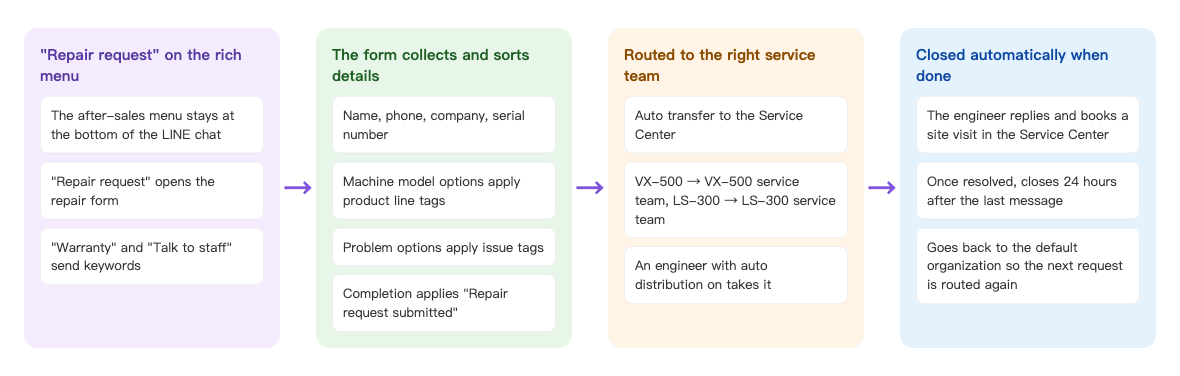
- The Richmenu stays at the bottom of the LINE chat. Customers tap "Repair request" to open the repair form; "Warranty" and "Talk to staff" send keywords so a chatbot can reply or hand them to a person.
- The repair form collects name, phone, company and machine serial number. Options in "Machine model" apply product-line tags, and options in "Problem" apply issue tags. On submission, the form also applies "Repair request submitted".
- Each submission is transferred to Service Center automatically and assigned by product-line tag to the VX-500 service team or the LS-300 service team, where an engineer with auto distribution turned on takes it.
- The engineer replies in Service Center and books a site visit. Once the conversation is marked Resolved, it closes automatically 24 hours after the last message and goes back to the default organization, so the next repair request is routed again.
How to set it up
| Step | Where | Settings in this scenario |
|---|---|---|
| 1. Create tags | Member & Tag › Tag Management | Folder "Repair requests": Repair request submitted, Issue: won't start, Issue: accuracy problem, Issue: noise or vibration; product-line tags reused from the "Warranty" folder |
| 2. Build the repair form | Web-based Tool › OakMega Form | Folder "After-sales service": login and add-friend required; Option Tags on machine model and problem; apply "Repair request submitted" on completion; Follow-up Actions: Service Center Transfer |
| 3. One service team per product line | Service Center › Service Center Setting › Organization | Assigned Tag set to that product-line tag; Automation: close resolved conversations after 24 hours, then change to the default organization |
| 4. Build the Richmenu | LINE › Richmenu | Default Richmenu schedule "After-sales menu": Repair request (Open link), Warranty and Talk to staff (Send text) |
1. Create repair tags
Under Member & Tag › Tag Management, add a folder named "Repair requests" with four Strength Tag tags:
| Tag | What it's for |
|---|---|
| Repair request submitted | Counting how many customers have requested a repair; you can send them a satisfaction survey later |
| Issue: won't start, Issue: accuracy problem, Issue: noise or vibration | Engineers know roughly what the problem is before they pick it up, and you can see which issues come up most |
The tags used for routing, "Product line: VX-500 machining center" and "Product line: LS-300 laser cutter", are reused from the "Warranty" folder in Warranty registration for manufacturers, so a customer carries the same tags whether they register a warranty or request a repair. See Create and manage tags.
2. Build the repair form
Under Web-based Tool › OakMega Form, create a form named "Machine repair request" in the "After-sales service" folder:
- In Form Settings, keep Login via Communication Platform on and turn on Add friend to fill form. Set Apply tags when completing form to "Repair request submitted".
- In Question Settings, add these questions in order:
- The member contact information questions Real Name and Phone, both required.
- Single Line Text: "Company name", required.
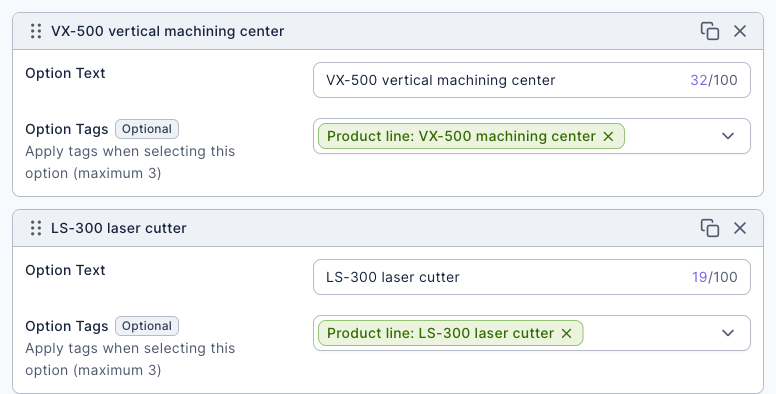
- Multiple Choice: "Machine model", required. Set the Option Tags for the option "VX-500 vertical machining center" to "Product line: VX-500 machining center", and for "LS-300 laser cutter" to "Product line: LS-300 laser cutter".
- Single Line Text: "Serial number (starts with SN on the nameplate)", required.
- Multiple Choice: "Problem", required. "Won't start, or alarms on startup" applies "Issue: won't start", "Accuracy problem (dimensions off, rough surface finish)" applies "Issue: accuracy problem", "Noise or vibration while running" applies "Issue: noise or vibration", and "Other" applies no tag.
- Multi-line Text: "Describe the problem (alarm code, when it started, still running?)", optional.
- Under Follow-up Actions, turn on Service Center Transfer (automatically transfers the member to customer service after they submit the form).
- Click Save.
The screenshot below shows the options of the "Machine model" question: whichever machine the customer picks, they get that product line's tag, and that tag is what lets the service team in the next step pick up the request.
For every form field, see Create a form.
3. One service team per product line
Under Service Center › Service Center Setting, open the Organization tab and click Create Organization:
- Set Organization Name to "VX-500 service team", use Add Agent to add the engineers who cover this product line, and turn on Auto Distribute to Agent.
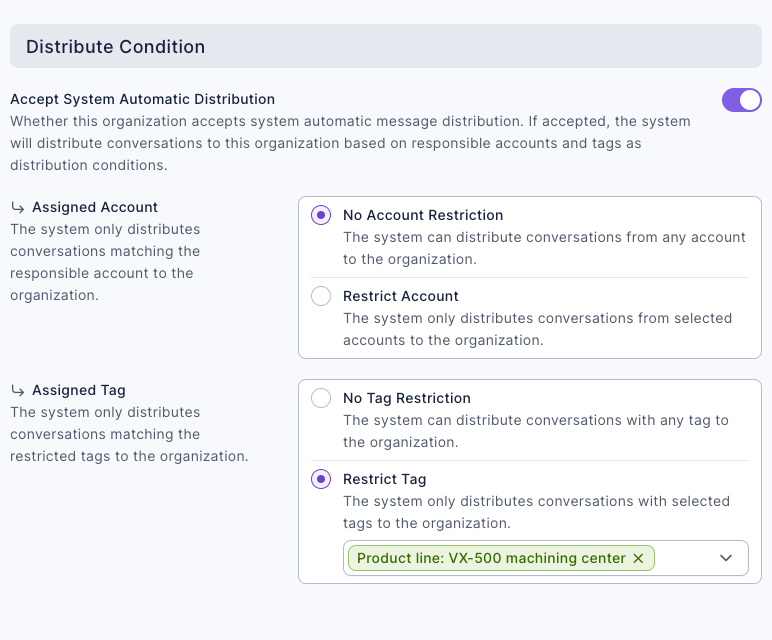
- In Distribute Condition, turn on Accept System Automatic Distribution. Under Assigned Tag, choose Restrict Tag and select "Product line: VX-500 machining center".
- In Automation, set Resolved → Close to Automatically Close and enter 24 hours. Set Close → Change Organization to Change to Default Organization and Remove Agent.
- Click Save. Then create "LS-300 service team" the same way, with "Product line: LS-300 laser cutter" as its assigned tag.
The screenshot below shows the Distribute Condition for the VX-500 service team: Accept System Automatic Distribution is on, Assigned Account is No Account Restriction, and Assigned Tag is restricted to "Product line: VX-500 machining center".
The screenshot below shows the same organization's automation settings: resolved conversations close automatically (24 hours counted from the last message), then change to the default organization and remove the agent.
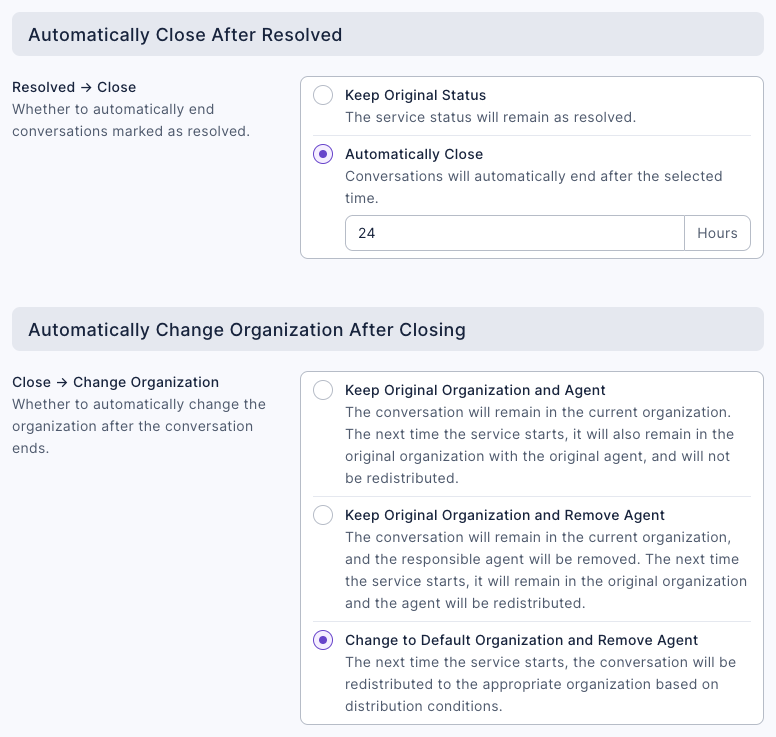
Why "Change to Default Organization": the system only checks each organization's assigned tags again when the conversation is currently in the default organization. If the conversation stays in the VX-500 service team after closing, the next time this customer reports a problem with an LS-300, it still goes to the VX-500 service team. For the full rules, see Understand how conversations are assigned to organizations and agents and Automatically close resolved conversations.
4. Put "Repair request" on the Richmenu
Under LINE › Richmenu, open the Default Richmenu tab and click Add:
Set Schedule Name to "After-sales menu" and set Schedule Time from your go-live date to the end of next year. Set Text Below Menu to "After-sales service" and turn on Default Expand.
Under Content settings, upload a three-panel menu image, choose Grid layout, and drag out three buttons on the image:
- Button 1 "Repair request": Open link, with the repair form's link.
- Button 2 "Warranty": Send text "Warranty", which triggers the chatbot with the keyword "Warranty" from Warranty registration for manufacturers and replies with the warranty registration link.
- Button 3 "Talk to staff": Send text "Talk to staff", which triggers the chatbot with the keyword "Talk to staff" that transfers the customer to Service Center automatically; see Your first week with Service Center.
Make sure each chatbot's keyword matches the text its button sends.
Check the Preview on the right, then click Save.
The screenshot below shows this menu's Content settings: each of the three buttons takes one panel; Button 1 opens the repair form link, and Buttons 2 and 3 send text.
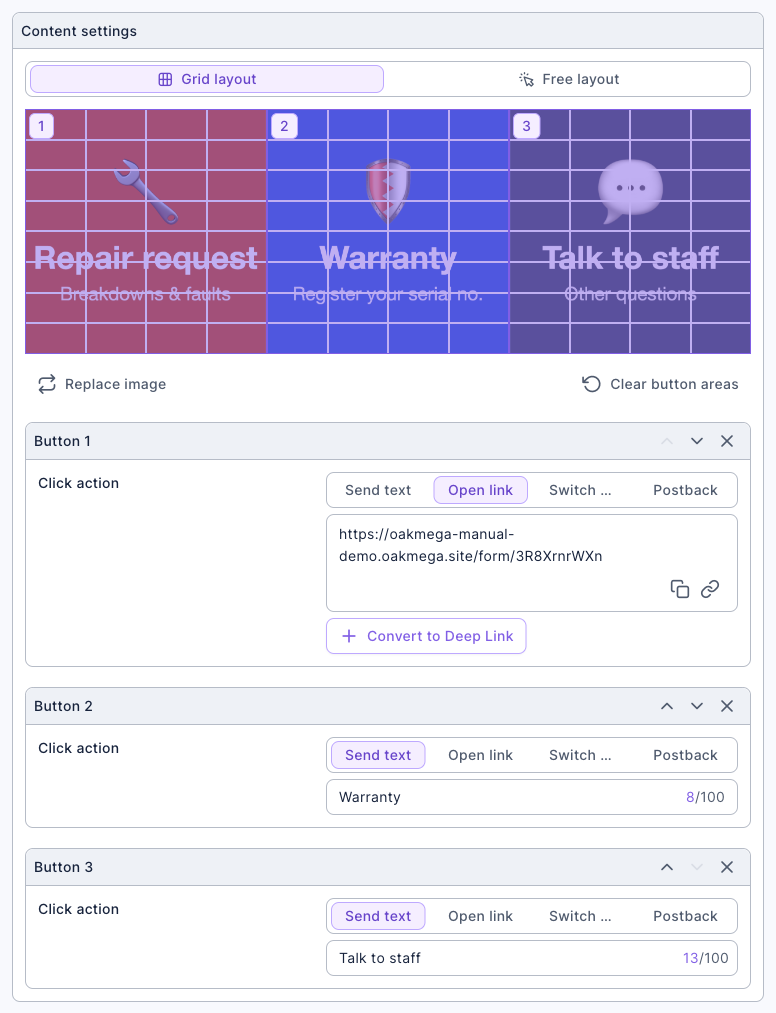
"Repair request" uses Open link rather than sending the text "Repair request" and having a chatbot reply with the link: customers save a tap, and the chat doesn't get an extra message. A Richmenu appears in every friend's chat as soon as you save it. For image requirements and other settings, see Set up LINE Richmenus.
How it works and limits
| Situation | Result | What to do |
|---|---|---|
| A customer's first repair request, with no product-line tag yet | Tagging and the Service Center transfer both run in the background and their order isn't guaranteed; occasionally the conversation is assigned before the product-line tag is applied and lands in the Default Organization | Have a manager keep an eye on the Default Organization and manually move repair requests to the right service team. Ask customers to complete warranty registration first so the product-line tag is already in place |
| The customer has tags for both product lines | Both service teams match, so the conversation goes to the default organization or a random matching team, depending on Multiple Organization Condition Match | A manager in the default organization moves it to the right team based on the "Machine model" answer |
| The customer also matches another organization (for example, a regional sales team from trade show leads) | Same as above: several organizations match | Use different kinds of tags for sales teams and service teams, or have the default organization's manager assign them |
| The customer submits another request while still in service (the previous conversation hasn't closed) | Not reassigned; it stays with the current organization and engineer | The current engineer handles it, or move it to another team manually |
| The customer chooses "Other" as the problem | No issue tag is applied, but the request is still routed by machine model | The engineer reads the "Describe the problem" answer |
- Login and add-friend must be on. Without login, the form doesn't know who filled it in, so it can't apply tags or transfer the customer to Service Center.
- Want customers to attach photos? The form's File Upload question needs the Plus tier and a connected file storage space; see Create a form. Without it, ask customers to send photos directly in the LINE chat, where the engineer sees them in the same conversation.
What customers see
① The after-sales Richmenu at the bottom of the chat, with "After-sales service" as the text below the menu (the screens are a Chinese demo); ② the repair form that opens after tapping "Repair request": choose the machine model, enter the serial number, choose the problem, and tap the button to submit.
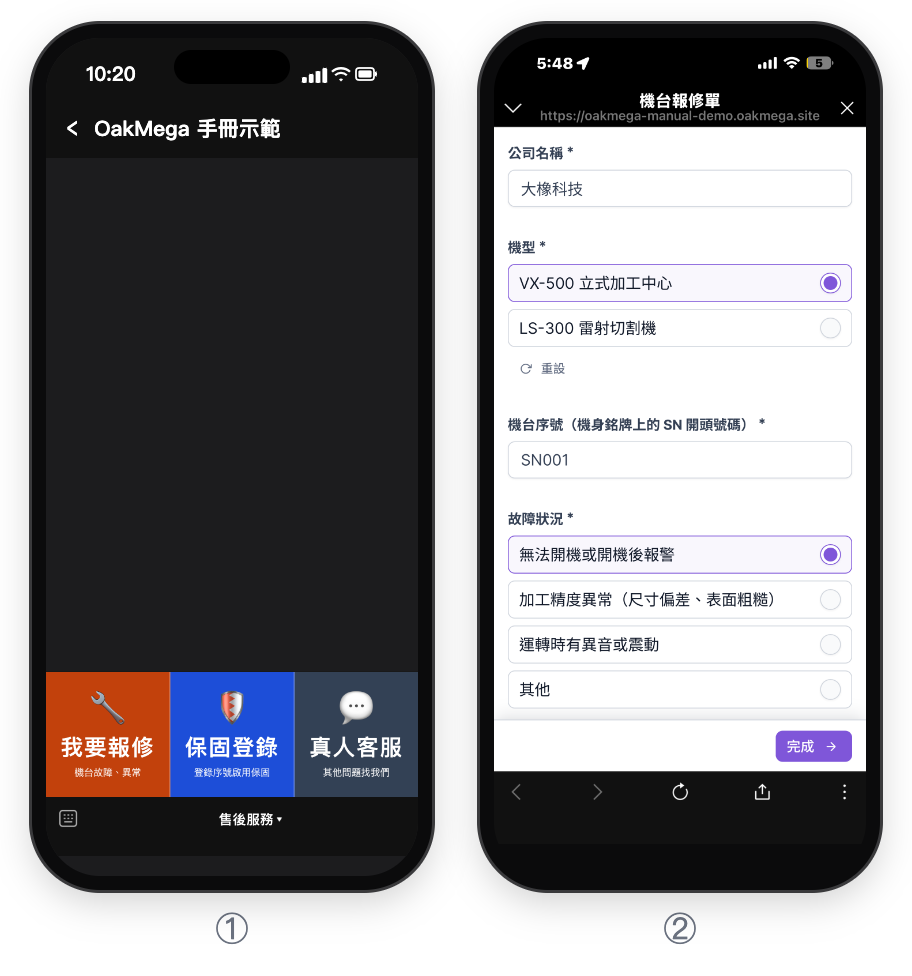
In the demo, this repair request went to the Default Organization, not the VX-500 service team: the demo account had both the "VIP Member" tag and "Product line: VX-500 machining center", so the VIP organization and the VX-500 service team both matched, and Multiple Organization Condition Match sent it to the default organization. This is the situation in the second and third rows of the "How it works and limits" table above.
| Customer | What they filled in | Tags applied | Assigned to |
|---|---|---|---|
| A mold shop that registered a VX-500 warranty | VX-500, won't start | Repair request submitted, Issue: won't start (it already had the product-line tag) | VX-500 service team |
| A laser job shop getting in touch for the first time | LS-300, noise or vibration | Repair request submitted, Product line: LS-300 laser cutter, Issue: noise or vibration | Usually the LS-300 service team; the Default Organization if the tag arrives late |
| A parts maker that owns both machines | VX-500, accuracy problem | Repair request submitted, Issue: accuracy problem | Both teams match, so Multiple Organization Condition Match decides |
How to check it's working
| What you want to know | Where to look |
|---|---|
| How many repair requests came in this month | The form's response count, or the Total Number of Tagged People for "Repair request submitted" |
| Which issues come up most | The Total Number of Tagged People for each issue tag in the "Repair requests" folder |
| How many repair requests each service team still has | Filter by organization in Service Center, or check Organization & Member Workload in the Service Center Data Center (current counts only, not response times) |
| Whether any requests are stuck in the default organization | In Service Center, filter by the default organization and Open status |
| A list of serial numbers and problem descriptions | Download all reply data on the form; see Check form responses and download the data |
Variations
- Dispatch by region: instead of teams per product line, set up "North service center" and "South service center", add a "Where is the machine located?" question to the repair form, and have its options apply region tags.
- Send a satisfaction survey after the repair: once the job is closed, use Post Article with the contain tag "Repair request submitted" and link a satisfaction survey form.
- Let AI answer common questions first: in the service team's Automation, turn on Transfer to Agent → Enable AI Agent so AI replies first with troubleshooting steps for alarm codes; see One LINE Official Account, separate AI for after-sales and VIP.