
This recipe helps CRM managers bring customers who only left a phone number, and haven't added you on LINE, back to your official account. You send an SMS with a dedicated link; customers who tap it add you as a friend and get a welcome message and a welcome gift. The dashboard also remembers that they came from SMS, so at the end of the month you can count how many new friends the SMS brought in.
Who this is for
- CRM managers: your POS or website has thousands of member phone numbers, but only some of those people are LINE friends, and you want to bring the rest into LINE.
- Store managers: customers left their phone number at checkout, and you want to invite them to add you on LINE afterwards.
When you're done you'll have a New/Existing Friend Link just for SMS, a "Source: SMS" tag, one chatbot each for new and existing friends, and an SMS template within 66 characters.
The examples use a fictional skincare brand, Sunleaf, running an October member drive. The tag, chatbots, link and SMS template were all actually created in the OakMega manual demo workspace; the SMS itself has to be sent from Every8d, and wasn't actually sent here.
First: the new dashboard can't send SMS directly
In the new OakMega dashboard you can connect an Every8d SMS account and create SMS templates, but there's currently no way to send SMS: SMS templates are only used by features in the old dashboard, such as member journeys. So the work splits like this:
| Task | Where |
|---|---|
| Prepare the dedicated link, tag and welcome message | OakMega |
| Save the SMS content as a template and check its length | OakMega (SMS template, up to 66 characters) |
| Actually send the SMS | Every8d, or the SMS system your company already uses |
| See how many friends the SMS brought in | OakMega (link data, tag counts) |
Features you'll use
| Feature | Its job in this scenario | Minimum plan | Needs activation? |
|---|---|---|---|
| New/Existing Friend Link | The link in the SMS; clicking applies a tag, and new and existing friends get different messages | All plans | No |
| LINE chatbot | The welcome message and the member profile form link | All plans | No |
| Tag Management | "Source: SMS" records where these people came from | All plans (Free: up to 10 tags) | No |
| SMS templates | Stores the SMS content and checks it's within 66 characters | Pro and above | No |
Flow
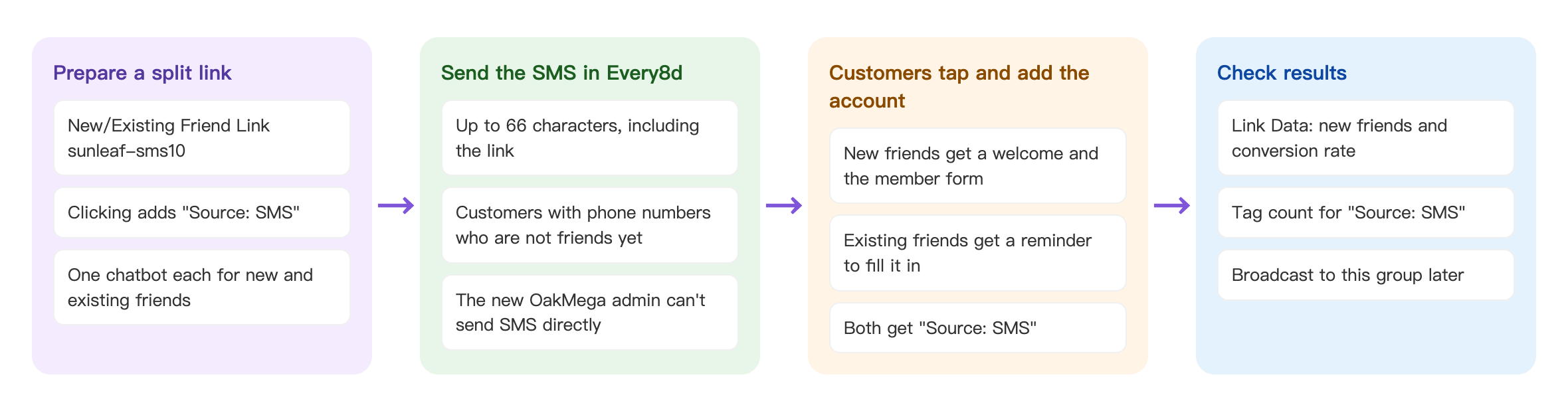
- In OakMega, create a New/Existing Friend Link that applies "Source: SMS" on click, with one chatbot for new friends and one for existing friends.
- Save the SMS content (including the link) as an SMS template, check it's within 66 characters, then send it from Every8d to customers who aren't friends yet.
- Customers tap the link: people who aren't friends yet add you and get a welcome message and the member profile form; people who are already friends get a reminder. Both are tagged "Source: SMS".
- Use the link data and tag counts to see the results, then post segmented articles to this group.
How to set it up
| Step | Where | Settings in this scenario |
|---|---|---|
| 1. Create a source tag | Member & Tag › Tag Management | Folder "SMS to LINE": Source: SMS |
| 2. Create two chatbots | LINE › Chatbot | "SMS to LINE: new friend" (keyword SMS gift) and "SMS to LINE: existing friend" (keyword SMS friend), both applying "Source: SMS" |
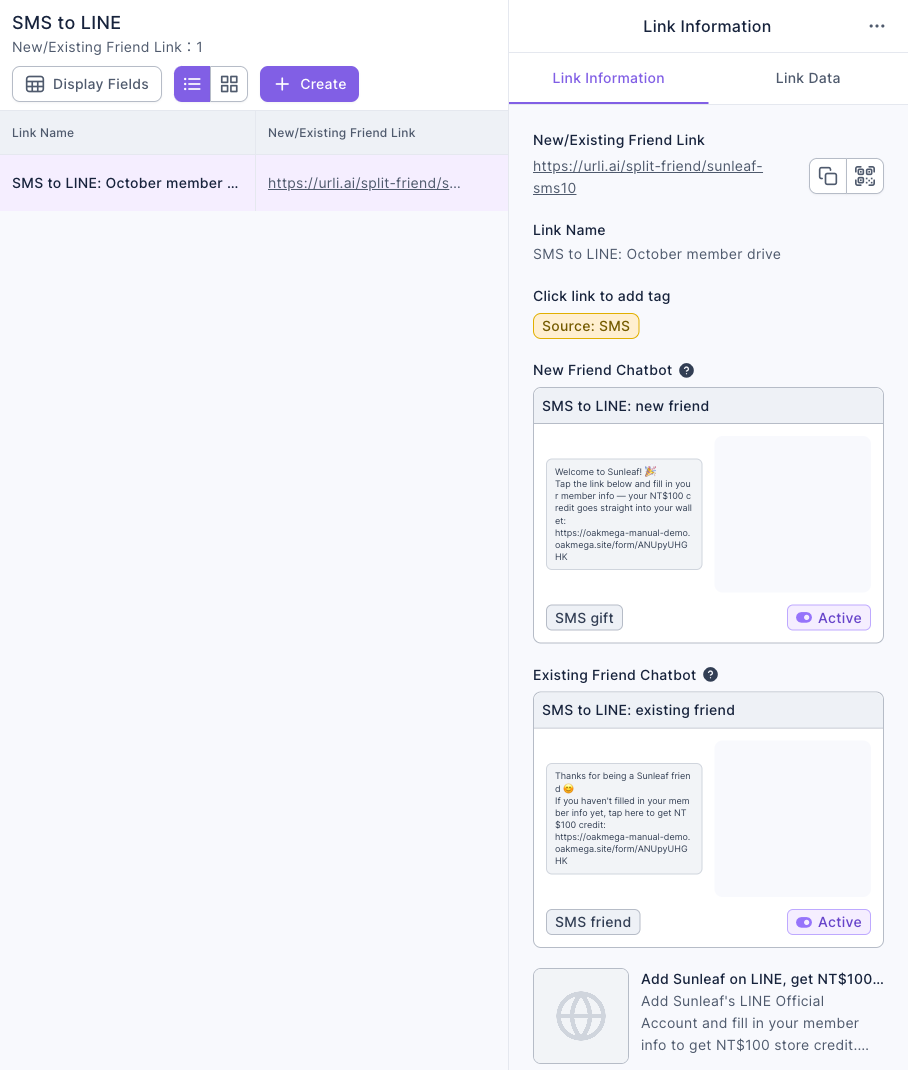
| 3. Create the link | Link Tool › New/Existing Friend Link | "SMS to LINE: October member drive", code sunleaf-sms10, Click link to add tag "Source: SMS" |
| 4. Save an SMS template | Advanced Features › SMS › Template Management | Within 66 characters, including the link |
| 5. Send from Every8d | Every8d | Recipients: customers with a phone number who aren't LINE friends yet |
| 6. Check results | The link's Link Data, Tag Management | New Friends Count, New Friend Conversion Rate, "Source: SMS" count |
1. Create a source tag
Under Member & Tag › Tag Management, add a folder named "SMS to LINE" and a tag "Source: SMS". See Create and manage tags.
2. Create two chatbots
Under LINE › Chatbot, add a folder named "SMS to LINE" to the keyword chatbots:
- "SMS to LINE: new friend": in Trigger Keyword (Equals), enter "SMS gift" (a keyword chatbot must have a keyword), set Trigger Add Tag to "Source: SMS", and write a welcome message with the member profile form link.
- "SMS to LINE: existing friend": keyword "SMS friend", also applying "Source: SMS", with a message reminding people who haven't filled in their member profile to do so.
- Click Save for both.
The demo reuses the member profile form from Membership Month: give a welcome pass to friends who fill in their profile; filling it in gets the member the welcome gift.
3. Create the link
Under Link Tool › New/Existing Friend Link, add a folder named "SMS to LINE", then create a link:
- Set Link Name to "SMS to LINE: October member drive", and change the link code to something short and recognizable, "sunleaf-sms10", to save characters in the SMS.
- Set Click link to add tag to "Source: SMS".
- Set New Friend Chatbot to "SMS to LINE: new friend" and Existing Friend Chatbot to "SMS to LINE: existing friend".
- Fill in Link Title and Link Description, then click Save.
4. Save the SMS content as a template
SMS has a tight character limit, so save the content as a template under Advanced Features › SMS › Template Management first, which also checks the length:
- Add a folder named "SMS to LINE" and click Create.
- Set Template Name to "10 月會員招募:加好友送購物金" (October member drive: add us and get store credit).
- In the text message, enter "【森日保養】加LINE好友送100元購物金 https://urli.ai/split-friend/sunleaf-sms10" ("[Sunleaf] Add us on LINE and get NT$100 store credit", followed by the link). The counter at the bottom-right shows 64/66.
- Click Save.
The template name and SMS content are kept as the Chinese demo: SMS is limited to 66 characters, and the translated text would go over the limit.
![The SMS template edit page (SMS content is the Chinese demo): Template Name is 10 月會員招募:加好友送購物金 (October member drive: add us and get store credit); the Text message under Message (1/5) is 【森日保養】加LINE好友送100元購物金 ([Sunleaf] Add us on LINE and get NT$100 store credit) followed by the link, with the counter at the bottom-right showing 64/66; Preview on the right shows the same text](/assets/sms-to-line-02-sms-template.DXBEK-Yq.png)
The link alone takes about 40 characters, so keep the copy very short: brand name, one benefit, and the link. See Create SMS templates.
5. Send the SMS from Every8d
- Export phone numbers from your POS or website, and exclude people who are already LINE friends (for example, members whose OakMega member data already has a phone number and who have added you as a friend).
- In Every8d, paste the SMS content from the previous step and send it to this list.
- Check SMS points and failed sends in Every8d. OakMega's platform page shows the connection status and remaining points; see Connect an Every8d SMS account.
6. See how many friends the SMS brought in
- Click the link and switch to Link Data on the right: New Friends Count is the people who joined through this SMS, and New Friend Conversion Rate is New Friends Count divided by Total Click Count.
- The Total Number of Tagged People for "Source: SMS" in Tag Management is everyone who clicked the link (new plus existing friends).
- You can then post segmented articles to "Source: SMS", for example to remind people who haven't claimed their welcome gift.
How it works and limits
| Situation | Result | What to do |
|---|---|---|
| You want to send SMS straight from OakMega | The new dashboard has no sending feature; SMS templates are only used by member journeys in the old dashboard | Send from Every8d or your existing SMS system |
| The SMS content is over 66 characters | The SMS template can't be saved | Shorten the copy, or split it into two messages |
| The customer opens the link without being logged in to LINE | They're asked to log in first, so the system knows who they are and can apply the tag | Nothing; they just follow the login screen |
| Someone who's already a friend taps the link | The "existing friend" chatbot is triggered and the tag is applied, but they don't count as a new friend | Make the existing friend message a reminder to fill in their profile, or offer another benefit |
| You want to know who received the SMS and who didn't tap | OakMega only sees people who tapped the link | Check receipt and delivery status in Every8d |
| You want to match phone numbers to LINE friends | Only friends who filled in their member profile (including phone) can be matched | Use the welcome message to lead them to the member profile form |
What members see
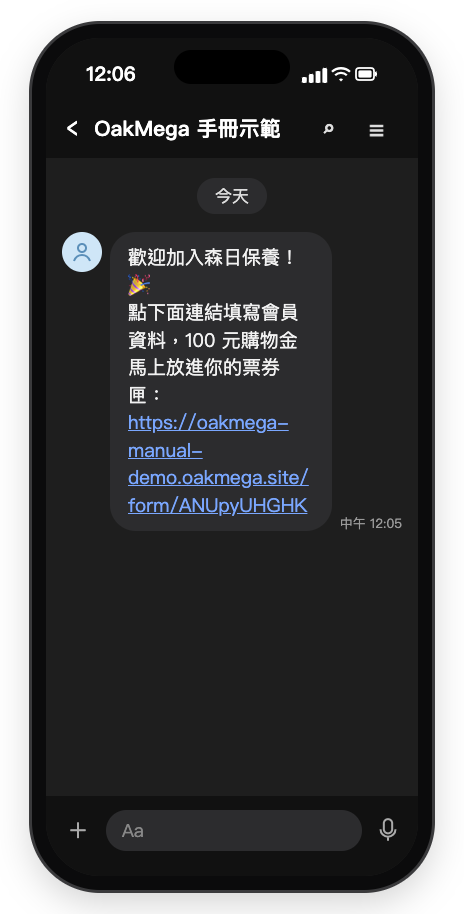
The customer gets the SMS on their phone, taps the link to add you on LINE, and immediately gets the welcome message with the member profile form link. The SMS itself appears in the customer's messaging app; the image below is a mock-up of the LINE screen after they add you (Chinese demo).
The welcome message reads: "Welcome to Sunleaf! 🎉 Tap the link below to fill in your member profile, and NT$100 store credit goes straight into your Wallet", followed by the form link.
How to check it's working
| What you want to know | Where to look |
|---|---|
| How many new friends the SMS brought in | New Friends Count in the link's Link Data; for a specific period, choose dates in Link Interval Data |
| Who tapped the SMS link | The Total Number of Tagged People for "Source: SMS" |
| SMS delivery and points | Every8d |
| Whether they filled in their member profile after joining | Advanced Filter: people with both "Source: SMS" and "Profile completed" |
Variations
- Different links for different lists: one New/Existing Friend Link for the VIP list and one for the general list, to compare which group is more willing to add you.
- Send after a store purchase: send the SMS the day after checkout, with a link title like "Thanks for visiting. Add us on LINE for credit on your next purchase".
- Monthly report: add "new friends from SMS" to Monthly performance report: which numbers to track for friends, channels, posts and service, and where to find them.