
This recipe helps a brand's CRM manager set up dashboard permissions in one go: HQ marketing can post articles and change menus, store managers handle bookings and their store's conversations, and support agents only reply to conversations. Each job gets one identity, so when someone joins or changes jobs you just switch their identity instead of ticking features one by one.
Who this is for
- CRM managers and workspace owners: the team keeps growing and everyone is an owner. Someone deleted a rich menu by mistake, and someone else downloaded the whole member list.
- Store managers and support supervisors: you want colleagues to see only their own work when they open the dashboard, not other stores' conversations.
When you're done you'll have three workspace identities (HQ Marketing, Store Manager, Support Agent), a Service Center role that only sees its own store's organization, and a routine for setting up new colleagues.
The examples use a fictional skincare brand, Sunleaf. The identities and the role were all actually created in the OakMega manual demo workspace.
Features you'll use
| Feature | Its job in this scenario | Minimum plan | Needs activation? |
|---|---|---|---|
| Manage members and permissions | Workspace identities: which features each job can use and whether it can download files | All plans | No, but only owners can set it up |
| Service Center agents and organizations | Service Center roles and organizations: which conversations each person can see and handle | All plans | Agent seats are activated separately |
Flow
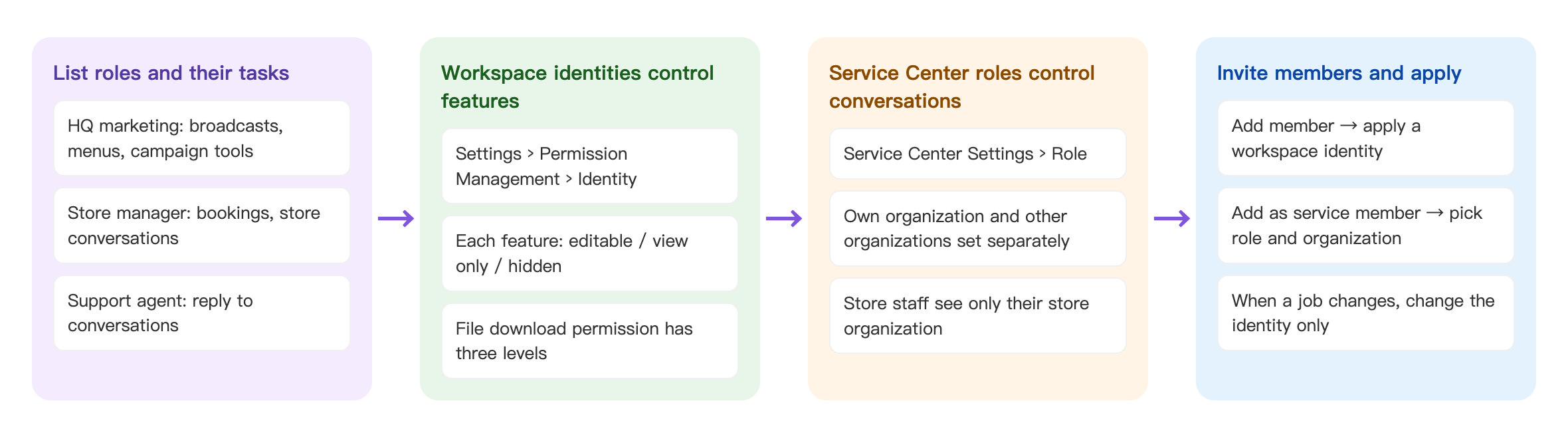
- List what each job does every day.
- Under Settings › Permission Management, on the Identity tab, create a workspace identity for each job to decide which features it can use.
- Under Service Center Settings, on the Role tab, create a Service Center role for store staff that only sees its own organization's conversations.
- Invite colleagues to the workspace and apply a workspace identity. For people who reply to conversations, also add them to Service Center and pick a role and organization.
Draw up a permission table first
OakMega permissions have two layers: the workspace identity controls which features someone can use, and the Service Center role controls which conversations they can see. Start by laying out the features each of the three jobs needs in a table. Anything not listed is set to Hidden:
| Feature | HQ Marketing | Store Manager | Support Agent |
|---|---|---|---|
| File Download Permission | Exclude Personal Info | Not Downloadable | Not Downloadable |
| Dashboard | View Only | View Only | View Only |
| LINE Member Management | View Only | Hidden | View Only |
| LINE Post Article, LINE Chatbot, Template Management, Default Richmenu | Editable | Hidden | Template Management View Only, the rest Hidden |
| OakMega Member Management | View Only | Hidden | Hidden |
| Tag Management | Editable | View Only | View Only |
| Service Center | Hidden | Editable | Editable |
| Service Center Data Center | View Only | Hidden | Hidden |
| Approved Page, Form, Pass | Editable | Pass View Only, the rest Hidden | Hidden |
| Booking Center | View Only | Editable | Hidden |
| Deep Link, New/Existing Friend Link, Tag Routing Link | Editable | Hidden | Hidden |
| LINE Analytics | View Only | Hidden | Hidden |
LINE Member Management is deliberately hidden for store managers: the member list shows every member of the brand, and there's no way to open up only your own store's members (see "How it works and limits" below). When a store needs to look at a member's details, it can do so from the conversation in Service Center.
How to set it up
| Step | Where | Settings in this scenario |
|---|---|---|
| 1. Create three workspace identities | Settings › Permission Management › Identity | HQ Marketing, Store Manager, Support Agent, set according to the permission table |
| 2. Create a Service Center role | Service Center › Service Center Settings › Role | "Store Staff": quick apply Default agent, then turn on Assigned to others in the joined organization; leave every other-organization permission unticked |
| 3. One Service Center organization per store | Service Center › Service Center Settings › Organization | For example "Xinyi store", with that store's manager and staff as agents |
| 4. Invite colleagues and apply | Settings › Permission Management › Member; Service Center Settings › Agent | Add the member → apply a workspace identity → add them to Service Center with a role and organization |
1. Create three workspace identities
A workspace owner goes to Settings › Permission Management, switches to the Identity tab and clicks Add Identity:
- Enter "HQ Marketing" as the Identity Name.
- Set File Download Permission to Exclude Personal Info: reports can be downloaded, but form exports leave out questions that collect personal details.
- Following the permission table, set each feature to Editable, View Only or Hidden.
- Click Save at the top right.
- Create "Store Manager" and "Support Agent" the same way, both with Not Downloadable.
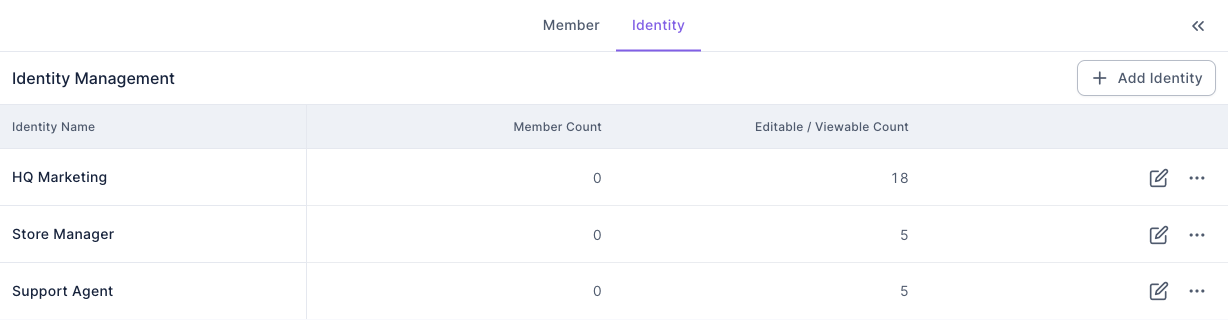
The screenshot below shows the saved identities. Editable / Viewable Count is a quick way to check how many features each identity has turned on (Dashboard is View Only by default, so it's included in the count).
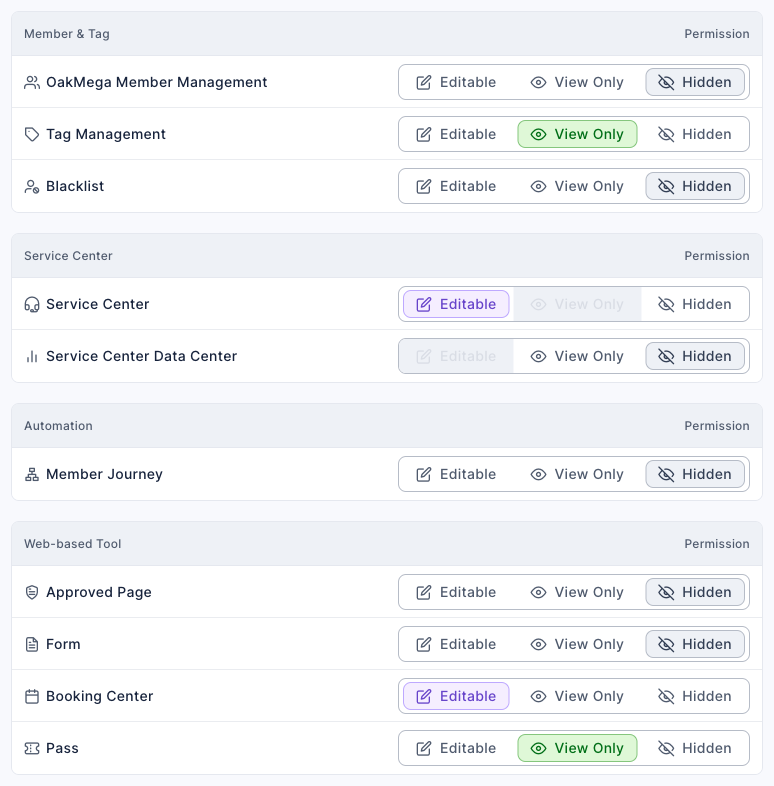
The screenshot below shows the middle part of the Store Manager settings: Tag Management View Only, Service Center Editable, Booking Center Editable, Pass View Only, and everything else Hidden. Service Center has no View Only option, and Service Center Data Center has no Editable option.
For the full walkthrough, see Manage members and permissions.
2. Create the "Store Staff" Service Center role
A workspace identity only decides whether someone can open Service Center. Which conversations they can see is set separately in Service Center. Go to Service Center › Service Center Settings, switch to the Role tab and click Create Role:
- Enter "Store Staff" as the Role name (up to 20 characters).
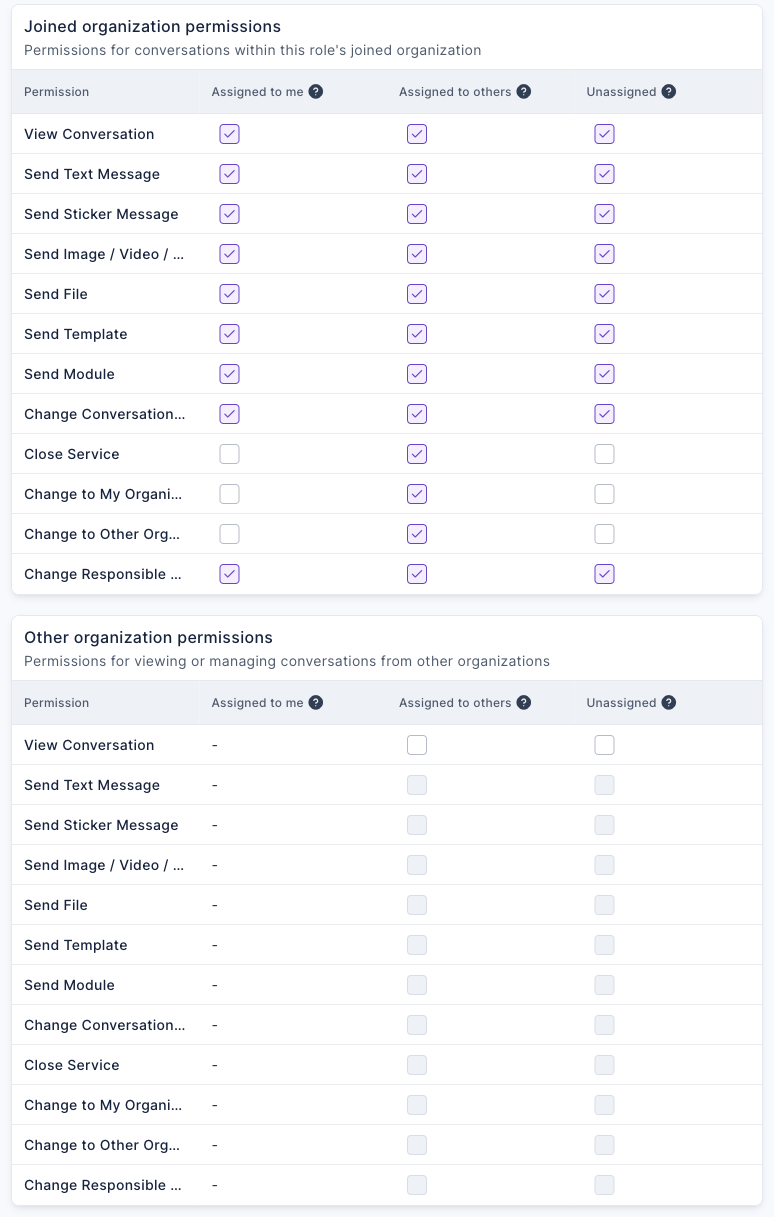
- Click Quick apply and choose Default agent: they can handle conversations assigned to them and unassigned ones, and can't see other organizations.
- Under Joined organization permissions, tick View Conversation in the Assigned to others column so colleagues at the same store can cover for each other. Ticking it also ticks the other actions in that column; untick any you don't need.
- Leave everything under Other organization permissions unticked, so store staff can't see conversations from other stores or the HQ support team.
- Click Save.
3. One Service Center organization per store
On the Organization tab, create an organization for each store (for example "Xinyi store"), add that store's manager and staff to it, and give them the "Store Staff" role. To route members' conversations into the store organization, you can use a store tag as its assigned tag; see Give every salesperson their own QR code, see how many friends each one brings and route chats to them.
4. Invite colleagues and apply
- Under Settings › Permission Management, on the Member tab, click Add Member and enter their email.
- Switch to the Identity tab, click the identity, and add them on the Members tab of Identity Info on the right.
- For people who reply to conversations, also go to the Agent tab in Service Center Settings, add them, choose a Service Center role (for example "Store Staff") and add them to their store's organization.
When someone changes jobs, just remove them from their old identity and add them to the new one. When you change an identity's permissions, everyone who has it is updated at the same time.
How it works and limits
| Situation | What happens | What to do |
|---|---|---|
| You want store managers to see only their own store's members | Workspace permissions split features, not data. Once LINE Member Management is on, it shows every member of the brand | Hide member management for store identities and have them look at member details from Service Center conversations |
| You want store managers to edit only their own store's booking items | With Booking Center set to Editable, they can edit every booking item | Put the store name in booking item names and agree that each store only edits its own, or give View Only and let HQ create the items |
| You want support agents to "view but not reply" | Service Center only has Editable and Hidden, no View Only | Control it with the Service Center role: tick only View Conversation, not the send-message actions |
| A colleague needs the permissions of two identities | A member can have only one workspace identity | Create a combined identity |
| The colleague is an owner | Owners always have the highest permission on every feature, so identities don't apply to them | Only make people owners if they really manage the whole workspace |
| File Download Permission is set to Exclude Personal Info | Form exports drop personal-detail questions, but may still include LINE User ID, LINE User Name and OakMega Member Name | Choose Not Downloadable for jobs that shouldn't receive this data |
What members see
Permission settings only change what your colleagues see in the dashboard; members on LINE won't notice any difference. The one difference is reply speed: store conversations go straight to the store's organization instead of waiting for HQ to pass them on.
How to check it's working
| You want to know | Where to look |
|---|---|
| How many features each identity has turned on | Editable / Viewable Count in the identity list under Permission Management |
| Who has which identity | The Identity column in the member list under Permission Management |
| What people actually see | Ask colleagues to sign in and check that the navigation bar only shows the features they should have; store staff opening Service Center should only see conversations in their own store's organization |
Variations
- Agencies or outsourced support: create an "Agency" identity that only turns on post articles and chatbots, with Not Downloadable for file downloads. When the contract ends, just delete the member.
- Area managers: in their Service Center role, tick only View Conversation under Other organization permissions, so they can see every store's conversations but can't reply.
- AI employees: manage AI support or automation accounts as members too, and turn on only the features they need.