
This recipe helps brands set up a "new-friend gift": people get a link to claim a pass the moment they add your LINE Official Account, only new friends can claim it, and every step leaves a tag, so measuring results and reminding people who haven't used it yet is easy.
Who this is for
- Brand marketers: you want a first-purchase pass to turn new friends into first-time customers, without existing customers getting hold of the link and claiming it too.
- CRM managers: you want to know how many new friends each month claim the pass and how many actually use it.
When you're done you'll have: three tags, a pass that only members tagged "New friend" can see, and a welcome message bot that tags people and sends the claim link when they join.
The example below uses a fictional skincare brand, "Sunleaf", and its pass "New friend gift: 15% off first purchase". The tags, the pass and the welcome message bot were all created in the OakMega manual demo workspace. The member-side claim pages are real screens (what a new friend sees, and what someone without the "New friend" tag sees); the LINE chat is a mock-up drawn from the bot content.
If you'd rather have new friends fill in their member profile first and give them the pass only after they do, see Membership Month: give a welcome pass to friends who fill in their profile.
Features you'll use
| Feature | What it does in this scenario | Minimum plan | Needs enabling? |
|---|---|---|---|
| Tag Management | The three tags "New friend", "Claimed new friend coupon" and "Used new friend coupon" | All plans | No |
| Pass | A first-purchase pass only "New friend" can see; tags people automatically when they claim and use it | Enterprise | Yes, passes must be activated |
| LINE Chatbot | The welcome message bot: tags people "New friend" when they join and sends the claim link | All plans | No |
Flow
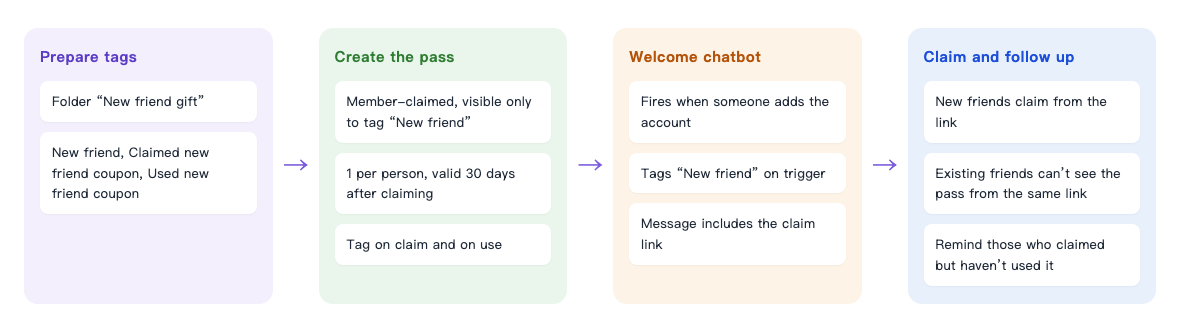
- Prepare three tags.
- Create a pass only "New friend" can see, applying one tag on claim and another on use.
- The welcome message bot triggers when a friend joins: it applies "New friend" first, then sends the claim link.
- New friends tap the link and claim the pass; people without the "New friend" tag who tap the same link see "Cannot view Pass".
How to set it up
| Step | Where | What to set in this scenario |
|---|---|---|
| 1. Prepare tags | Member & Tag › Tag Management | Folder "New friend gift": New friend, Claimed new friend coupon, Used new friend coupon |
| 2. Create the pass | Web-based Tool › Pass | Member claims; Tag-limited public to "New friend"; 1 per person; within 30 days of claiming; apply "Claimed new friend coupon" on claim and "Used new friend coupon" on use |
| 3. Welcome message bot | LINE › Chatbot › Welcome message bots | Trigger Add Tag "New friend"; include the View pass link in the message; remember to turn it on |
| 4. Test | LINE app | Join from an account that isn't a friend yet and check the message arrives, the tag is applied and the pass can be claimed |
1. Prepare tags
In Member & Tag › Tag Management, add a folder "New friend gift" with three tags: "New friend", "Claimed new friend coupon" and "Used new friend coupon". See Create and manage tags.
2. Create the pass
In Web-based Tool › Pass, add a folder "New friend gift", then add the pass "New friend gift: 15% off first purchase":
- Under Basic settings, enter the pass name and description and upload a pass image (4:3 recommended).
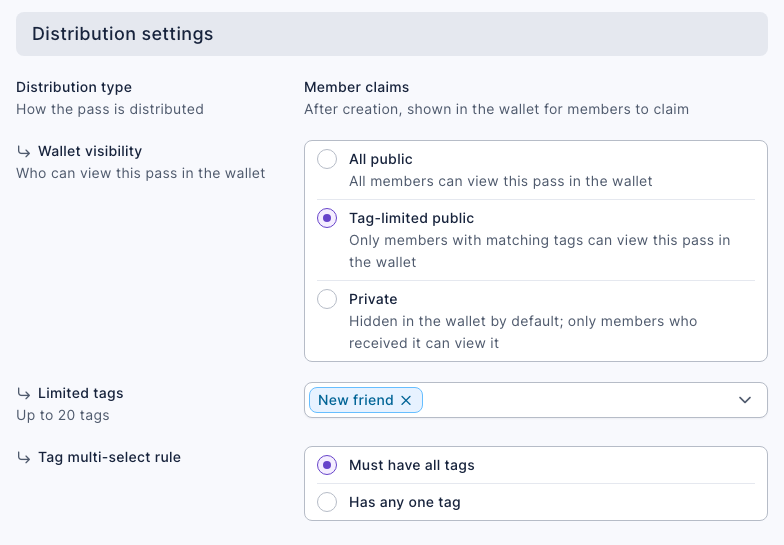
- Under Distribution settings, set Distribution type to Member claims, Wallet visibility to Tag-limited public, and Limited tags to "New friend". This way, existing friends can't see the pass even if they get the link.
- Under Claim settings, turn on Limit claims per person and enter 1.
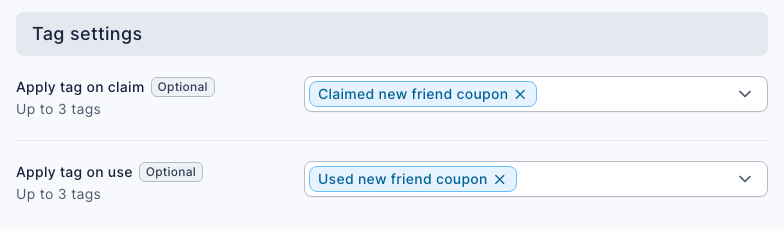
- Switch to the Usage settings tab: set Usage period to Within N days of claiming with 30. Under Tag settings, set Apply tag on claim to "Claimed new friend coupon" and Apply tag on use to "Used new friend coupon".
- After saving, copy the View pass link from Pass information on the right.
For every field, see Send passes (coupons).
3. Welcome message bot
In LINE › Chatbot, under Welcome message bots on the left, add a bot "New friend gift: 15% off when you join":
- Set Trigger Add Tag to "New friend".
- Add one text message with the claim link you just copied, for example "Welcome to Sunleaf 🌿 New friends only: 15% off your first purchase storewide. Tap here to add it to your wallet and use it in store or online within 30 days: (link)".
- After saving, turn the chatbot status on.
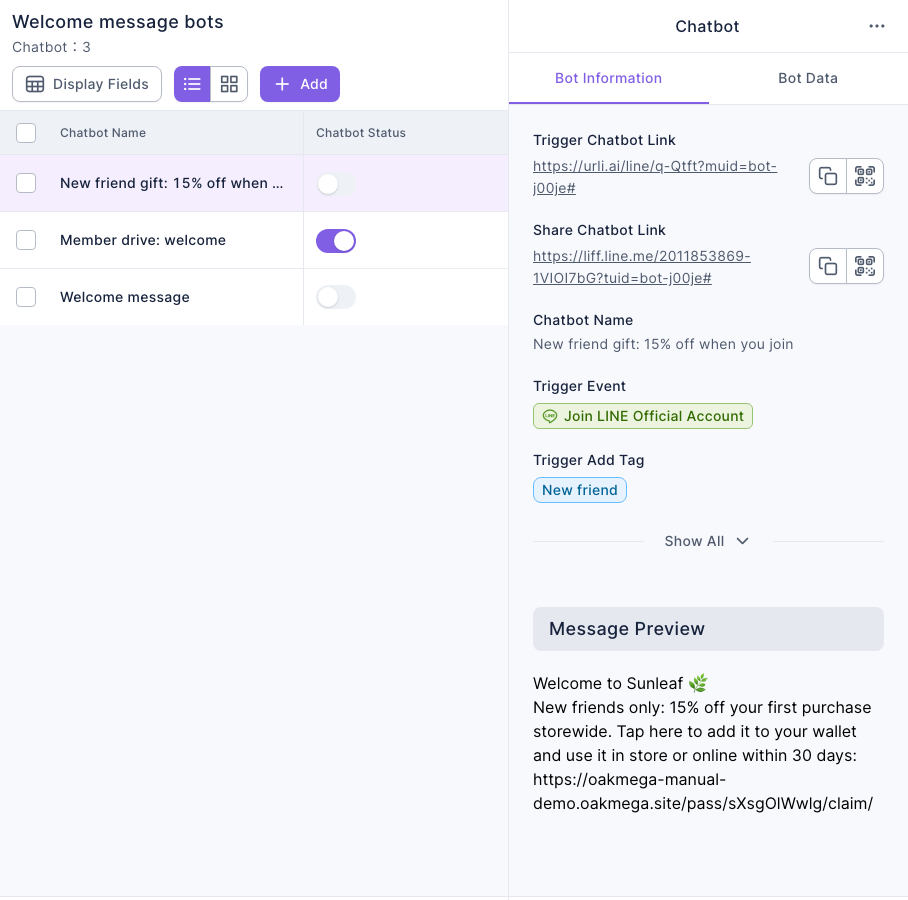
When several welcome messages are on, only one replies. A friend who has just joined doesn't have any tags yet, so the most recently created one replies (a bot with Limit Tag Trigger that the friend matches takes priority). In the demo workspace, "Member drive: welcome" is still on, so the new bot stays off for now; when you switch to the new-friend gift, turn it on and turn the old one off. For the rules, see "A bot replied, but not the one you expected" in A chatbot isn't replying.
Why tag in the bot, not the pass? The pass is visible only to "New friend", so members need the tag before they can claim it. The welcome message bot applies it the moment they join, which gets the order right.
For the full steps, see Set up a LINE chatbot.
4. Test
Add your official account from a LINE account that isn't a friend yet (for example, a colleague's test account) and check that:
- the welcome message and claim link arrive;
- the "New friend" tag shows in the member's profile in OakMega;
- the link lets you claim the pass, and claiming it adds the "Claimed new friend coupon" tag.
You can't test with an account that's already a friend (it won't trigger the welcome message); tapping the link only shows "Cannot view Pass".
What members see
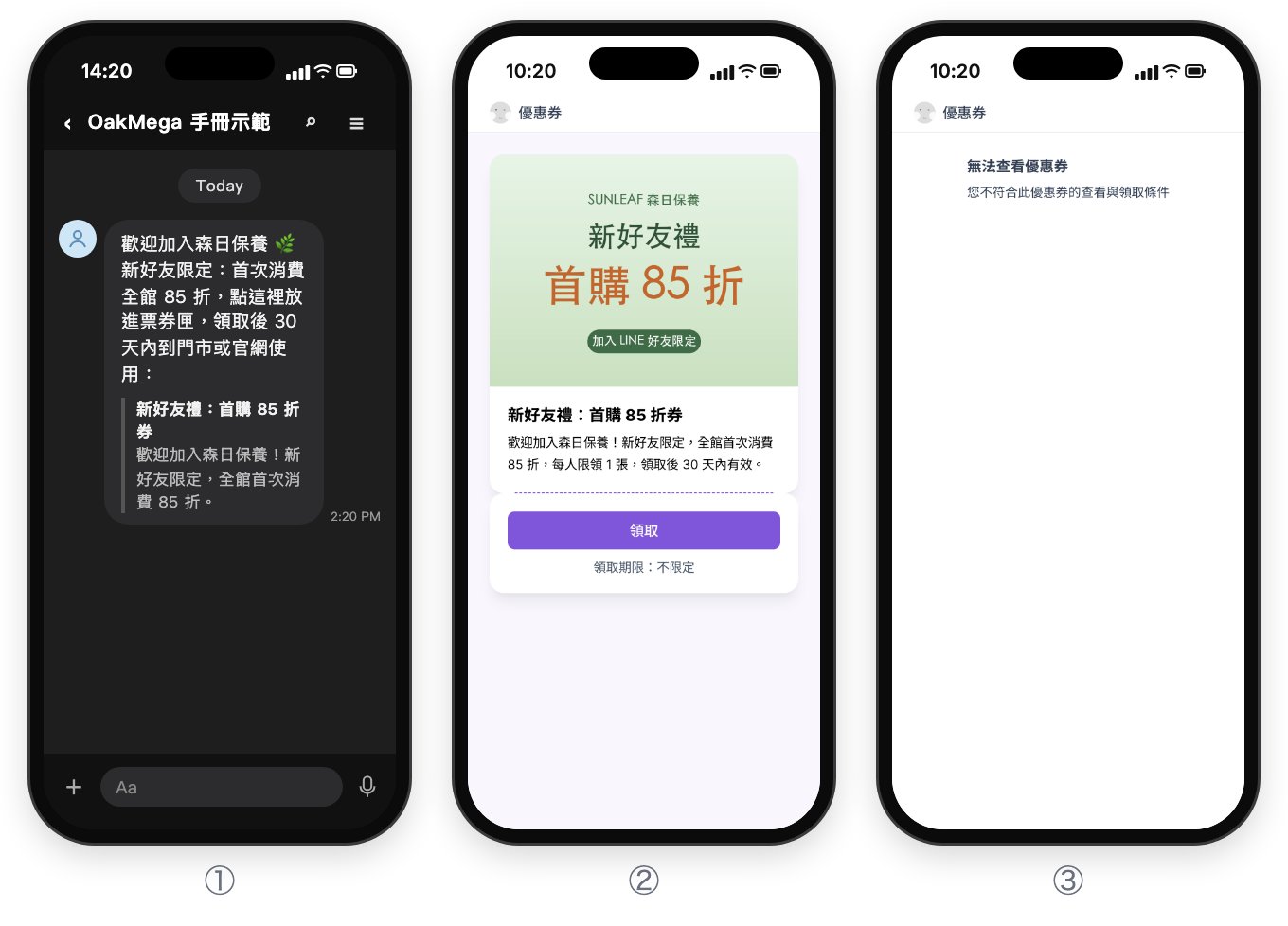
The screens are shown in the Chinese demo; the content is translated in the alt text above and the steps below.
- ① After joining, the new friend receives the welcome message and claim link (a mock-up drawn from the bot content).
- ② The new friend taps the link, sees the pass and taps Claim to add it to their wallet.
- ③ An existing friend who gets the same link only sees Cannot view Pass.
② and ③ are real phone screens.
How to check it's working
To see how many claims and purchases the new-friend gift brings in, check these places.
| To find out | Where to look |
|---|---|
| How many people claimed and used it | Web-based Tool › Pass, the pass's Pass statistics |
| How many new friends you have | The Total Number of Tagged People of the "New friend" tag |
| Who claimed it but hasn't used it | When posting an article, filter by tag: include "Claimed new friend coupon" and exclude "Used new friend coupon", then send one reminder before the pass expires; see Post articles to LINE friends |
How it works and limits
| Situation | What happens |
|---|---|
| Someone blocks your official account and then unblocks it | LINE treats it as adding a friend too, so the welcome message triggers again and applies "New friend" again; but with 1 per person, anyone who already claimed the pass can't claim another |
| People who are already friends | They don't trigger the welcome message and don't have the "New friend" tag, so tapping the link shows "Cannot view Pass" |
| The "New friend" tag stays on | Tags don't disappear on their own, so you can use it for segmentation later (for "new friends who joined this month", filter by join date separately) |
If you only want to reach people who join from a specific campaign, and don't want people who blocked and re-added you to get the pass, use a New/Existing Friend Link instead: it treats people who blocked and re-added you as existing friends, so only people joining for the very first time trigger the New Friend Chatbot.
Variations
- Only for new friends from a specific campaign: replace the welcome message bot with the New Friend Chatbot of a New/Existing Friend Link; see Compare how many new friends each channel brings.
- Distribute it from the admin instead: set the pass to Admin distributes and Private, then distribute it by posting an article to the "New friend" tag; this kind of distribution doesn't send a message notification.
- Profile first, then the pass: see Membership Month: give a welcome pass to friends who fill in their profile.