
When a chatbot doesn't reply, check the following in order; the most common causes come first. This article focuses on LINE chatbots and notes where Facebook, Instagram and WhatsApp differ.
1. Is the bot turned on?
In the navigation bar, click LINE, choose Chatbot, find the bot and check that its Chatbot Status switch is on.
The screenshot below shows the Event-triggered bots category. Each row has a Chatbot Status switch and a Trigger Event, such as image message, sticker or Default Reply. A gray switch means the bot won't reply.
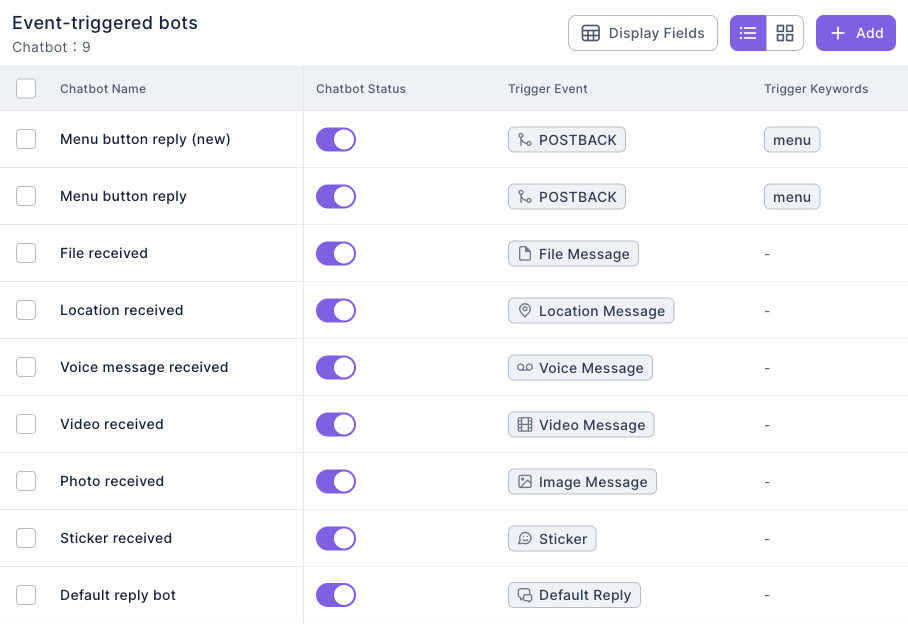
- New bots start switched on, but many people switch them off for testing and forget to turn them back on.
- Turning a bot on or off shows Chatbot Activated or Chatbot Deactivated.
2. Did the keyword match?
Keyword chatbots only look at the text a friend sends, and match it in one of two ways:
| Matching | When it triggers | Common mix-up |
|---|---|---|
| Trigger Keyword (Equals) | The whole message is exactly the keyword | With the keyword "sale", "any sale?" won't trigger it |
| Trigger Keyword (Contains) | The keyword appears anywhere in the message | A very short keyword (like "ok") fires on lots of unrelated messages and steals replies from other bots |
- Emoji are removed before matching, so "sale😊" counts the same as "sale".
- Upper or lower case, full-width characters or an extra space can all break an Equals match. If you're unsure how friends will type it, use Contains or add several variations.
- Stickers, photos and locations never trigger keyword chatbots; use an event-triggered bot for that trigger event.
3. Do the trigger conditions leave the friend out?
On the bot's Bot Settings tab, check Restriction Conditions:
| Setting | What to check |
|---|---|
| Trigger Duration | Whether now is within the dates; it's calculated in the Chatbot Time Zone |
| Weekly Effective Period | Whether today and the current time are open |
| Limit Tag Trigger for Chatbot | Whether the friend has the required tags (all of them, if you chose "must have all") |
| Exclude Tag Trigger for Chatbot | Whether the friend has an excluded tag |
| Trigger Environment | With Bot, it won't fire in groups; with Group, it won't fire in one-on-one chats |
Facebook, Instagram and WhatsApp bots also have Trigger Account: with Specific Accounts, Pages or accounts that aren't checked won't trigger the bot.
4. Why didn't the default reply appear?
Default Reply answers text that didn't trigger any other bot, but it has extra limits:
- It only answers text messages, not stickers or photos.
- It only fires in one-on-one chats, not groups.
- It only fires while the friend's conversation is a Non-service conversation. Once the conversation enters the service flow (for example it was transferred to an agent, or it's Open or In process), the default reply stops so the bot doesn't talk over your agents. It returns after the service is closed.
For conversation statuses, see Handle conversations in Service Center.
5. Is the friend on the blacklist?
When a blacklisted member sends a private message, no chatbot replies at all. Check under Member & Tag › Blacklist; see Add members to the blacklist.
6. A bot replied, but not the one you expected
One message often matches several bots, but only one replies:
| Situation | Who replies |
|---|---|
| A bot with Limit Tag Trigger that the friend matches | That bot replies first (if several, the earliest-created one) |
| None of them limit by tag | The most recently created one |
| None match | Only text messages fall through to Default Reply (and only under the conditions in the previous section) |
That's why a very short Contains keyword or a recently created test bot often steals the reply. Turn off test bots, or change the keyword to Equals.
7. Is the platform connection working?
If everything above checks out and nothing happens at all, your LINE Official Account may not be passing messages to OakMega:
- In LINE Official Account Manager, make sure Webhook is turned on in the response settings.
- Ask a workspace owner to open the LINE account under Settings › Communication Platform Settings and check that the Webhook status is correct.