
When friends can't see the Richmenu, or see one you didn't expect, check the following in order; the most common causes come first.
1. Is there a schedule In Use right now?
In the navigation bar, click LINE, choose Richmenu, and check the status of each schedule card on the Default Richmenu tab.
The screenshot below shows All Schedules. Each card has the schedule name, its status (In Use, Scheduled or Offline), the menu image and the schedule time.
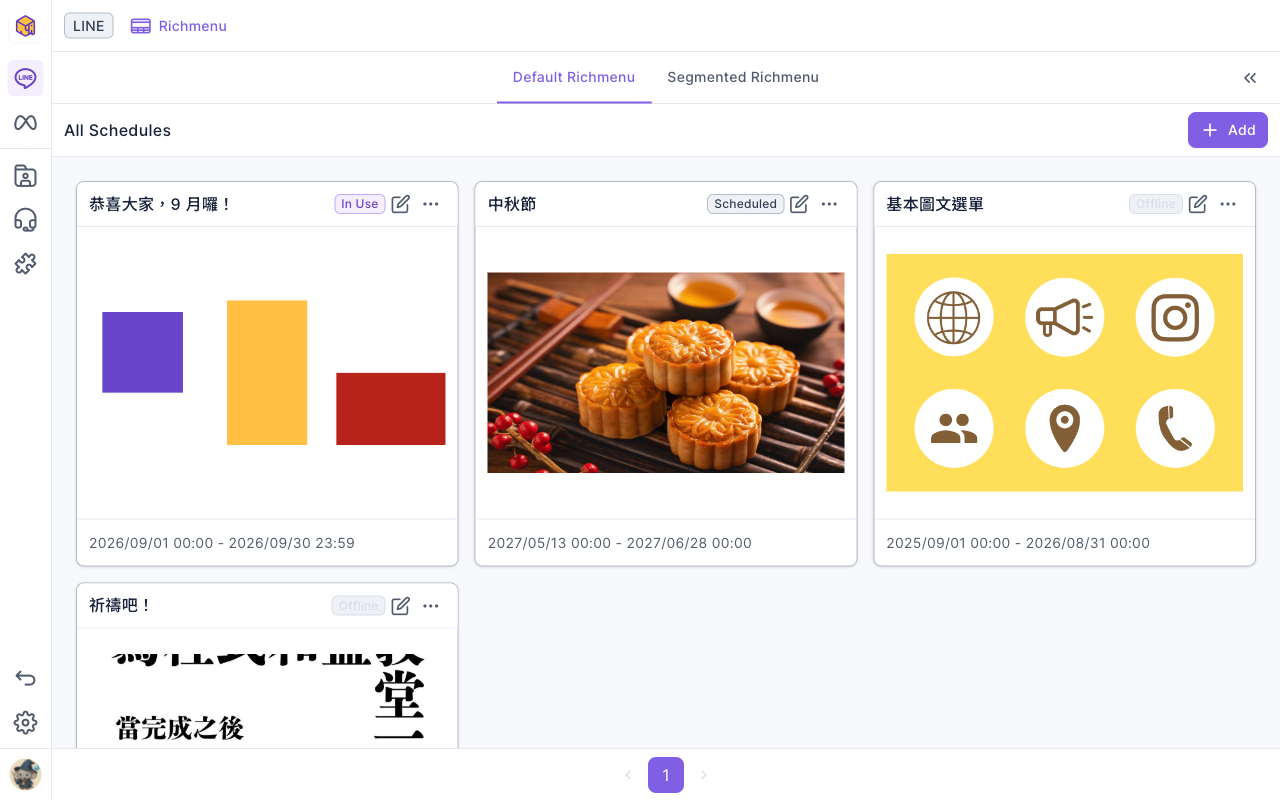
| What you see | Why | What to do |
|---|---|---|
| Nothing is In Use | The last schedule went offline and the next hasn't started; during the gap friends don't see your OakMega menu | Extend the previous schedule's end time or start the next one earlier; for a long-running menu, set the end time far in the future |
| A schedule is In Use but just started | The system checks schedules once a minute, so switching menus can take a few minutes | Wait a few minutes, then ask the friend to reopen the chat |
| Only Scheduled | The schedule time hasn't arrived | Check whether the start date or time is wrong |
Watch out for gaps between schedules. When a schedule ends, the system takes the default menu down. If no other schedule picks up right away, friends only see the menu set in LINE Official Account Manager, or nothing at all. For holiday menus, make schedules run back to back (one minute apart).
2. Does this friend have a segmented Richmenu applied?
If only some friends see something different, they usually have a segmented Richmenu applied. Segmented menus take priority over the default and stay until they're switched, removed, or the segmented menu is reset.
To check:
- Find the friend under LINE › Member Management and open their member details on the right.
- Under Member Info, look at Richmenu in Platform; that's the menu they currently see.
- To put them back on the default menu, choose Remove all applied members from "⋯" on the segmented Richmenu card (this affects everyone using it), or use Switch Richmenu to switch just this friend back to the default Richmenu.
Segmented menus are usually applied by the Change Richmenu batch action in member management, a Richmenu message, another menu's Switch menu button, or Switch Richmenu in Service Center. See Set up LINE Richmenus.
3. The menu is there, just collapsed
With Default Expand off, friends only see the Text Below Menu bar at the bottom of the chat and need to tap it to open the menu. If a friend says there's no menu, ask them to tap that bar. To have it open automatically, turn on Default Expand in the schedule's Menu Settings.
4. You just changed it, but friends still see the old one
- A Richmenu updates your LINE Official Account as soon as you save, but the LINE app may still show the old screen; ask the friend to close the chat and reopen it.
- After a segmented Richmenu is reset, friends who had it see the default Richmenu instead. Switch menu buttons in other menus that point to it start working again once you set its content up again.
5. Something on the friend's side
- They blocked your official account: people who block you see no menu and get no messages. Check their LINE Member Status in LINE Member Management.
- An old LINE version: ask them to update the LINE app and reopen the chat on their phone.