
This recipe helps brands answer "Which brings in more friends: the poster, Instagram or the packaging?" Each always-on channel gets its own add-friend link, new friends who join through it are automatically tagged with that channel's source, and you compare the new friends each link brought right in the back office.
Who this is for
- Brand marketers and CRM managers: you have a LINE QR code in your stores, on social media and on your packaging, but you don't know where your friends come from or which channel deserves more effort.
- Store managers: you want to know whether anyone actually scans the posters and table cards in your store.
When you're done you'll have: a New/Existing Friend Link and QR code for each channel; new friends who automatically get a welcome gift and a source tag when they join, while people who are already friends get this month's offer when they tap the link; and new friend counts you can compare channel by channel in the back office.
If you're running a time-limited product launch or ad campaign, where you compare the friends each ad brings and then post to the people who are interested, see Product launch: compare friends from each ad channel, then post only to interested people. This recipe is about channels that stay in place long term.
The example below uses a fictional skincare brand, "Sunleaf", with three always-on channels: a store poster, its Instagram bio and its product packaging. The tags, the two routing chatbots and the three links were all created in the OakMega manual demo workspace; the LINE chats are mock-ups drawn from the chatbot content.
Features you'll use
| Feature | What it does in this scenario | Minimum plan | Needs enabling? |
|---|---|---|---|
| Tag Management | One source tag per channel | All plans | No |
| LINE Chatbot | The welcome gift for new friends and this month's offer for existing friends | All plans | No |
| New/Existing Friend Link | One link per channel; counts new and existing friends separately and tags new friends with their source | All plans (up to 10 links on Free) | No |
Flow
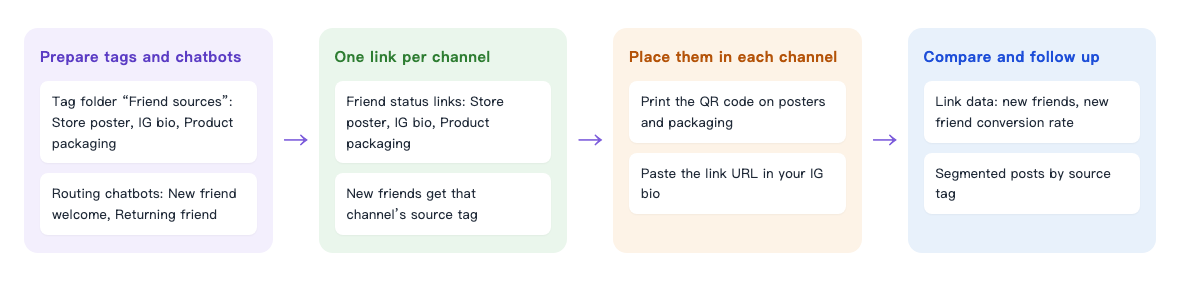
- Prepare three source tags, plus two routing chatbots shared by every channel: new friends get a welcome gift, and existing friends get this month's offer.
- Create a New/Existing Friend Link for each channel, tagging new friends with that channel's source.
- Print the QR code on posters and packaging, and paste the link URL in your Instagram bio. Each channel must use a different link; if they share one, you can't tell them apart.
- After a while, compare the new friend count of each link, then use the source tags to engage friends from each source differently.
Which link to use
OakMega has three link tools. This scenario compares how many friends you gain, so the New/Existing Friend Link is the one to use:
| Link | What it records | Role in this scenario |
|---|---|---|
| New/Existing Friend Link | Clicks, new friends, existing friends and new friend conversion rate; new and existing friends can get different tags | The main tool: one per channel to compare the new friends each brings |
| Deep link | Clicks and people, devices and regions; LINE deep links can apply tags | Compare the clicks each channel sends to your website or campaign page; doesn't count new friends |
| Tag Routing Link | Sends members to different URLs based on their tags | Later, send people to different pages by source tag; not for counting |
How to set it up
| Step | Where | What to set in this scenario |
|---|---|---|
| 1. Prepare source tags | Member & Tag › Tag Management | Folder "Friend sources": Source: Store poster, Source: IG bio, Source: Product packaging |
| 2. Prepare two routing chatbots | LINE › Chatbot | Folder "Friend sources": New friend welcome (welcome gift) and Returning friend (this month's offer); both must be active |
| 3. Create one link per channel | Link Tool › New/Existing Friend Link | Name each link after its channel; choose the two routing chatbots from step 2; tag new friends with that channel's source tag |
| 4. Place them in each channel | Each channel | QR code on posters and packaging; link URL in your Instagram bio |
| 5. Compare results | Link Tool › New/Existing Friend Link | Check each link's Link Data one by one |
1. Prepare source tags
In Member & Tag › Tag Management, create a folder "Friend sources" with one tag per channel: "Source: Store poster", "Source: IG bio" and "Source: Product packaging". When you add a channel later, add another tag to the same folder. See Create and manage tags.
2. Prepare two routing chatbots
In LINE › Chatbot, create a folder "Friend sources" with two text message chatbots that every channel shares:
- "Friend sources: New friend welcome": "Welcome to Sunleaf 🌿 Here's your welcome gift: 10% off your first purchase. Show this message at checkout in store or online. Got a skincare question? Message us here and a beauty advisor will reply."
- "Friend sources: Returning friend": "Thanks for sticking with Sunleaf! This month's friend offer: buy a serum and get the matching travel set, in store or online until 10/31."
A chatbot must have a trigger keyword. Here we use "Sunleaf welcome gift" and "Sunleaf this month", phrases friends are unlikely to type by chance. Both chatbots must be Active; a chatbot that's turned off won't reply even when someone taps the link. See Set up a LINE chatbot.
3. Create one link per channel
In Link Tool › New/Existing Friend Link, create a folder "Friend sources" and add one link for each channel:
- Set the Link Name after the channel: "Store poster", "IG bio" or "Product packaging", so you can tell them apart in the list at a glance.
- If you want an easy-to-remember URL, change the link code to your own, for example
sunleaf-poster(8–15 characters of letters, Chinese characters, numbers, - and _; a code can't be reused once taken). - Set the New Friend Chatbot to "Friend sources: New friend welcome" and the Existing Friend Chatbot to "Friend sources: Returning friend".
- Set Tag New Friends to this channel's source tag, for example "Source: Store poster".
- Fill in the Link Title and Link Description, for example "Join Sunleaf on LINE for a welcome gift". This is the preview text shown when the link is shared on Instagram or in a message.
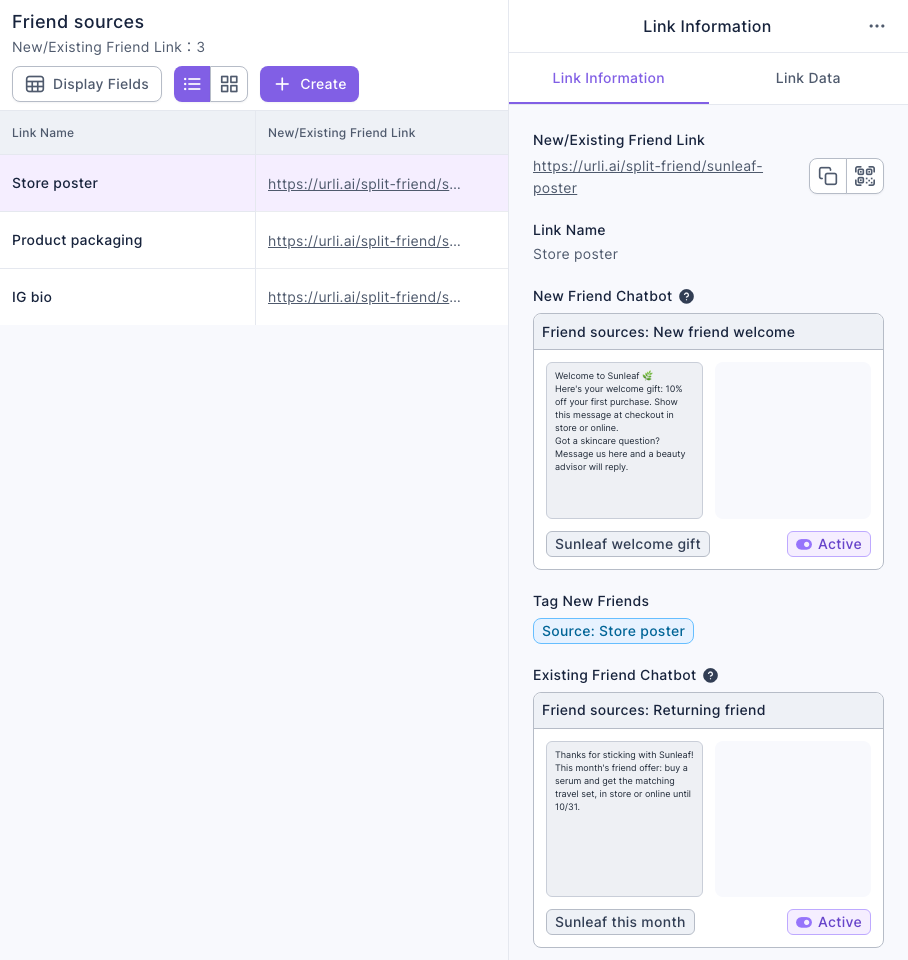
For the full steps, see Welcome new friends separately with a New/Existing Friend Link.
4. Place them in each channel
Click a link in the list. In Link Information on the right, next to the link URL, you can copy the URL or download the QR code:
- Store poster and product packaging: print the QR code with a line about the benefit of joining next to it, for example "Scan to join us on LINE and get 10% off your first purchase".
- Instagram bio: paste the link URL into the website field of your profile.
Once a link is deleted it stops working, and QR codes you've already printed won't open either. Don't delete links that are printed on packaging for the long term.
5. Compare results
After the links have been out for a while, click each channel's link in the list and switch to Link Data:
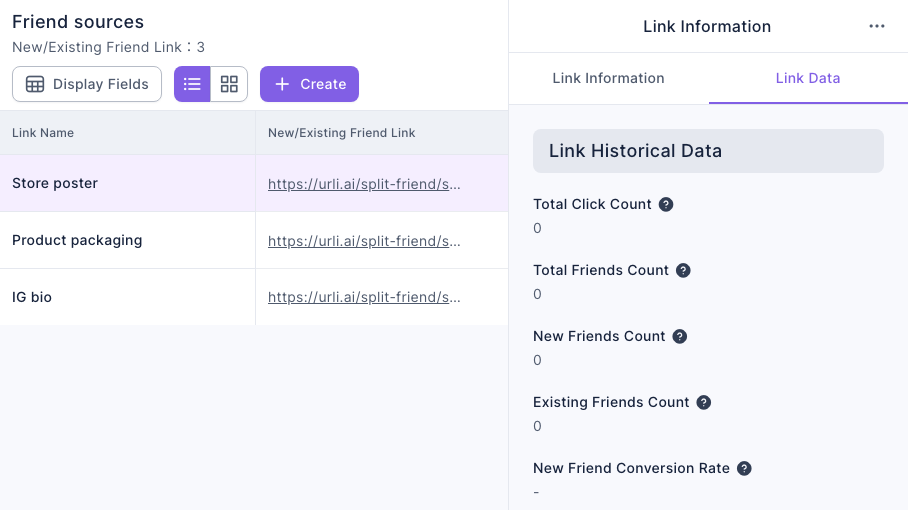
The screenshot shows a newly created link that no one has tapped yet, so everything is 0. Here's how to read each number:
| Metric | How to read it |
|---|---|
| New Friends Count | How many new friends this channel actually brought; the most direct basis for comparison |
| New Friend Conversion Rate | New Friends Count ÷ Total Click Count. A low rate means many people tapped without joining, or most of the people tapping were already friends |
| Existing Friends Count | Existing friends who tapped the link, showing the channel also reaches your current customers |
| Total Click Count | How many people acted on what they saw; clicks without logging in count too |
Use Link Interval Data to pick the same period for every channel so the comparison is fair. For reports, click Download Link Data from "⋯" at the end of the row.
What members see
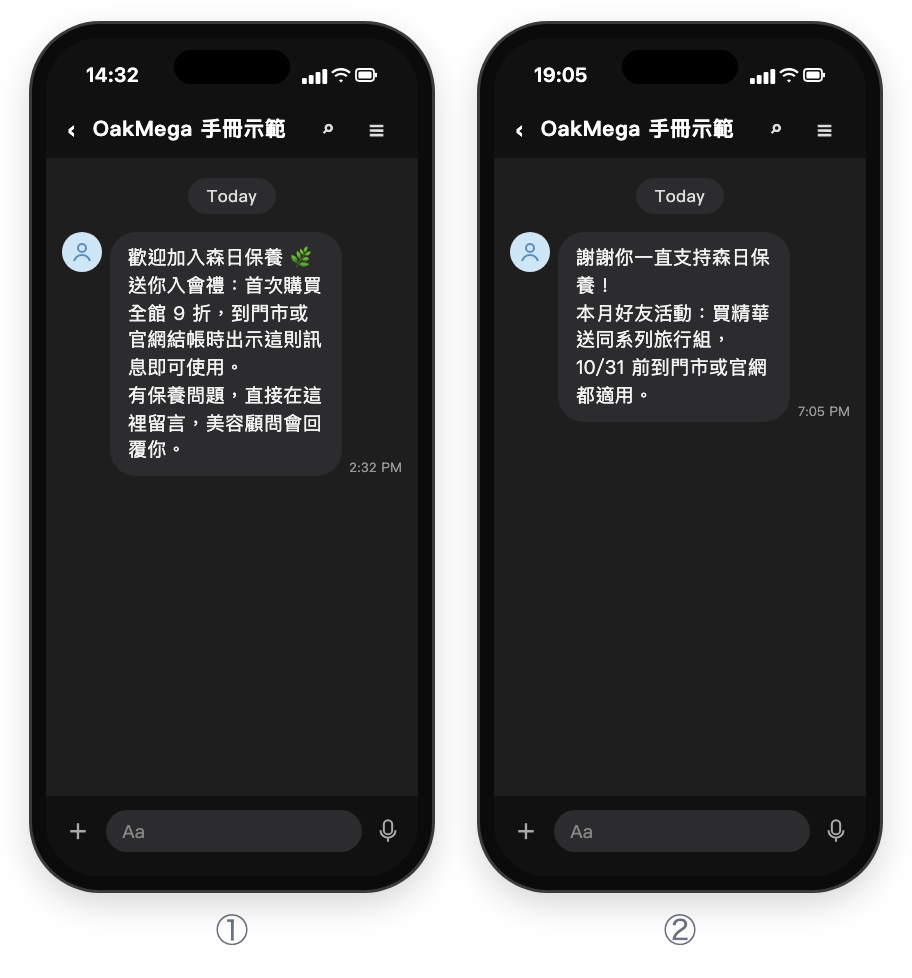
The screens are shown in the Chinese demo; the content is translated in the alt text above and the steps below.
- ① People who aren't friends yet tap the link or scan the QR code and see the add-friend screen first. After joining, they get the welcome gift and are tagged with this channel's source.
- ② People who are already friends tap the same link and get this month's offer instead of the welcome gift.
Both screens are mock-ups drawn from the chatbot content.
How to check it worked
To compare channels and follow how friends from each one behave later, check these places.
| To find out | Where to look |
|---|---|
| Which channel brought the most new friends | The New Friends Count in each link's Link Data, or the Total Number of Tagged People of each source tag in the "Friend sources" folder |
| Whether new friends went on to buy | In LINE member management, use the advanced filter to combine a source tag with a tag such as "Purchased", and compare how each source performs |
| Engaging each source differently | When posting, choose OakMega segment and filter by each source tag, for example sending a store-only offer just to friends who joined in store; see Post articles to LINE friends |
How it works
- Who counts as a new friend? Only people who weren't friends when they tapped the link and joined afterward count as this link's new friends. They trigger the New Friend Chatbot and get the new friend tag. People who were already friends when they tapped count as existing friends.
- People who blocked you and then re-added you count as existing friends. If someone blocked your LINE Official Account and later added it back, the system treats them as an existing friend: they get the Existing Friend Chatbot, don't get the new friend tag and aren't included in the New Friends Count.
- The new friend conversion rate includes existing friends in its denominator. Clicks from existing friends are part of the Total Click Count, so a channel that many current customers tap will show a lower conversion rate. Look at the New Friends Count alongside it when comparing.
Variations
- Compare creatives within one channel: make two versions of the same poster, each with its own link, to see which version brings more new friends.
- Also see website clicks: put a deep link in the welcome gift message and compare how friends from each source click through to your website.
- Give new friends a pass right away: swap the text welcome gift for a pass; see Give new friends a pass and tag them when they join.
- One link per salesperson or store advisor: apply the same approach to people instead of channels; see Give every salesperson their own QR code, see how many friends each one brings and route chats to them.