
This recipe is for marketers running "read the intro first, then get the offer" segmented marketing: before a product launches, send an intro page to all friends and tag whoever opens it; on launch day, send the offer only to people who viewed it and haven't bought yet.
Who this is for
- Brand marketers: every new product, you send the same offer to all friends, so block rates are high and message quota runs out fast. You want to find the people who are actually interested first.
- CRM managers for online or in-store retail: you want to know how many people really read a product intro, and who the follow-up offer goes to and how many people get it.
When you're done you'll have: a product intro page that only LINE friends can view, where everyone who views it automatically gets a "viewed intro" tag; and a launch offer post that goes only to people with that tag who don't yet have the "purchased" tag.
The example below uses a fictional skincare brand, "Sunleaf", and an intro page for its new product "Dawn Serum" ahead of its 10/20 launch. The tags, approved page and offer post were all created in the OakMega manual demo workspace, and a test friend opened the intro page once in LINE to confirm the tag was applied and the offer post's audience count went to 1. The intro page is a real phone screen, and the LINE chat is a mock-up drawn from the post content.
Features you'll use
| Feature | What it does in this scenario | Minimum plan | Needs enabling? |
|---|---|---|---|
| Tag Management | The "viewed intro" and "purchased" tags | All plans | No |
| Approved Page | The product intro page; LINE friends only, tags everyone who views it | Pro | Yes, Approved Page must be enabled |
| Post Article | Shares the intro page link; sends the launch offer by tag | All plans | No |
Flow
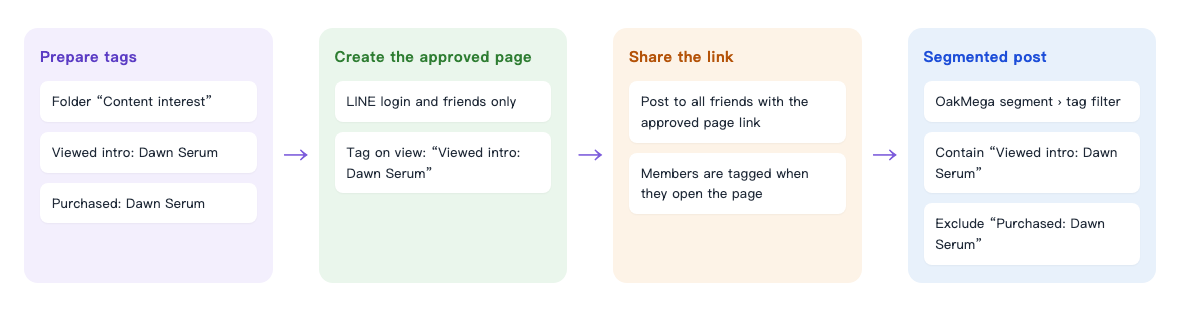
- Create two tags first: "Viewed intro: Dawn Serum" records who's interested, and "Purchased: Dawn Serum" records who has bought.
- Build a product intro page that requires LINE login and friendship to view; everyone who views it is automatically tagged "Viewed intro: Dawn Serum".
- Share the intro page link with all friends. Members are tagged the moment they open the page.
- On launch day, send an offer post only to people who "viewed the intro and haven't bought yet".
How to set it up
| Step | Where | What to set in this scenario |
|---|---|---|
| 1. Prepare tags | Member & Tag › Tag Management | Folder "Content interest": Viewed intro: Dawn Serum, Purchased: Dawn Serum |
| 2. Build the approved page | Web-based Tool › Approved Page | Login + add friend; Tag Members Viewing Approved Page: "Viewed intro: Dawn Serum"; content covers the product's features and launch details |
| 3. Share the link | LINE › Post Article (or Richmenu, chatbot) | A product teaser to all friends with the approved page link |
| 4. Send the offer by segment at launch | LINE › Post Article | OakMega segment › tag filter: contain "Viewed intro: Dawn Serum", exclude "Purchased: Dawn Serum" |
1. Prepare tags
In Member & Tag › Tag Management, create a folder "Content interest" with two tags: "Viewed intro: Dawn Serum" and "Purchased: Dawn Serum". Each time you launch a new product, add another pair to the same folder, for example "Viewed intro: Night Repair Cream". See Create and manage tags.
The "purchased" tag needs to be applied by your store or online shop after a member buys, for example by tagging buyers in LINE member management, or by having members use a coupon at checkout so the coupon's "Apply tag on use" tags them automatically. You can skip this tag, but then the launch offer also goes to people who have already bought.
2. Build the approved page
In Web-based Tool › Approved Page, create a folder "New product intros", then add a page:
- Under Page Setting, enter "Dawn Serum | New product" as the Approved Page Title and a one-line intro as the Approved Page Description, such as "Sunleaf's new autumn product: a light morning serum, on sale 10/20." The title and description appear in the preview when the link is shared.
- Under Restriction Setting, turn on Login to Communication Platform to View Page and Add friend to view approved page below it. Without login, OakMega doesn't know who's viewing and can't tag them; limiting it to friends means you can send them posts later.
- Under Tag Setting, set Tag Members Viewing Approved Page to "Viewed intro: Dawn Serum" (up to 3 tags).
- In Content Editing, add the product's features, who it's for and the launch date. End with a line like "Friends who view this page will get an early-bird offer in LINE on launch day", so readers know why it's worth waiting for your message.
- Click Save.
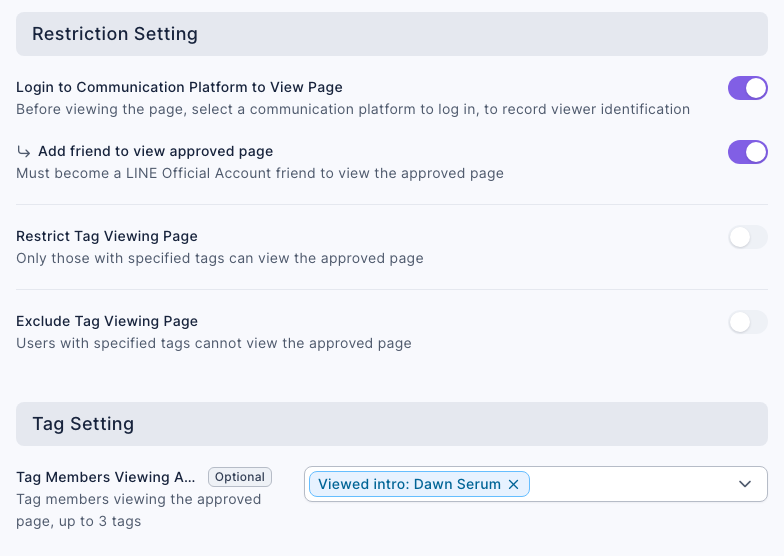
Approved pages have a quota, shown as "Approved page quota" above the list, for example 4/10. For every field, see Create an approved page.
3. Share the link
Click the page in the approved page list. In Approved Page Information on the right, next to Approved Page Link, you can copy the link or download a QR code. Put the link where friends will see it:
- a product teaser post to all friends with the link (see ① in "What members see" below);
- an "Open link" button in your Richmenu; see Set up LINE Richmenus;
- a keyword chatbot's reply; see Set up a LINE chatbot.
When a member taps the link, logs in with LINE and sees the page, they're tagged "Viewed intro: Dawn Serum". Tagging runs in the background, so the tag count may take a minute or two to update.
4. Send the offer by segment at launch
In LINE › Post Article, create a post "Dawn Serum launch: 15% early-bird offer for intro viewers":
- Set audience source to OakMega segment and audience setting to tag filter.
- Under contain tag, choose "Viewed intro: Dawn Serum"; under exclude tag, choose "Purchased: Dawn Serum".
- Write the offer in the message, for example: "Dawn Serum is on sale today! Thanks for checking out the intro — here's 15% off as an early bird: show this message at checkout in store or online, 10/20–10/26."
- Check audience / remaining message quota on the right to see how many people it will go to, then turn on Upcoming publish and schedule it for launch day, or Save as draft first.
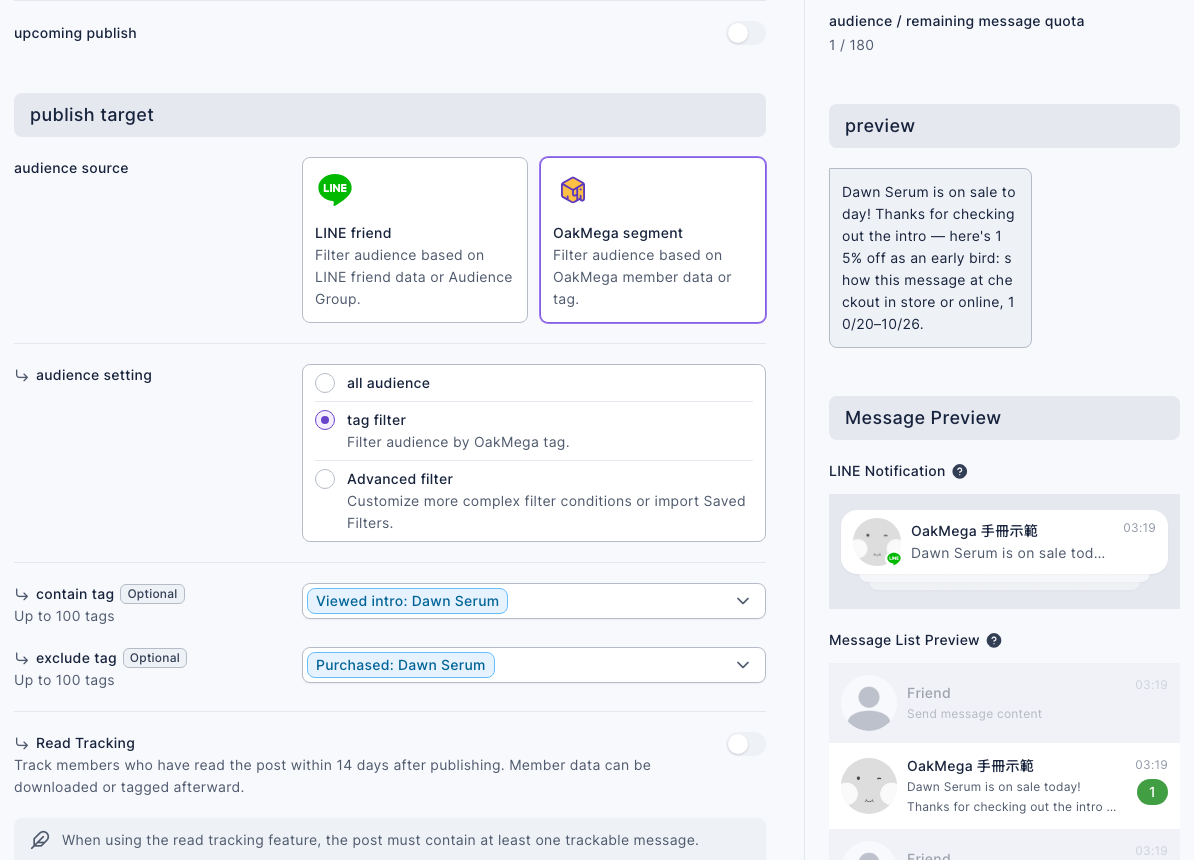
Only one test friend in the demo workspace viewed the intro page, so the audience count is 1. For the full steps, see Post articles to LINE friends.
Why must it be OakMega segment? LINE friend only filters by LINE's own data such as gender and age, and can't see OakMega tags. To post by tag, the audience source has to be OakMega segment.
What members see
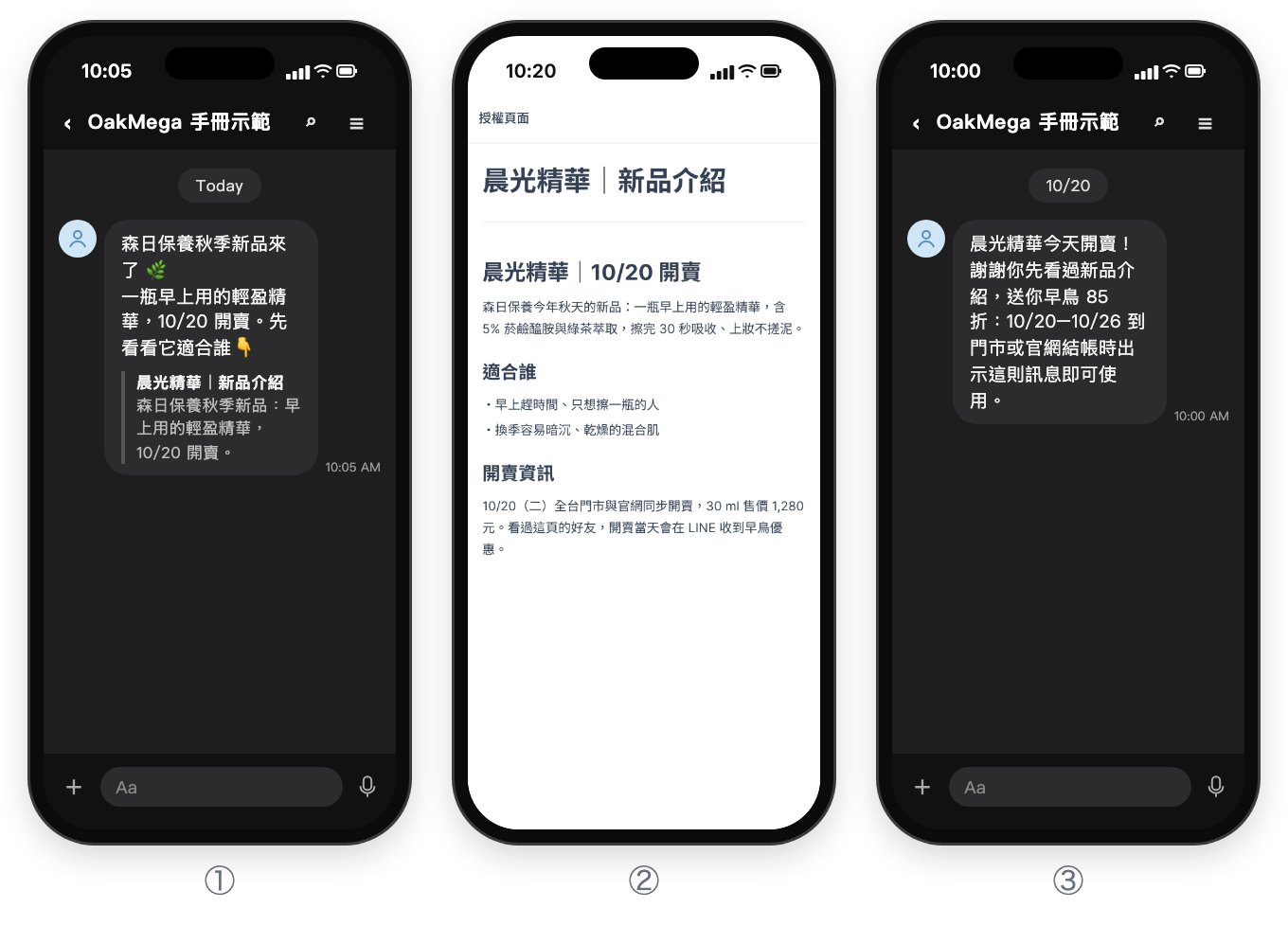
The screens are shown in the Chinese demo; the content is translated in the alt text above and the steps below.
- ① The member receives the product teaser in LINE and taps the link.
- ② The first time, they log in with LINE and then see the intro page. At this point, "Viewed intro: Dawn Serum" has already been applied. People who aren't friends yet see an add-friend page first.
- ③ On launch day, only people who viewed the intro and haven't bought get the early-bird offer.
① and ③ are mock-ups drawn from the post content; ② is a real phone screen.
How to check it worked
To see whether the intro page is working and who the offer will go to, check these places.
| To find out | Where to look |
|---|---|
| How many times the page was viewed, and by how many people | Web-based Tool › Approved Page: click the page and see Total Views and Total Viewers under Approved Page Statistics on the right |
| How many members were tagged | Member & Tag › Tag Management: open the "Content interest" folder and see Total Number of Tagged People for "Viewed intro: Dawn Serum" |
| How many people the launch offer will go to | audience / remaining message quota on the right of the post |
| How many read the offer after it's sent | The impression rate in the LINE › Post Article list; turn on Read Tracking when posting to also download the members who read it or tag them |
| Whether viewers bought | Compare the counts for "Viewed intro: Dawn Serum" and "Purchased: Dawn Serum" |
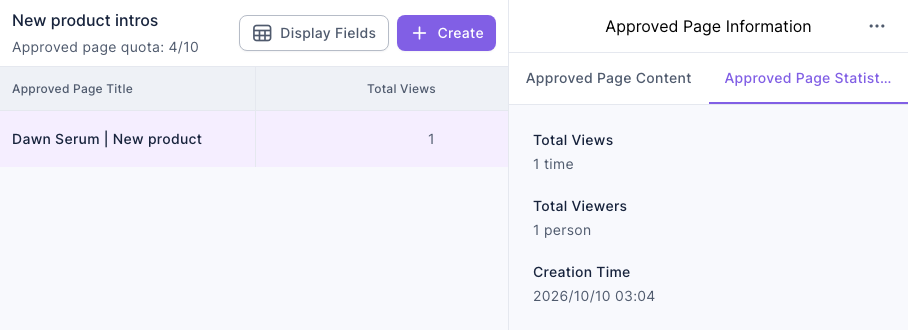
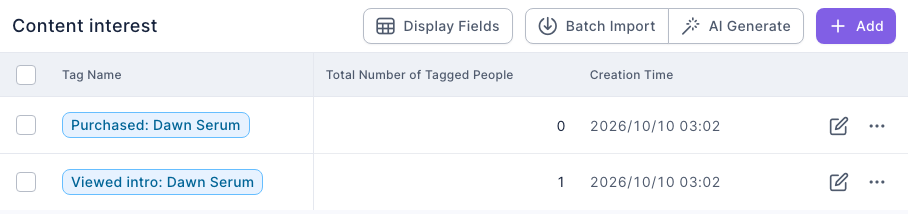
If the same person views the page many times, the view count goes up, but they count only once toward the viewer count and the tag count.
Variations
- Find the most interested people: if the intro page includes a video or catalog file, set a separate tag for "watched the video" and "downloaded the catalog", and send this group an even earlier offer.
- Show early news only to certain members: turn on Restrict Tag Viewing Page under Restriction Setting, for example so only members with a "VIP member" tag can view it.
- Send one link to different pages by interest: with a Tag Routing Link, people who viewed the intro go straight to the buy page, while others see the intro first.
- B2B version: manufacturers can swap the intro page for a digital catalog and hand customers who viewed it to sales for follow-up; see Send digital catalogs on LINE for manufacturers: find interested customers by product line and hand them to sales.