
This recipe helps sales managers and store managers give every salesperson and beauty advisor their own LINE QR code. Whoever's QR a customer scans to join, that advisor's tag is applied automatically and the conversation goes straight to them. At the end of the month you can also see how many new friends each person brought in.
Who this is for
- Sales managers and store managers: advisors ask customers at the counter to add you on LINE, but everyone lands in the same official account. You can't tell who brought whom in, or who should reply when a customer sends a message.
- Beauty advisors and salespeople: you want the customers you brought in to come back to you whenever they have a question.
When you're done you'll have a New/Existing Friend Link and QR code for each advisor, a set of "Advisor: …" tags, one Service Center organization per advisor, and a way to compare how many friends each person brings in.
The examples use a fictional skincare brand, Sunleaf, with two beauty advisors: Yijun Chen at the Xinyi A11 counter and Yating Lin at the Taichung counter. The tags, organizations, chatbots and links were all actually created in the OakMega manual demo workspace. The member's phone screens are mock-ups.
Features you'll use
| Feature | Its job in this scenario | Minimum plan | Needs activation? |
|---|---|---|---|
| New/Existing Friend Link | One link and QR code per advisor; clicking applies the advisor's tag and records the new friends each one brings | All plans (Free: up to 10 links) | No |
| LINE chatbot | New friends: greets them, applies the tag and transfers to Service Center. Existing friends: applies the tag and tells them how to reach their advisor | All plans | No |
| Tag Management | "Advisor: Yijun Chen" records which advisor a member belongs to | All plans (Free: up to 10 tags) | No |
| Organizations and assignment rules | One organization per advisor, with that advisor's tag as its assigned tag | All plans | Agent seats are activated separately |
Flow
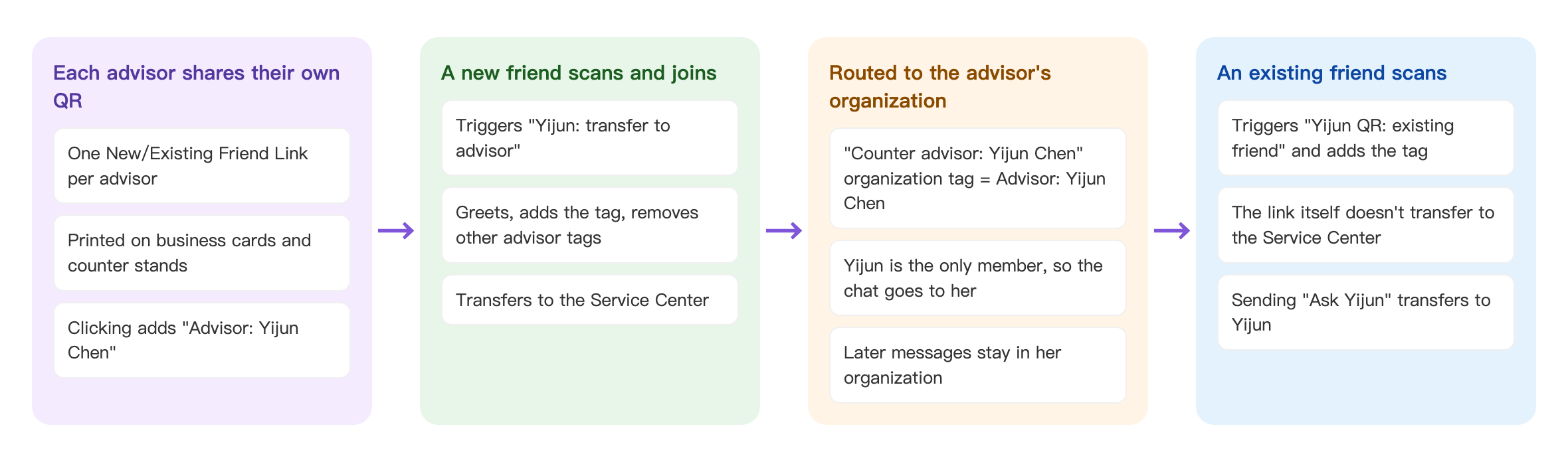
- Each advisor has their own New/Existing Friend Link, with the QR code printed on their business cards or counter stand. Clicking the link applies "Advisor: Yijun Chen".
- When a new friend scans and joins, "Yijun: transfer to advisor" is triggered: it greets them, applies Yijun's tag, removes other advisors' tags and transfers the conversation to Service Center.
- The "Counter advisor: Yijun Chen" organization has "Advisor: Yijun Chen" as its assigned tag and Yijun is its only agent, so the conversation goes straight to her. Later messages from this member stay in her organization.
- When someone who's already a friend scans, "Yijun QR: existing friend" is triggered and the tag is applied, but the conversation isn't transferred to Service Center. Only when the member sends "Ask Yijun" is it transferred to Yijun.
How to set it up
| Step | Where | Settings in this scenario |
|---|---|---|
| 1. Create advisor tags | Member & Tag › Tag Management | Folder "Counter advisors": Advisor: Yijun Chen, Advisor: Yating Lin |
| 2. One organization per advisor | Service Center › Service Center Setting › Organization | "Counter advisor: Yijun Chen": Yijun is the only agent, with auto distribution on; assigned tag "Advisor: Yijun Chen" |
| 3. Two chatbots per advisor | LINE › Chatbot | "Yijun: transfer to advisor" (keyword Ask Yijun, applies the tag, transfers to Service Center) and "Yijun QR: existing friend" (keyword Yijun QR, applies the tag) |
| 4. One link per advisor | Link Tool › New/Existing Friend Link | "Advisor QR: Yijun Chen": Click link to add tag, plus the new friend and existing friend chatbots |
| 5. Compare results | New/Existing Friend Link › Link Data | Each link's New Friends Count |
1. Create advisor tags
Under Member & Tag › Tag Management, add a folder named "Counter advisors" with one tag per advisor: "Advisor: Yijun Chen" and "Advisor: Yating Lin". See Create and manage tags.
2. One Service Center organization per advisor
Under Service Center › Service Center Setting, open the Organization tab and click Create Organization:
- Set Organization Name to "Counter advisor: Yijun Chen", use Add Agent to add only Yijun, and turn on her Auto Distribute to Agent.
- In Distribute Condition, turn on Accept System Automatic Distribution. Under Assigned Tag, choose Restrict Tag and select "Advisor: Yijun Chen".
- In Automation, set Close → Change Organization to Keep Original Organization and Agent, so the customer's next message comes back to Yijun again.
- Click Save. Repeat for each advisor.
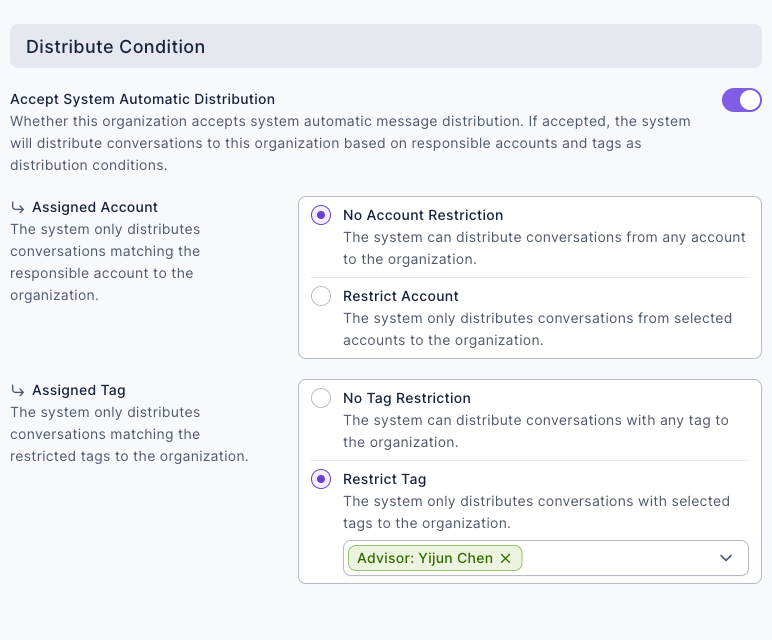
For the full rules, see Understand how conversations are assigned to organizations and agents.
3. Two chatbots per advisor
A New/Existing Friend Link needs two chatbots: one for new friends and one for existing friends. Under LINE › Chatbot, add a folder named "Counter advisors" to the keyword chatbots, then add:
Yijun: transfer to advisor (for new friends, and for existing friends who send the keyword to reach her)
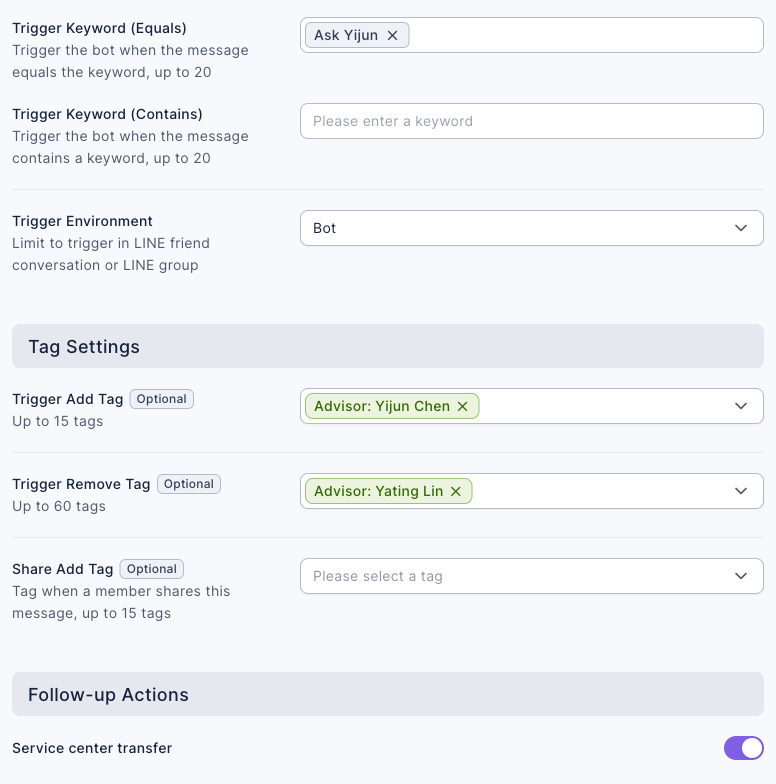
- In Trigger Keyword (Equals), enter "Ask Yijun" and press Enter. A keyword chatbot must have a keyword, and this one doubles as the way existing friends reach her.
- Set Trigger Add Tag to "Advisor: Yijun Chen" and Trigger Remove Tag to the other advisors' tags ("Advisor: Yating Lin"), so each member belongs to only one advisor.
- Under Follow-up Actions, turn on Service center transfer.
- On the Edit Message tab, add a text message: "Hi, I'm Yijun, Sunleaf's beauty advisor at the Xinyi A11 counter 😊 You've been passed to me. Message me here with any skincare question and I'll reply personally."
- Click Save.
Yijun QR: existing friend (for existing friends)
- In Trigger Keyword (Equals), enter "Yijun QR".
- Set up the tags the same way as above: add "Advisor: Yijun Chen" and remove "Advisor: Yating Lin".
- You don't need to turn on Service center transfer: when an existing friend triggers the chatbot through the link, they aren't transferred anyway (see "How it works and limits" below).
- On the Edit Message tab: "Thanks for scanning my QR! I'm Yijun, Sunleaf's beauty advisor at the Xinyi A11 counter, and from now on I'm your personal advisor. Whenever you need me, send "Ask Yijun" and you'll come straight to me."
- Click Save.
For every setting, see Set up a LINE chatbot.
4. One link per advisor
Under Link Tool › New/Existing Friend Link, add a folder named "Advisor QR" and click Create:
- Set Link Name to "Advisor QR: Yijun Chen". Change the link code to something memorable, such as "sunleaf-yijun".
- Set Click link to add tag to "Advisor: Yijun Chen"; both new and existing friends get it.
- Set New Friend Chatbot to "Yijun: transfer to advisor" and Existing Friend Chatbot to "Yijun QR: existing friend".
- Set Link Title to "Join Sunleaf: beauty advisor Yijun is here for you", and write one sentence in Link Description about what the QR code is for, for example "Scan to add Sunleaf on LINE. Yijun, our beauty advisor at the Xinyi A11 counter, will answer your skincare questions personally."
- Click Save. Click the QR code button next to the link URL on the right to download it, and print it on Yijun's business cards and counter stand.
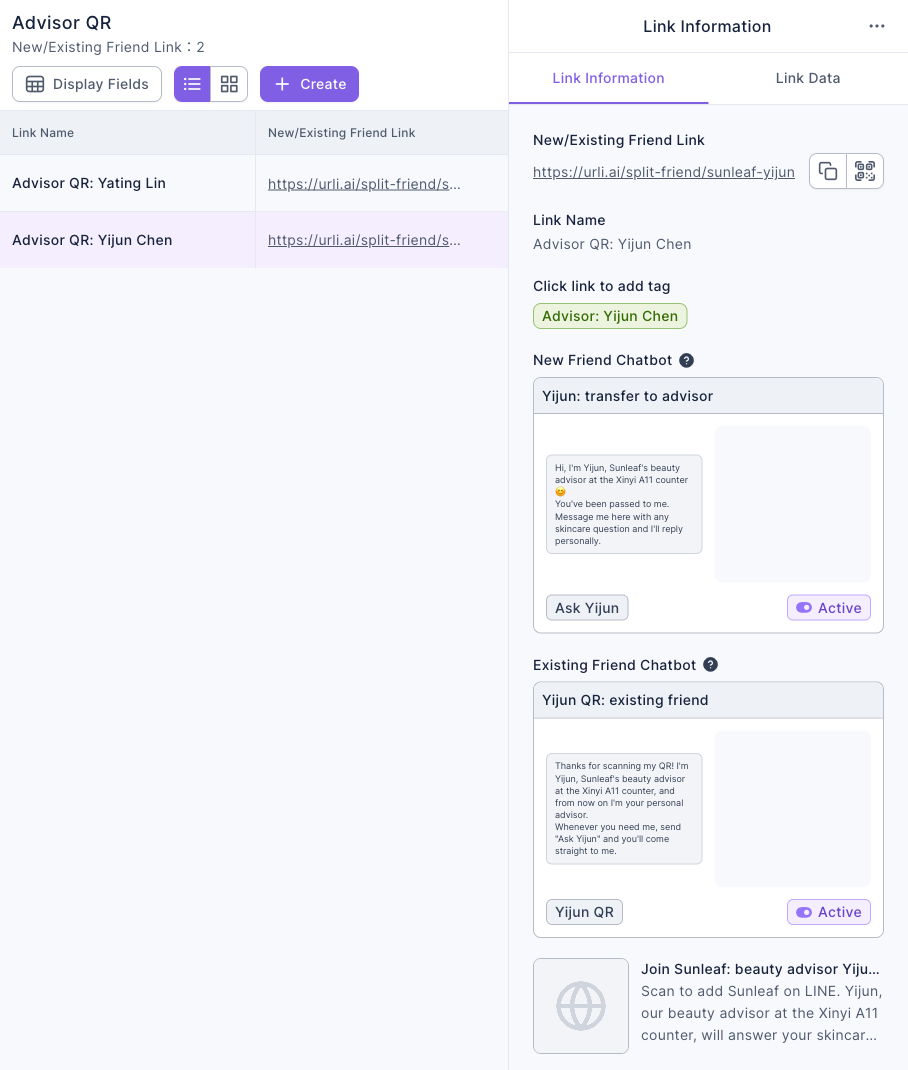
The screenshot below shows the saved link. Link Information on the right lists the tag applied by clicking the link, plus the chatbot and keyword that new and existing friends each trigger.
For the full steps, see Welcome new friends separately with a New/Existing Friend Link.
5. Compare how many friends each advisor brings
Click a link and switch to Link Data on the right. New Friends Count is the number of new friends this advisor's QR brought in; Existing Friends Count is people who were already friends and have now been claimed by this advisor. Compare each link's new friends every month to see who brings in the most new customers.
How it works and limits
| Situation | Result | What to do |
|---|---|---|
| A new friend scans and joins | Only this link's new friend chatbot is triggered, and they don't get your regular welcome message; after tagging they're transferred to Service Center and routed to the advisor's organization | To give a welcome gift, put it in the new friend chatbot's message |
| Someone who's already a friend scans | The existing friend chatbot is triggered and the tag is applied, but they aren't transferred even if the chatbot has "Service center transfer" on | In the message, ask the member to send "Ask Yijun" so the keyword chatbot transfers them |
| The member's conversation is already in another organization (for example, previously assigned to VIP Support) | On transfer, only conversations in the default organization are reassigned, so it stays in its current organization | Supervisors use the Advanced filter in Service Center on "Advisor: Yijun Chen" to find it and move it to the advisor's organization by hand |
| The member also has another organization's assigned tag (for example, VIP Member) | Several organizations match, so Multiple Organization Condition Match sends it to the default organization or a random matching one | Avoid overlapping assigned tags outside the advisor organizations, or accept that the default organization moves it by hand |
| A customer scans two advisors' QR codes one after the other | The chatbot removes the first advisor's tag, so the tag ends up with the last one; a conversation already assigned doesn't change organization | To switch advisors, a supervisor changes the organization by hand |
| An advisor leaves or moves to another counter | The QR code is already printed; deleting the link breaks it | Don't delete the link: make the person taking over the organization's agent, and change the name in the chatbot messages |
| The member opens the link without being logged in to LINE | They're asked to log in first, so the system knows who they are and can apply the tag | Nothing; they just follow the login screen when they scan |
What members see
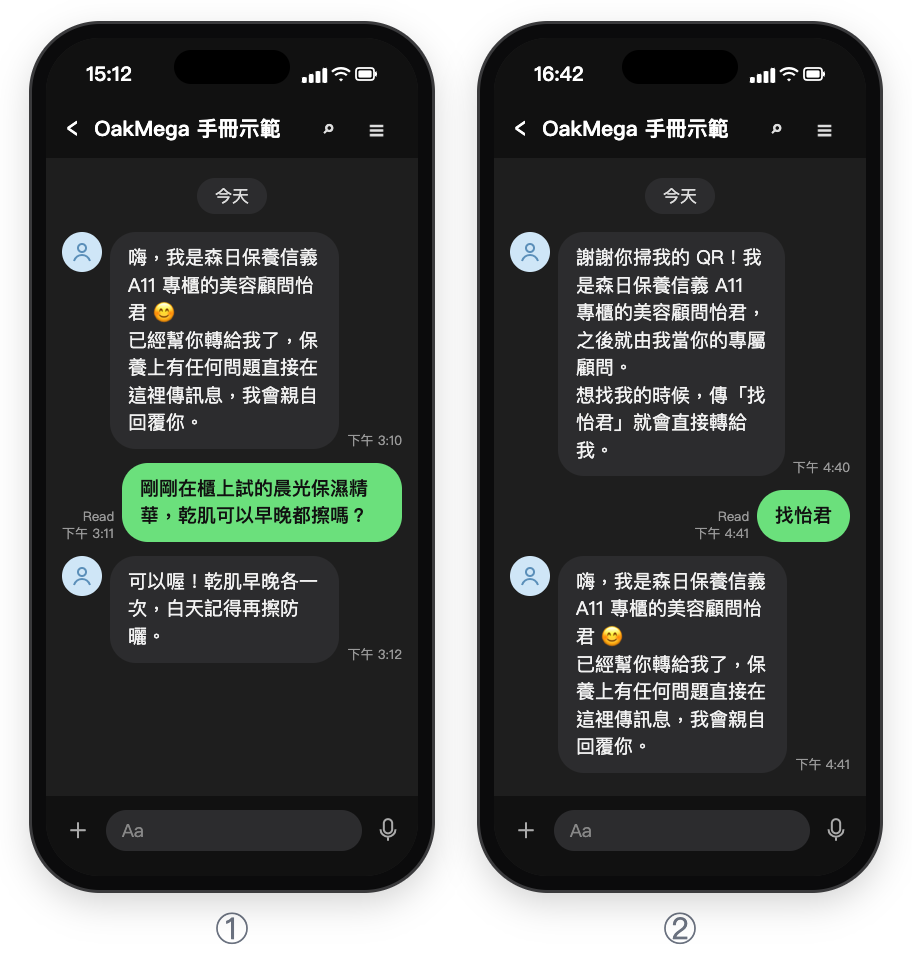
① A new friend scans Yijun's QR code to join and immediately gets Yijun's greeting; after that, Yijun answers their skincare questions personally. ② Someone who's already a friend scans the QR code, gets "from now on I'm your personal advisor", and is transferred to Yijun after sending "Ask Yijun". The screens are mock-ups (Chinese demo).
In ①, the new friend gets the greeting from step 3, then asks "Can I use the Dawn Moisture Serum I just tried at the counter morning and night if I have dry skin?" Yijun replies: "Yes! For dry skin, use it once in the morning and once at night, and remember sunscreen during the day." In ②, the existing friend gets the "Yijun QR: existing friend" message, sends "Ask Yijun", and then gets Yijun's greeting.
How to check it's working
| What you want to know | Where to look |
|---|---|
| How many new friends each advisor brings | New Friends Count in New/Existing Friend Link › Link Data |
| How many members each advisor has | The Total Number of Tagged People for tags such as "Advisor: Yijun Chen" in Tag Management |
| Whether advisors are replying | In Service Center, filter by the organization "Counter advisor: Yijun Chen" and the status Open |
| How many conversations each advisor has open | Organization & Member Workload in the Service Center Data Center: Open and In process for each advisor's organization (current counts only, not response times) |
Variations
- Sales teams instead of individuals: one QR code each for the North and Central/South regions, with the whole team in the organization and random assignment within it; see Capture trade show leads for manufacturers: one QR code at the booth, routed to sales by request and region.
- Advisor-only offers: attach a different coupon to each advisor's new friend chatbot, and compare each advisor's sales at the end of the month by how many of their coupons were redeemed.
- Segmented posts: post new product announcements to the "Advisor: Yijun Chen" tag, signed as Yijun's recommendation; see Post articles to LINE friends.