
This recipe helps CRM owners turn membership tiers into a fixed half-hour routine each month: everyday interactions and purchases build up as tags automatically, and at the start of the month you open two saved filters, find who should move up or down, swap their tags in bulk, and post one article per tier.
Who this is for
- CRM owners whose boss wants "Gold and VIP tiers", but whose member data is spread across the store POS, LINE and campaign lists, so every month means matching spreadsheets by hand.
- Store managers and marketers who want to know who the regulars are and give them different offers and messages.
When you're done you'll have a set of tier tags, two saved filters (an upgrade list and a downgrade list), a way to tag VIPs in bulk from your POS list, and an article that goes only to Gold Members.
The example below is the skincare brand "Sunleaf", with three tiers: regular member, Gold Member and VIP Member. The tags, saved filters and article were actually created in the OakMega manual demo workspace, and one upgrade was really run on a test friend.
Features you'll use
| Feature | Role in this scenario | Minimum plan | Needs activation? |
|---|---|---|---|
| Tag Management | The "Membership tiers" folder holds the Gold and VIP tags; strength and expiry tags record behavior | All plans (Free: up to 10 tags) | No |
| LINE Member Management | Advanced filter, saved filters, adding or removing tags in bulk, batch tagging by LINE User ID | Pro and above | No |
| Post Article | Posts to each tier by tag | All plans | No |
Flow
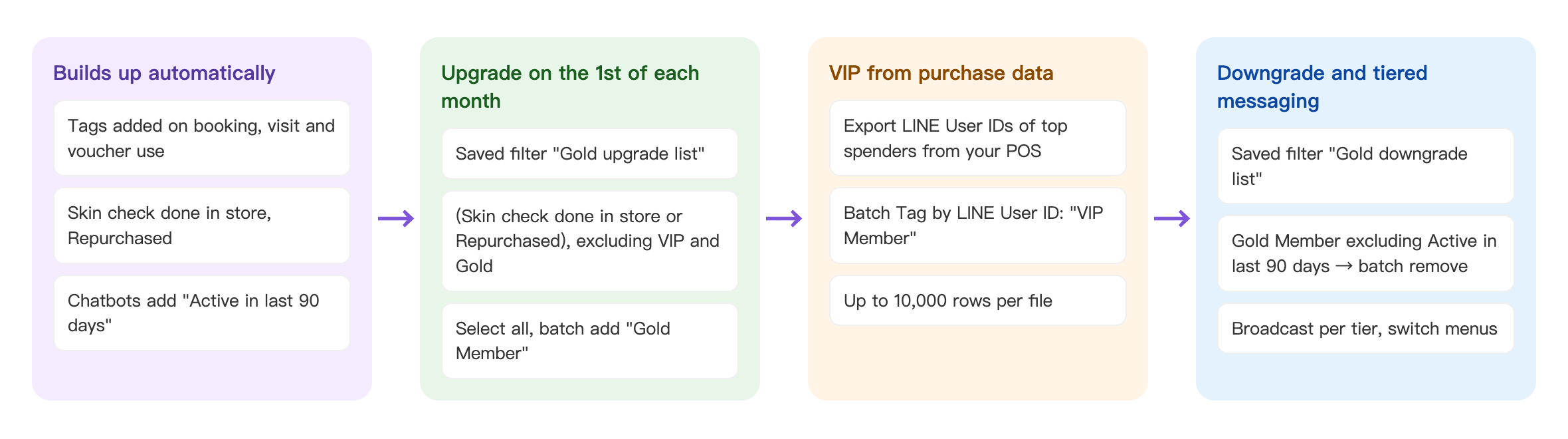
- Let features tag members automatically day to day: bookings, store visits and voucher use add "Skin check done in store" and "Repurchased", and chatbots add the expiry tag "Active in last 90 days".
- On the 1st of each month, open the saved filter "Gold upgrade list", select everyone, and add "Gold Member" in bulk.
- VIP is based on annual spending in your store POS: export the LINE User IDs of members who qualify, then use Batch Tag by LINE User ID to add "VIP Member".
- Open "Gold downgrade list" and remove "Gold Member" in bulk. Finally, post by tier and switch tier members to their own Richmenu.
First, set your tier rules
Write the rules as conditions a filter can find, so you can repeat them every month without debating them again:
| Tier | Condition | How it's applied |
|---|---|---|
| Regular member | Added the LINE Official Account as a friend | No tag needed |
| Gold Member | Came in for a skin check or used a repurchase voucher ("Skin check done in store" or "Repurchased") | Added in bulk each month with "Gold upgrade list" |
| VIP Member | Annual spending of NT$20,000 or more in the store POS | Added in bulk each month by LINE User ID from the POS list |
| Gold downgrade | Gold Member with no interaction in the last 90 days | Removed in bulk each month with "Gold downgrade list" |
For how "Skin check done in store" and "Repurchased" get applied automatically, see Take in-store bookings, give a repurchase voucher after the visit, and remind people who haven't come back. For "Active in last 90 days", see Win back inactive members: find dormant friends with an expiry tag and send a welcome-back gift.
How to set it up
| Step | Where | Settings in this scenario |
|---|---|---|
| 1. Create tier tags | Member & Tag › Tag Management | Folder "Membership tiers": Gold Member, VIP Member (strength tags) |
| 2. Save "Gold upgrade list" | LINE › Member Management › Advanced Filter | Contain: Skin check done in store ≥ 1 or Repurchased ≥ 1; Exclude: VIP Member ≥ 1 or Gold Member ≥ 1 |
| 3. Save "Gold downgrade list" | LINE › Member Management › Advanced Filter | Contain: Gold Member ≥ 1; Exclude: expiry tag Active in last 90 days |
| 4. Upgrade and downgrade monthly | LINE › Member Management | Load a saved filter → select all → add or remove tags |
| 5. VIP from the POS list | LINE › Member Management › tag button | Upload a CSV of LINE User IDs and add "VIP Member" |
| 6. Post by tier | LINE › Post Article | OakMega segment › tag filter: contain tag "Gold Member" |
1. Create tier tags
Under Member & Tag › Tag Management, add "Gold Member" and "VIP Member" to the "Membership tiers" folder, with the tag type set to Strength Tag (once applied, it stays until you remove it). See Create and manage tags.
2. Save "Gold upgrade list"
Under LINE › Member Management, click Advanced Filter:
- In the Contain block, click Filter Condition: Item Strength Tag, tag "Skin check done in store", condition "≥", value 1.
- Click Filter Condition again, set the second row's connector to Or, and choose "Repurchased" ≥ 1.
- In the Exclude block, add two rows the same way, joined with Or: "VIP Member" ≥ 1 and "Gold Member" ≥ 1. People who are already Gold or VIP won't show up again.
- Click Save As, enter "Gold upgrade list" as the name, click Confirm, then click Confirm again to apply it.
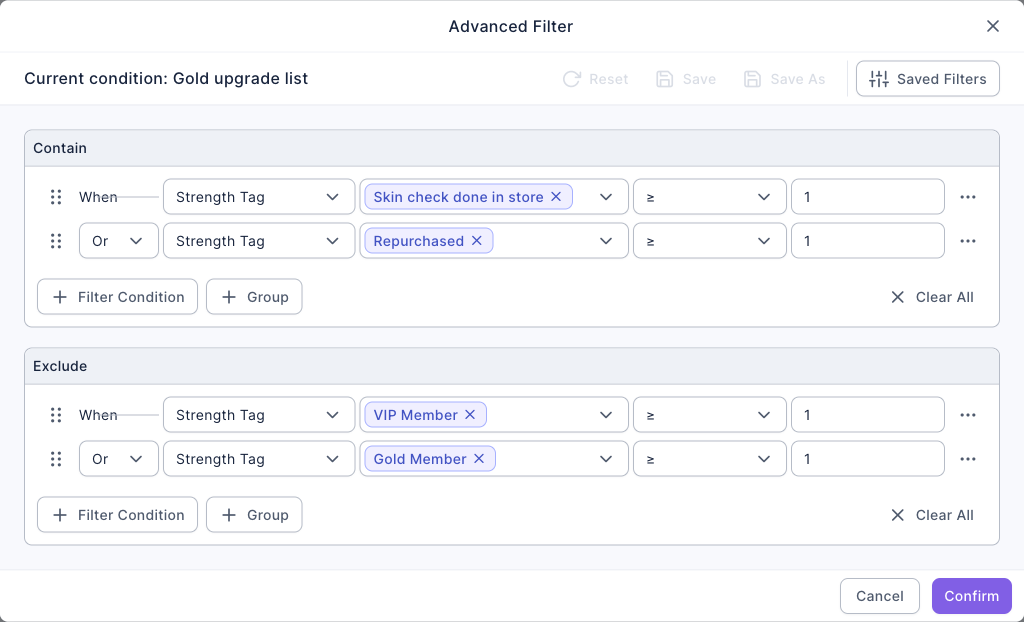
And/Or can only be switched on the second row at the top level, and every row after it follows the second row. To mix And and Or, wrap conditions in a Group. For the full explanation, see View and filter LINE members.
3. Save "Gold downgrade list"
Open Advanced Filter again: under Contain, choose strength tag "Gold Member" ≥ 1; under Exclude, choose Expiry Tag "Active in last 90 days"; then save it as "Gold downgrade list" with Save As. An expired expiry tag no longer counts, so Gold Members who haven't interacted in 90 days appear on this list.
4. Upgrade and downgrade in bulk on the 1st of each month
- Click Advanced Filter → Saved Filters → "Gold upgrade list", then click Confirm.
- Tick the checkbox in the header row to select everyone, click Add Tags on the right, choose "Gold Member", and click Confirm.
- Switch to "Gold downgrade list", select everyone, click Remove Tags, choose "Gold Member", and click Confirm.
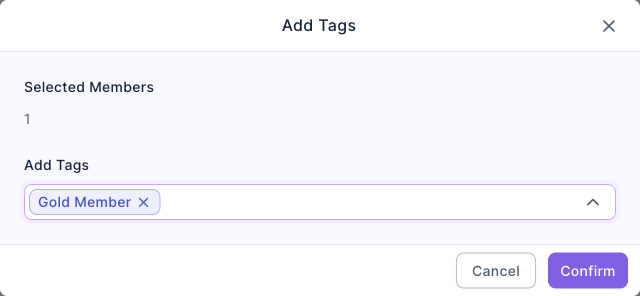
In the demo, "Gold upgrade list" found 1 test friend. After adding "Gold Member" and refreshing, the list dropped to 0, because the exclusion now filters them out. You can select up to 100,000 members at a time.
5. VIP from your POS purchase data
Membership tiers often depend on actual spending, and that data lives in your store POS or e-commerce back end. As long as the POS records each member's LINE User ID (for example, when members link their account with LINE login), you can import it directly:
- Export from your POS the LINE User IDs of members with annual spending of NT$20,000 or more.
- Under LINE › Member Management, click the tag button in the top-right of the list to open Batch Tag by LINE User ID.
- Download Sample.csv and fill in the LINE User IDs in that format. Don't change the header; each file can have up to 10,000 rows.
- Upload the file, choose "VIP Member" under Apply Tags, and click Confirm.
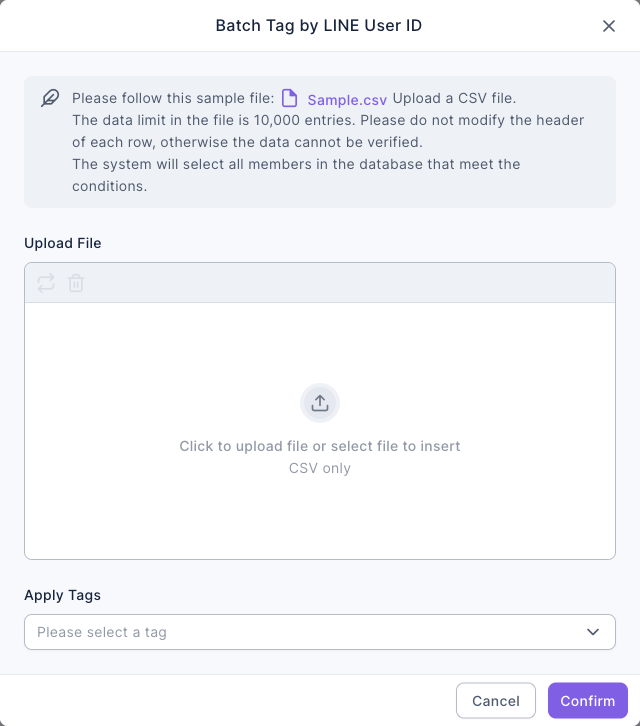
If your POS doesn't have LINE User IDs, you can ask members to fill in their member number or phone in a form instead and match them that way; see Collect sign-ups with a form, tag and confirm automatically, then send segmented reminders.
6. Post by tier
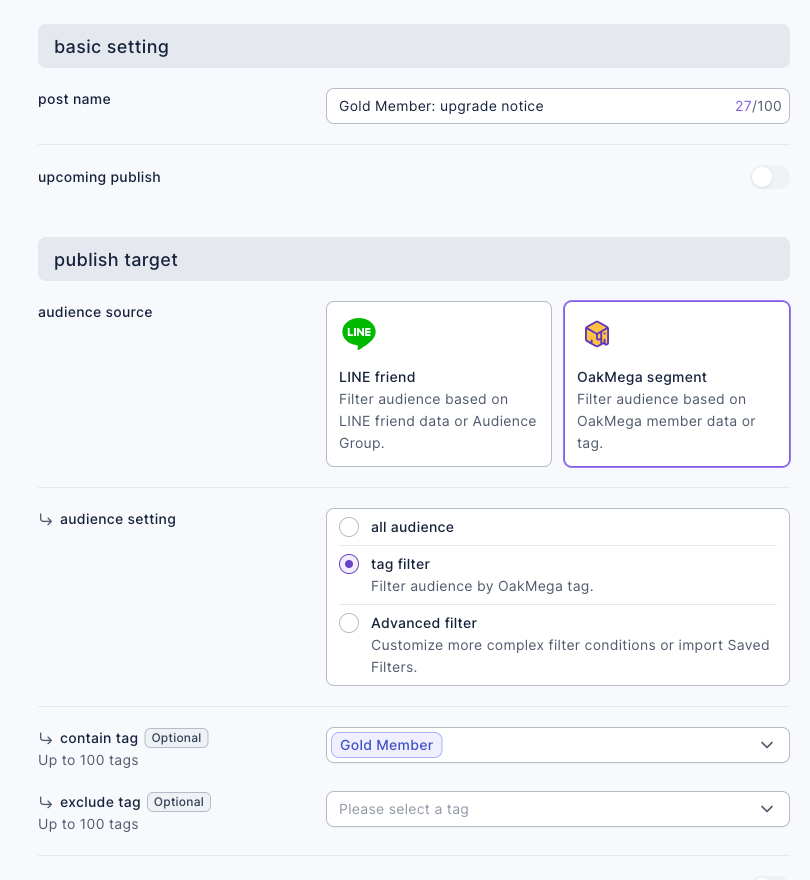
Create a post under LINE › Post Article, set audience source to OakMega segment, audience setting to tag filter, and contain tag to "Gold Member", then write about this tier's perks. The demo draft "Gold Member: upgrade notice" goes only to newly upgraded Gold Members.
To give VIPs their own Richmenu, see Different Richmenus for VIP and regular members: a VIP-only menu and a VIP-only pass.
How it works and limits
The table below covers common questions when running tiers with tags and filters.
| Situation | Result | What to do |
|---|---|---|
| You want to filter by "last purchase time" or "total spending" | Member data has neither field (the advanced filter shows Custom Field only when the workspace has custom fields set up) | Tag in bulk by LINE User ID from your POS list, or record recent behavior with expiry tags |
| "Strength Tag ≥ N" in the advanced filter | Based on the tag's strength; the default ≥ 1 means "has this tag" | For finer tiers, adjust strength by hand or split into separate tags |
| The upgrade list doesn't exclude existing Gold Members | They get tagged again every month | Add "Gold Member" to the Exclude block so the list only shows newly upgraded people |
| Who batch tagging affects | Only the members you selected; filter conditions don't run on a schedule by themselves | Load the saved filter and run the batch action by hand on a fixed day each month |
| The CSV contains LINE User IDs not in the workspace | The system only selects matching members in the database | Nothing to do; POS members have to be LINE friends before they can be found |
| After a Gold Member is downgraded | Removing "Gold Member" doesn't affect passes they've already claimed or a Richmenu already applied | When downgrading, also switch their Richmenu back to the default in Member Management |
What members see
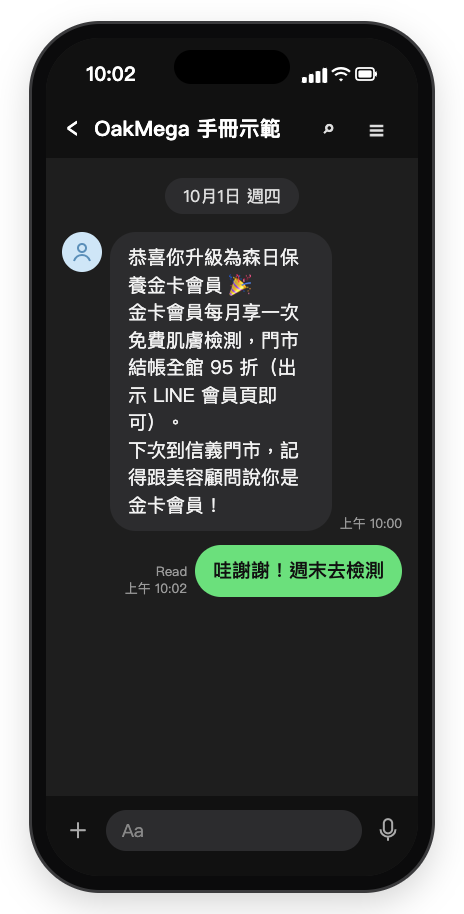
Newly upgraded Gold Members receive the upgrade notice and an explanation of their perks. The screen is a mock-up (Chinese demo).
How to check it's working
| What you want to know | Where to look |
|---|---|
| How many people are in each tier | The total tagged count for "Gold Member" and "VIP Member" in Tag Management |
| How many to upgrade or downgrade this month | The count above the list after loading "Gold upgrade list" or "Gold downgrade list" |
| Whether Gold Members come back more often than regular members | An advanced filter for "Gold Member" and "Repurchased", compared with all Gold Members |
Variations
- Tiers by number of visits: instead, raise the strength of "Skin check done in store" by hand on each visit, and filter regulars with "strength ≥ 3".
- Birthday gifts: if member data includes birthdays, add a birthday condition in the advanced filter and send a pass to Gold Members with birthdays this month.
- Win them back before downgrading: first send the downgrade list a reminder like "Visit within 30 days to keep your Gold status"; see Win back inactive members: find dormant friends with an expiry tag and send a welcome-back gift.