
This recipe helps sales managers and channel managers at manufacturers move their dealers out of each rep's personal LINE contacts and email lists and into the company's LINE Official Account: every dealer uses the same portal link, approved dealers go straight to a dealer portal with price lists and training, and new products and price changes can go only to dealers of a given tier or region, without end customers ever seeing them.
Who this is for
- Sales managers / channel managers: dealer contacts are scattered across your reps, every price change means notifying dealers one by one, and when a rep leaves, the relationship goes with them.
- Product managers: dealers need to hear about new product launches and training first, but pricing and dealer terms must stay hidden from end customers.
When you're done you'll have a "Dealer portal link" you can print on business cards and share at dealer meetings; a dealer registration form; tags for each dealer's role, tier and region; a dealer portal that only approved dealers can open; and a price change notice sent only to gold dealers.
The example below uses a fictional industrial equipment maker whose product lines are the "VX-500 Vertical Machining Center" and the "LS-300 Laser Cutter". The tags, form, approved page, Tag Routing Link and notice draft were all actually created in the OakMega manual demo workspace.
Features you'll use
| Feature | Role in this scenario | Minimum plan | Needs activation? |
|---|---|---|---|
| Tag Routing Link | The dealer portal link: people tagged "Role: dealer" go to the portal, everyone else goes to the registration form | All plans (Free: up to 10) | No |
| Approved Page | The dealer portal: viewable only with a specific tag, holds price lists and training | Pro and above | Yes (page quota applies) |
| OakMega Form | Dealer registration: company, region covered, product lines carried | Pro and above | Yes (form quota applies) |
| Tag Management | Approval status, role, tier and dealer region | All plans (Free: up to 10 tags) | No |
| LINE Member Management | Filters dealers pending review and applies role and tier tags in bulk | Pro and above | No |
| Post Article | Sends new product, pricing and training notices by tier and region | All plans | No |
Flow
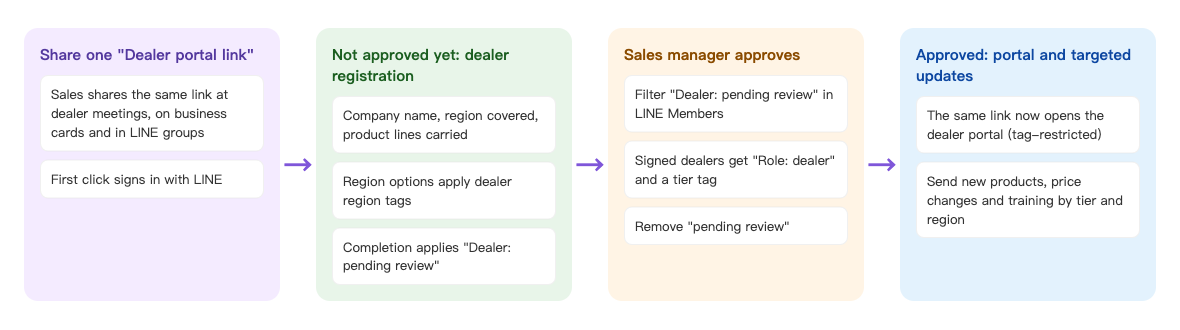
- Sales reps share the same "Dealer portal link" at dealer meetings, on business cards and in LINE groups. The first time someone clicks it, they sign in with LINE.
- Anyone who doesn't have the "Role: dealer" tag yet is sent to the dealer registration form. The region options apply dealer region tags, and submitting the form applies "Dealer: pending review".
- A sales manager filters "Dealer: pending review" in LINE Member Management, confirms each one is a signed dealer, applies "Role: dealer" and a tier tag, then removes "pending review".
- When an approved dealer clicks the same link again, they land in the dealer portal. New product, pricing and training notices go out by tier and region.
How to set it up
| Step | Where | Settings in this scenario |
|---|---|---|
| 1. Create tags | Member & Tag › Tag Management | Folder "Dealers": Dealer: pending review, Role: dealer, Tier: gold dealer / standard dealer, Dealer region: North / Central & South |
| 2. Build the dealer registration form | Web-based Tool › OakMega Form | Folder "Dealers": login and add-friend required; Option Tags on the dealer region question; apply "Dealer: pending review" on completion |
| 3. Build the dealer portal | Web-based Tool › Approved Page | Restricted to the tag "Role: dealer" |
| 4. Create the dealer portal link | Link Tool › Tag Routing Link | Limited Routing Tag "Role: dealer": matches go to the portal, everyone else to the registration form |
| 5. Approve dealers | LINE › Member Management | Filter "Dealer: pending review", apply role and tier in bulk, remove pending review |
| 6. Send targeted notices | LINE › Post Article | Contain tag "Tier: gold dealer", with the dealer portal link |
1. Create dealer tags
Under Member & Tag › Tag Management, add a folder named "Dealers" with these Strength Tags:
| Kind | Tags | What it's for |
|---|---|---|
| Approval status | Dealer: pending review | People who submitted the registration form but haven't been confirmed yet |
| Role | Role: dealer | Approved dealers; both the dealer portal link and the dealer portal check this tag |
| Tier | Tier: gold dealer, Tier: standard dealer | Sending different pricing and dealer terms by tier |
| Dealer region | Dealer region: North, Dealer region: Central & South | Sending training notices by region |
The dealer region tags deliberately don't reuse "Region: North" from Capture trade show leads. Those tags are the assigned tags of the Service Center organizations, so dealers who send a message would be assigned to a sales team and mixed in with regular customers. See Create and manage tags.
2. Build the dealer registration form
Under Web-based Tool › OakMega Form, add a folder named "Dealers" and create a form named "Dealer registration":
- In Form Settings, keep Login via Communication Platform on and turn on Add friend to fill form. Set Apply tags when completing form to "Dealer: pending review".
- In Question Settings, add these questions in order, all required: Real Name and Phone; a Single Line Text question for the dealer's company name; a Multiple Choice question for the dealer region covered ("Northern region" applies "Dealer region: North", and "Central & southern region" applies "Dealer region: Central & South"); and a Multiple Choice question for the product lines carried (multiple choice, no tags).
- Click Save.
For how option tags work, see Create a form and Capture trade show leads.
3. Build a portal only dealers can see
Under Web-based Tool › Approved Page, add a folder named "Dealers" and create an approved page named "Dealer portal | 2026 Q4 products, pricing & training":
- Under Restriction Setting, turn on Login to Communication Platform to View Page and Add friend to view approved page. Turn on Restrict Tag Viewing Page and set Restrict Tag to "Role: dealer".
- In Content Editing, add this quarter's new products, price changes and training schedule. The demo content: the second-generation VX-500 ships in November; list prices for the LS-300 series go up 3% from December 1; maintenance and operation training runs on November 12 (North) and November 14 (Central & South).
- Click Save.
The screenshot below shows the portal's restriction settings: viewers must log in, be a friend, and have the "Role: dealer" tag.
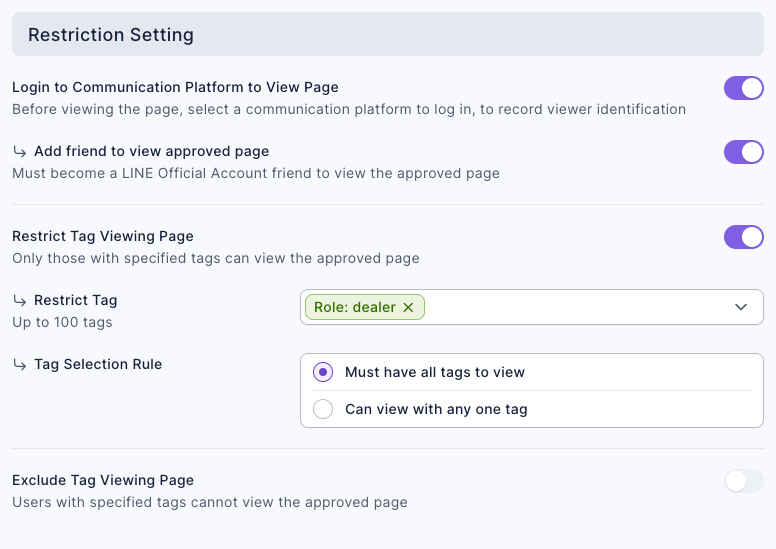
People without this tag can't see the content even if they get hold of the portal URL, so your price lists don't leak to end customers. For every setting, see Create an approved page.
4. Turn a Tag Routing Link into the dealer portal link
Under Link Tool › Tag Routing Link, add a folder named "Dealers" and click Create:
- Set Link Name to "Dealer portal link". For a memorable URL, change the link code to something like
om-dealer-2026. - Under Matched Condition URL, paste the dealer portal URL and set Limited Routing Tag to "Role: dealer".
- Under Unmatched Condition URL, paste the dealer registration form URL.
- Write the Link Preview title and description for dealers, for example "Dealer portal | New products, pricing & training" and "Registered dealers go straight to the dealer portal; others register as a dealer first." Click Save.
The screenshot below shows the finished dealer portal link: people tagged "Role: dealer" go to the portal, everyone else to the registration form.
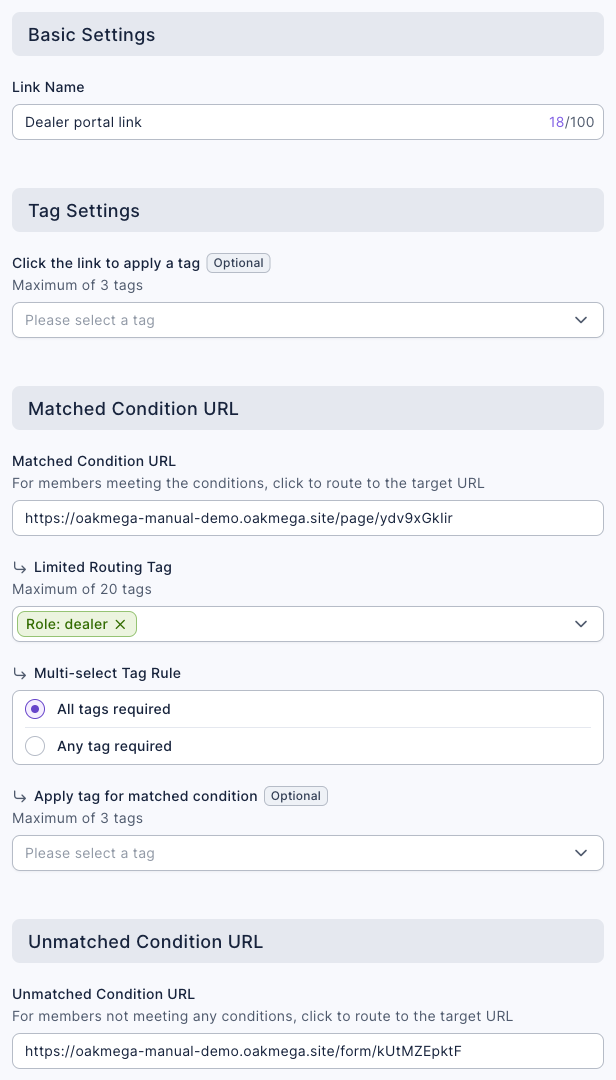
Dealers only need to remember one link: before approval it opens the registration form, and after approval the same link opens the portal, so reps don't have to send two separate URLs. For every setting, see Send people to different pages by tag with a Tag Routing Link.
5. Approve dealers
Under LINE › Member Management, use Advanced Filter to find members tagged "Dealer: pending review", and check their form responses to confirm they're signed dealers:
- Select the members you've confirmed and choose the batch action Apply Tag to apply "Role: dealer" and a tier tag (gold or standard).
- Then choose Remove Tag for the same members to remove "Dealer: pending review".
For filters and batch actions, see View and filter LINE members. Form responses include the company name and product lines carried; you can download them to compare from Check form responses and download the data.
6. Send notices by tier and region
Under LINE › Post Article, create a post named "Q4 price change & training notice (gold dealers)": set audience source to OakMega segment, audience setting to tag filter, and choose "Tier: gold dealer" under contain tag. Cover the key points of the price change and training in the content, and end with the dealer portal link so dealers can open the portal for the full details.
The screenshot below shows who this notice goes to: only people tagged "Tier: gold dealer".
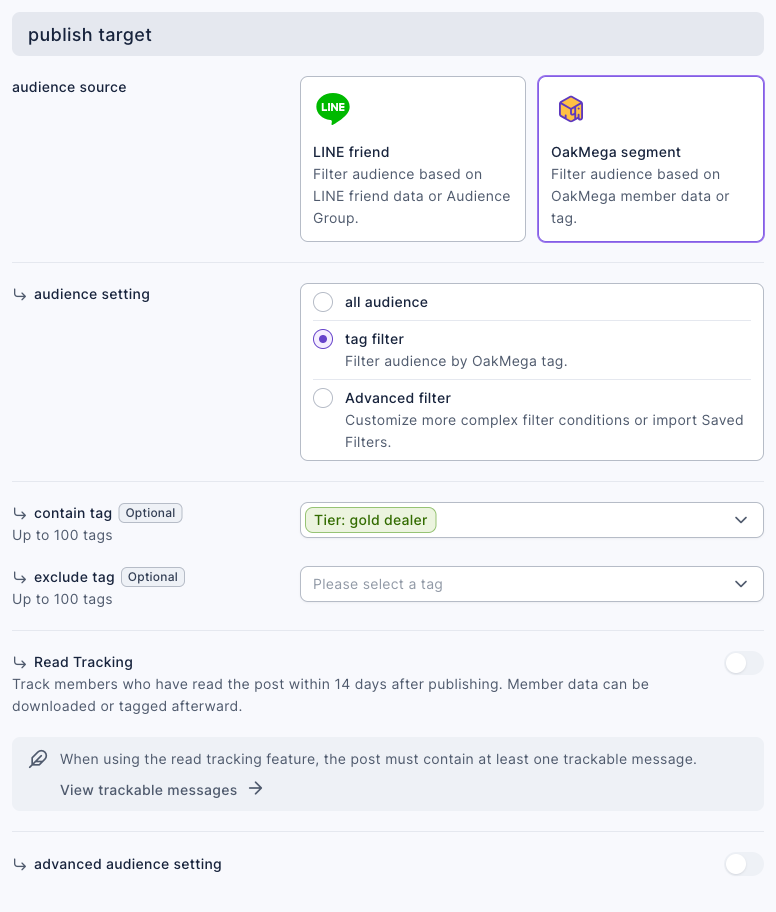
To send training notices by region, choose "Dealer region: North" or "Dealer region: Central & South" under contain tag instead. A tag filter in Post Article matches anyone with any one of the chosen tags, so to target tier and region together (for example, gold dealers in the North), use Advanced filter and choose And between the two tag conditions. For the full steps, see Post articles to LINE friends.
How it works and limits
| Situation | Result |
|---|---|
| First click on the dealer portal link | The dealer signs in with LINE first, so OakMega knows who they are and which tags they have |
| Has "Role: dealer" at the moment of the click | Goes to the dealer portal |
| Doesn't have the tag at the moment of the click (including dealers still pending review) | Goes to the dealer registration form; after approval, the same link opens the portal |
| Someone without the tag opens the portal URL directly | Can't see the content |
| A dealer contract ends | Remove "Role: dealer"; the next click on the link goes back to the registration form, and the portal no longer opens |
| You change the dealer portal link's URLs | Takes effect after about 24 hours, and links you've already sent will lead to the new URL |
- Routing checks the tags at the moment of the click. A dealer who clicks right after being tagged may still land on the registration form; waiting a moment and clicking again fixes it.
- Approval is manual. OakMega can't tell who is a signed dealer, so the registration form only applies "pending review", and a sales manager applies "Role: dealer" after confirming.
What dealers see
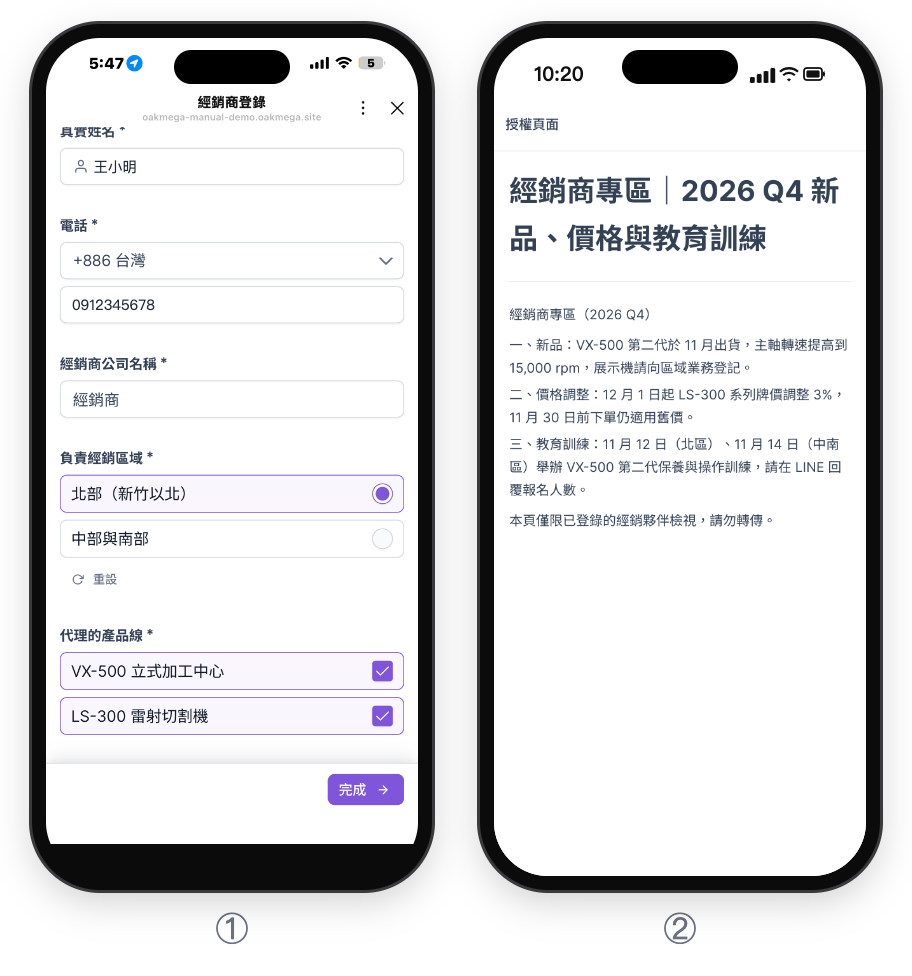
① Before approval, clicking the dealer portal link opens the dealer registration form (the screens are a Chinese demo): enter the company name, choose the region covered and check the product lines carried; ② once a sales manager applies "Role: dealer", the same link opens the dealer portal directly.
| Dealer | Clicking the dealer portal link | Notices received |
|---|---|---|
| Just signed, not registered yet | Registration form after LINE login | None |
| Registered, pending review | Still the registration form | None |
| Gold dealer in the North | Dealer portal | Gold dealer pricing notice, North training notice |
| Standard dealer in Central & South | Dealer portal | Central & South training notice |
How to check it's working
| What you want to know | Where to look |
|---|---|
| How many dealers are on LINE | The Total Number of Tagged People for "Role: dealer" |
| How many are still pending review | The Total Number of Tagged People for "Dealer: pending review" |
| How many times the dealer portal link was clicked and how many reached the portal | Link Data and Routing Data on the Tag Routing Link |
| How many times the portal was viewed | Total Views and Total Viewers in the approved page list |
| How many dealers read the notice | The post's Impression Rate |
Variations
- Gold-dealer-only price list: create another approved page restricted to "Tier: gold dealer" and link to it from the dealer portal; standard dealers who click it can't see it.
- Dealer training sign-ups: turn training into a form whose options apply "Signed up: VX-500 Gen 2 training", then remind only those who signed up the day before.
- Dealer-reported opportunities: put an opportunity report form in the dealer portal that transfers to Service Center on submission and goes to the sales rep for that region; see the organization setup in Capture trade show leads.