
This recipe helps CRM owners spend a fixed half hour each month turning LINE results into a one-page monthly report: how many friends you gained this month, which channel brought the most people, how many people read your posts, and how much your Service Center still has to handle. For every number, it shows where to find it in the back office and whether you can narrow it to this month.
Who this is for
- CRM owners and marketing managers who report LINE results to the boss every month, but find the numbers spread across several pages, some with a date range and some only cumulative, and often aren't sure how to work them out.
- Store managers and Service Center supervisors who want to know how their own channel or organization did this month.
When you're done you'll have a saved filter for this month's new friends, a "metric × where to look × how to get this month" reference table, and a monthly report table you can fill in the same way every month.
The example below is the skincare brand "Sunleaf" putting together its October report. The saved filter, New/Existing Friend Link and articles all come from the OakMega manual demo workspace. The demo workspace has few friends, so the numbers on screen are small.
Features you'll use
| Feature | Role in this scenario | Minimum plan | Needs activation? |
|---|---|---|---|
| LINE Member Management | Filters this month's new friends and blocks by Join Time and Block Time | Pro and above | No |
| New/Existing Friend Link | Shows new friends from each channel for a statistics interval | All plans | No |
| Post Article | Downloads data for articles published in a set period | All plans | No |
| Service Center Data Center | Conversations each organization has on hand at month end | All plans | Agent seats are activated separately |
Flow
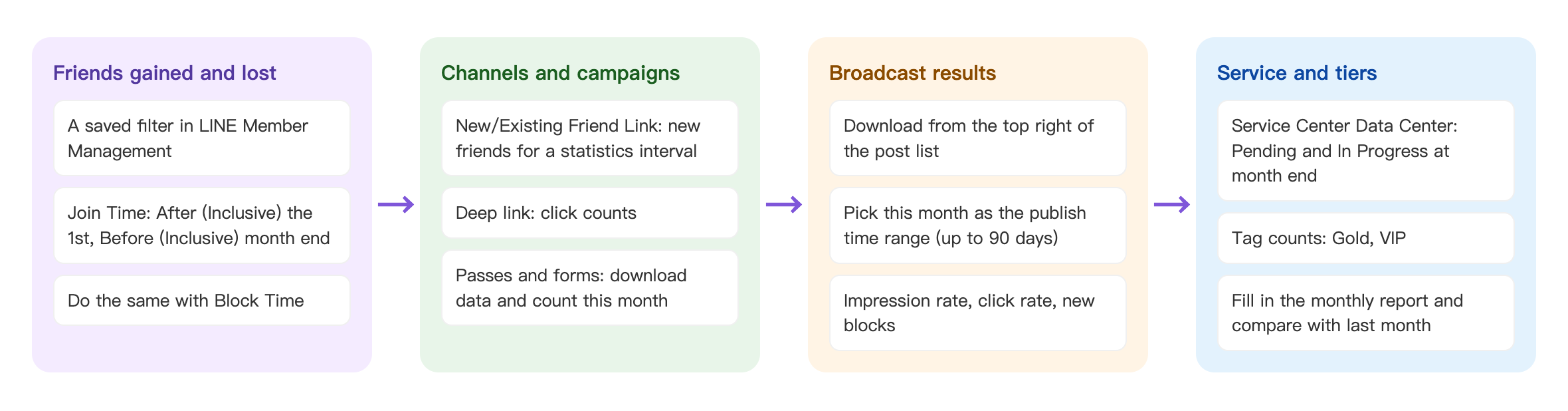
- Friends gained and lost: use a saved filter in LINE Member Management to count this month's new friends and blocks by Join Time and Block Time.
- Channels and campaigns: use the statistics interval on New/Existing Friend Links to see new friends per channel; download pass and form data and count this month's records.
- Post results: download data for articles published this month from the Post Article list and check impression and click rates.
- Service and tiers: at month end, check the Service Center Data Center and tier tag counts, fill in the monthly report table and compare with last month.
First, know which numbers have a date range
Numbers in the back office come in three kinds: with a date range, cumulative only and current only. Before building the report, know which kind each number is so you don't report a cumulative number as this month's result.
| What you want to know | Where to look | Kind of number | How to get "this month" |
|---|---|---|---|
| New friends this month | LINE › Member Management › Advanced Filter "LINE › Join Time" | Date range | In a group, add two conditions: "After (Inclusive)" the 1st and "Before (Inclusive)" the last day of the month |
| Blocks this month | LINE › Member Management › Advanced Filter "LINE › Block Time" | Date range | Same as above |
| Friends you can currently message | LINE › Member Management › Advanced Filter "LINE › Member Message" is "Can" | Current | Record it once on the last day of the month and compare with last month |
| New friends from each channel | New/Existing Friend Link › Link Data › "Link Interval Data" | Date range | Set "Statistics Interval" to a custom date range |
| Results of published articles | The download icon in the top-right of the Post Article list | Date range (up to 90 days) | Choose this month as the publish date range, download, then add up |
| Passes claimed and used | Pass › Download pass data | The list is cumulative only; the download has daily data | Download, then count only this month's dates |
| Form replies | Form › Form reply data | The list is cumulative only | Download the replies and count this month by submission time |
| Chatbot triggers | Total Trigger Count and Total Number of Triggered People in the chatbot list | Cumulative only | Record it at each month end and subtract last month's figure |
| Tag counts (for example Gold, VIP) | Total Number of Tagged People in Tag Management | Current | Record it at month end |
| Service backlog | Service Center Data Center | Current (no response times, no date range) | Record Pending and In Progress on the last day of the month |
How to set it up
| Step | Where | Settings in this scenario |
|---|---|---|
| 1. Save a "new friends this month" filter | LINE › Member Management › Advanced Filter | Group: Join Time After (Inclusive) Oct 1 And Before (Inclusive) Oct 31, saved as "Joined in October" |
| 2. Check channel results | Link Tool › New/Existing Friend Link › Link Data | Statistics Interval: Oct 1–31 |
| 3. Download article data | LINE › Post Article › download icon | Publish date range: Oct 1–31 |
| 4. Record current numbers | Service Center Data Center, Tag Management, chatbot list | Record them on the last day of the month and compare with last month |
| 5. Fill in the report | Your spreadsheet | Use the monthly report table below |
1. Save a "new friends this month" filter
Under LINE › Member Management, click Advanced Filter:
- In the Contain block, click Group. Conditions in the group are joined with And.
- First row: Item LINE, sub-type Join Time, condition After (Inclusive), and pick the date 2026/10/01.
- In the group, click Filter Condition to add a second row: Join Time, Before (Inclusive), 2026/10/31.
- Click Save As, enter "Joined in October" as the name, click Confirm, then click Confirm again to apply it. The "Count" above the list is this month's new friends.
- Count blocks the same way, with the sub-type changed to Block Time.
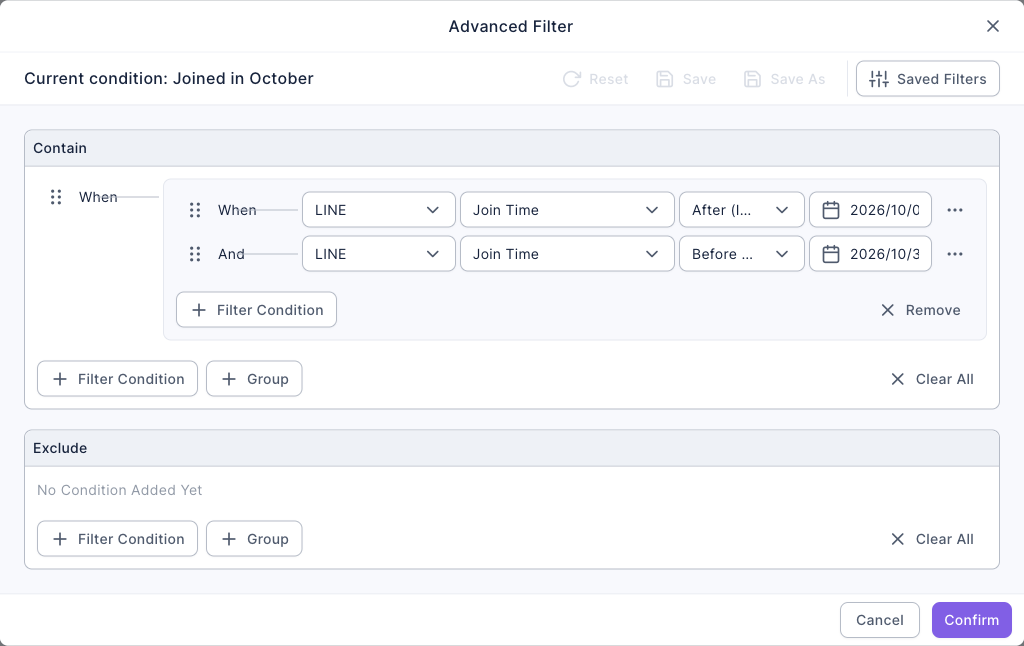
Don't use Month Is to count this month: it only compares the month, not the year, so choosing October counts everyone who joined in October of any year. Next month, just edit the dates in this saved filter and click Save.
2. See how many new friends each channel brought
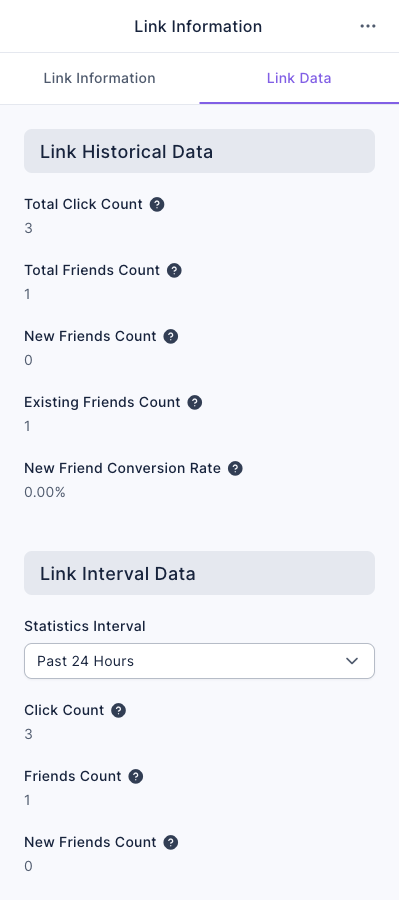
Under Link Tool › New/Existing Friend Link, click a link and switch to Link Data on the right:
- Link Historical Data is the running total since the link was created. Don't use it as this month's result.
- Under Link Interval Data, set Statistics Interval to a custom date range of Oct 1–31, and note the New Friends Count and New Friend Conversion Rate.
- With one link per channel, you can compare channels directly; see Compare how many new friends each channel brings.
3. Download this month's article data
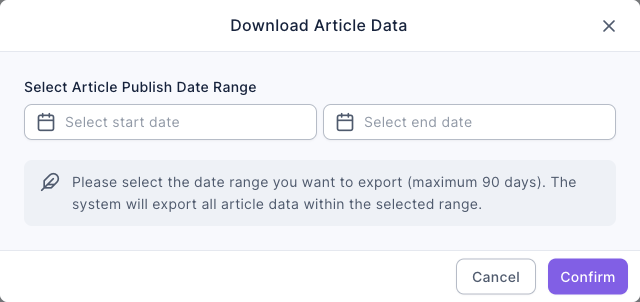
Under LINE › Post Article, click the download icon in the top-right of the list to open Download Article Data:
- Under Select Article Publish Date Range, choose Oct 1 to Oct 31. The range can be up to 90 days.
- Click Confirm to download. The file contains data for every published article in that period.
Article data comes from two sources, and the report should keep them separate:
| Data | Source and scope | What to look at |
|---|---|---|
| LINE Official Data | LINE's own statistics, accumulated for up to 14 days after publishing; LINE doesn't provide it when the audience is too small | Impressions, Impression Rate, Unique Clicks, Unique Click Rate |
| OakMega Member Data | Calculated by OakMega for the 6 hours after publishing | Unique Interactors, New Members, New Blocks |
You can also click an article in the list to see its data; see Post articles to LINE friends.
4. Record numbers that are only "current"
You can't look these numbers up later, so record them on the last day of the month:
- Service Center Data Center: each organization's Pending and In Progress, to see how much is still backed up at month end; see Read the Service Center Data Center.
- Tag Management: the Total Number of Tagged People for tier tags such as "Gold Member" and "VIP Member"; see Membership tiers: build monthly upgrade and downgrade lists from store visits, repurchases and spending.
- Chatbot list: the Total Trigger Count of your main chatbots. Subtract last month's recorded figure to get this month's triggers.
5. Fill in the monthly report table
Use the same table every month so you can see trends:
| Metric | September | October | Change |
|---|---|---|---|
| New friends this month | |||
| Blocks this month | |||
| Friends you can message at month end | |||
| New friends per channel (New/Existing Friend Links) | |||
| Articles published, average impression rate, average click rate | |||
| Passes claimed / used | |||
| Form replies | |||
| Gold and VIP members (month end) | |||
| Service Center Pending and In Progress (month end) |
How it works and limits
The table below covers common questions when building the monthly report.
| Situation | Result | What to do |
|---|---|---|
| Using "Month Is October" in the advanced filter | It only compares the month, so October of every year is counted | Use a group with two conditions: "After (Inclusive)" and "Before (Inclusive)" |
| You want to see Service Center response times | The Service Center Data Center only shows current conversation counts and workload by status, with no response times and no date range | Record the backlog at month end; check reply quality by spot-checking conversations |
| You're looking for the "Dashboard" or "LINE analytics" page | The new back office doesn't have these two pages | Take the numbers from each feature page using the reference table in this recipe |
| The article's audience is too small | LINE Official Data (impression rate and so on) isn't provided | Look at Unique Interactors in OakMega Member Data |
| Numbers in the chatbot, form and pass lists | They're running totals since creation | Record them at each month end and subtract, or download the data and filter by date |
| Article data download range | Up to 90 days at a time | Downloading once a month is enough |
What members see
The monthly report only uses back-office numbers, so members see no difference on LINE.
How to check it's working
| What you want to know | Where to look |
|---|---|
| Whether the filter dates are right | The count above the list after applying it; compare with last month's report to see if it's reasonable |
| Whether the article data download is complete | The number of articles in the file should match the Post Article list filtered by Published |
Variations
- Quarterly report: article data downloads cover up to 90 days, exactly one quarter; change the new friends filter dates to the start and end of the quarter.
- Per-store monthly report: give each store its own New/Existing Friend Link and Service Center organization, and record new friends per channel and backlog per organization.
- A fixed routine: keep the report table in a shared spreadsheet and have the same person fill it in each month following this recipe, so months are easy to compare.