
This recipe helps support supervisors let LINE answer the questions they get over and over. Members tap the menu at the bottom of the chat to see fixed answers on how to use the products, shipping and returns. When they ask about something the menu doesn't cover, a chatbot points them back to the menu or to a person. Your agents only handle the conversations that really need a human.
Who this is for
- Support supervisors: half of each day's messages ask about shipping, returns or how to use a product, and agents keep copying and pasting the same answers.
- Store managers: a small shop with no dedicated support staff that still wants members to get basic information after hours.
When you're done you'll have an FAQ Richmenu, one keyword chatbot per question, a Default Reply for questions it can't answer, and an automatic transfer to Service Center when a member asks for a person.
The examples use a fictional skincare brand, Sunleaf. The chatbots were all actually created in the OakMega manual demo workspace. The demo workspace's default Richmenu is already used by other demos, so the menu screenshot shows settings that were filled in but not saved.
Features you'll use
| Feature | Its job in this scenario | Minimum plan | Needs activation? |
|---|---|---|---|
| Richmenu | Keeps FAQ buttons at the bottom of the chat; each button sends fixed text | All plans | No |
| LINE chatbot | Keyword chatbots answer each question; an event-triggered bot's "Default Reply" catches everything else; a "Talk to staff" chatbot transfers to Service Center | All plans | No |
| Service Center | Where agents take over when a member wants a person | All plans | Agent seats are activated separately |
Flow
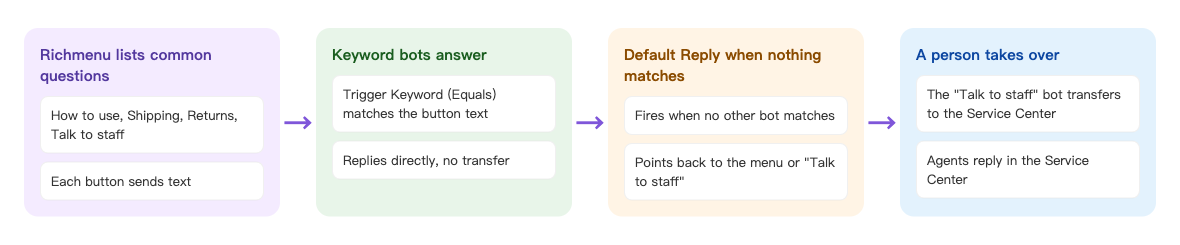
- The Richmenu has four buttons: How to use, Shipping, Returns and Talk to staff. Every button is set to "Send text".
- Each question gets its own keyword chatbot whose "Trigger Keyword (Equals)" is exactly the text the button sends, and it replies with the answer.
- When a member types a question the menu doesn't cover and no chatbot matches, the "Default Reply" bot points them back to the menu, or tells them to send "Talk to staff".
- "Talk to staff" is caught by another chatbot that transfers the conversation to Service Center, where an agent replies.
How to set it up
| Step | Where | Settings in this scenario |
|---|---|---|
| 1. One chatbot per question | LINE › Chatbot › Keyword chatbots | "Trigger Keyword (Equals)": How to use / Shipping / Returns, each replying with its answer |
| 2. When there's no answer | LINE › Chatbot › Event-triggered bots | Trigger event "Default Reply", pointing back to the menu and to "Talk to staff" |
| 3. Reaching a person | LINE › Chatbot › Keyword chatbots | Keyword "Talk to staff", with "Service center transfer" on |
| 4. FAQ menu | LINE › Richmenu | Four buttons, each set to "Send text" with the keywords above |
1. Create a keyword chatbot for each common question
Under LINE › Chatbot, open the "FAQ" folder and click Add to create a keyword chatbot:
- Set Chatbot Name to "FAQ: Returns".
- In Trigger Keyword (Equals), enter "Returns" and press Enter. Use Equals rather than Contains, so that a sentence that merely includes the word (such as "What's the address for returns?") doesn't get a canned answer.
- On the Edit Message tab, add a text message: "You can request a return or exchange within 7 days of receiving your order. Items must be unopened and in their original packaging. If you had an allergy or other reaction after using a product, just reply "allergy" and a support supervisor will help you first."
- Click Save. Create "FAQ: How to use" and "FAQ: Shipping" the same way.
The screenshot below shows the keyword settings for "FAQ: Returns": Equals "Returns", no tags, no transfer to Service Center.
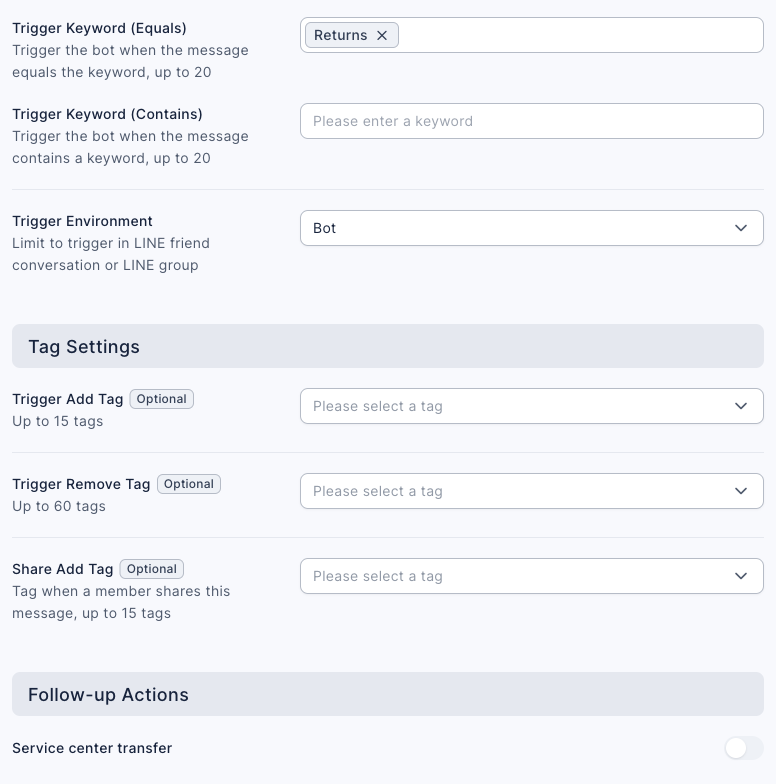
Because the reply mentions "allergy", a member who replies with it triggers the chatbot from complaint routing, which hands the conversation straight to a supervisor.
2. Add a Default Reply for questions with no answer
Under LINE › Chatbot, click Event-triggered bots on the left, click Add, and choose Default Reply in Select Trigger Event:
- Set Chatbot Name to "FAQ: no answer found".
- On the Edit Message tab, add a text message telling members they can tap the menu, or send "Talk to staff" to reach a person.
- Click Save.
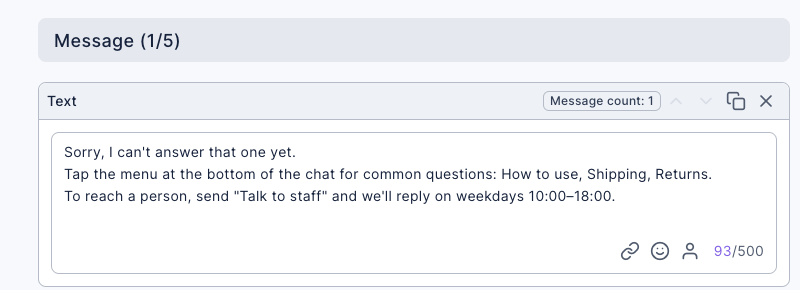
3. Transfer to Service Center when a member wants a person
Create a keyword chatbot with the keyword "Talk to staff", turn on Service center transfer, and have it reply "We're connecting you to one of our agents." For the steps, see "Give members a way to reach a person" in Your first week with Service Center.
4. Build the FAQ Richmenu
Under LINE › Richmenu, add a default Richmenu schedule (or edit your current one):
- Set Text Below Menu to "FAQ" and turn on Default Expand.
- Upload a four-button menu image, choose Grid layout and drag out four buttons.
- Set each button's Click action to Send text and enter "How to use", "Shipping", "Returns" and "Talk to staff". They must match the chatbot keywords exactly.
- Check the Preview on the right, then click Save.
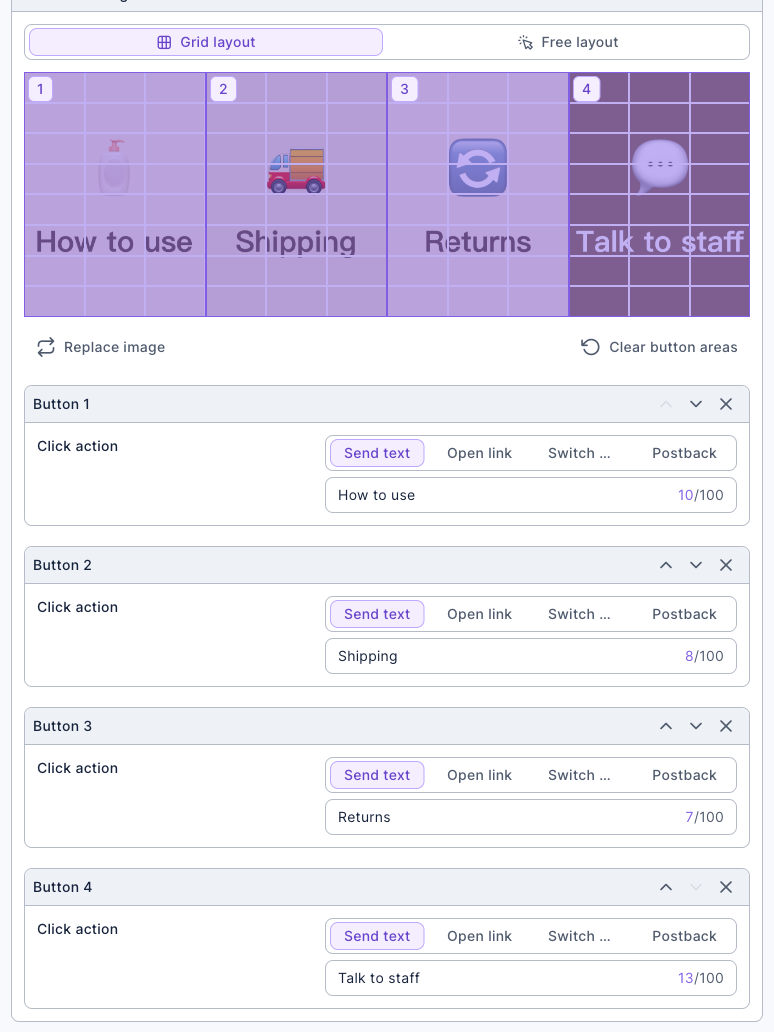
As soon as you save, the Richmenu appears in every friend's chat, and its schedule time can't overlap other schedules. For every setting, see Set up LINE Richmenus.
How it works and limits
| Situation | Result |
|---|---|
| A member taps a menu button | The button text is sent and the matching keyword chatbot answers |
| A member types text that exactly equals a keyword | It's answered the same way |
| A member's text doesn't match any chatbot | The "Default Reply" triggers |
| The conversation is in service (transferred and not yet closed) | The Default Reply doesn't trigger, so the agent can keep the conversation going; keyword chatbots still answer |
| A member sends a sticker or image | The Default Reply doesn't trigger (it only responds to text messages); only an event-triggered bot for stickers or image messages, if you've created one, replies |
| A message in a LINE group | The Default Reply doesn't trigger |
| The button text contains another bot's "Contains" keyword (for example "return" in the complaint bot) | Both bots match, and the other one may answer instead |
| Several chatbots match at once | Only one replies: a matching bot with a tag restriction wins; otherwise the most recently created one replies |
- Button text must match the keyword exactly. If you change a button's text, change the chatbot's keyword too, or the message falls through to the Default Reply.
- Only one Default Reply takes effect. If several Default Reply bots are on, the most recently created one replies; turn off the ones you don't use.
What members see
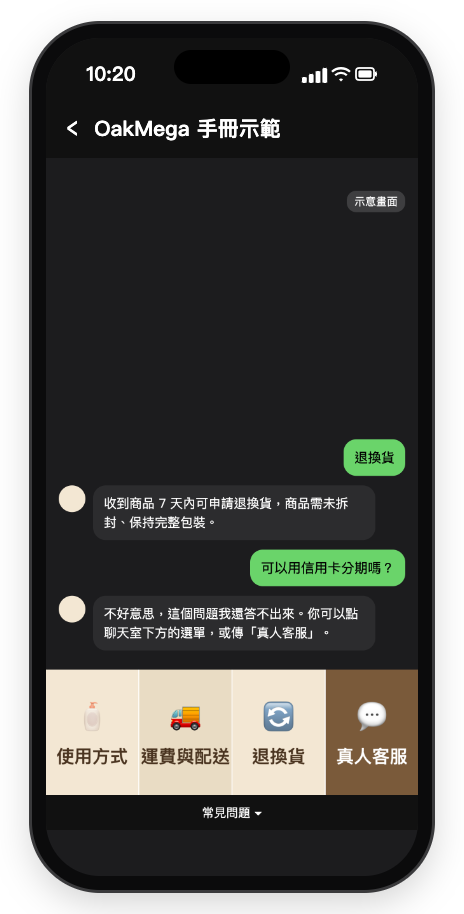
When a member taps "Returns" on the menu, they get the return policy right away. When they ask something the menu doesn't cover (such as paying in installments), they get the Default Reply, which points them to the menu or to a person. The screen is a mock-up (Chinese demo).
How to check it's working
| What you want to know | Where to look |
|---|---|
| Which questions are asked most | The Total Trigger Count and Total Number of Triggered People of each "FAQ" chatbot |
| How many questions go unanswered | The Total Trigger Count of the "Default Reply" bot; the more it triggers, the more new FAQ entries you need |
| Whether fewer members ask for a person | The trigger count of the "Talk to staff" chatbot, or conversation volume in the Service Center Data Center |
| What members actually asked | Look at conversations that triggered the "Default Reply" in Service Center; a chatbot's Download Trigger Records downloads its trigger data for a date range |
Variations
- Add quick replies to the Default Reply: add Quick Reply buttons (How to use, Shipping, Returns, Talk to staff) in the Default Reply's Interactive Module, so members can tap without scrolling down to the menu.
- Explain after-hours replies: split the "Talk to staff" chatbot into two with Weekly Effective Period, one for office hours and one for after hours; the after-hours one replies "We'll get back to you after 10:00 tomorrow." See Reply automatically after hours and pick up the next day.
- Let AI answer the long tail: hand questions outside the FAQ to AI; see Let an AI agent handle an organization's conversations.