
By the end of this article you'll be able to have conversations marked Resolved close automatically after a few hours, so agents don't have to close them one by one, and decide who picks them up afterwards.
Before you start
- Only workspace admins can open Service Center settings. If you haven't set up agents and organizations yet, start with Get started with Service Center: add agents and organizations.
- Automation is set per organization: in the same workspace, organization A can close after 24 hours while organization B never closes automatically.
Find an organization's automation settings
- In the navigation bar, click Service Center, choose Service Center, then open Service Center Setting from the settings button in the top-right.
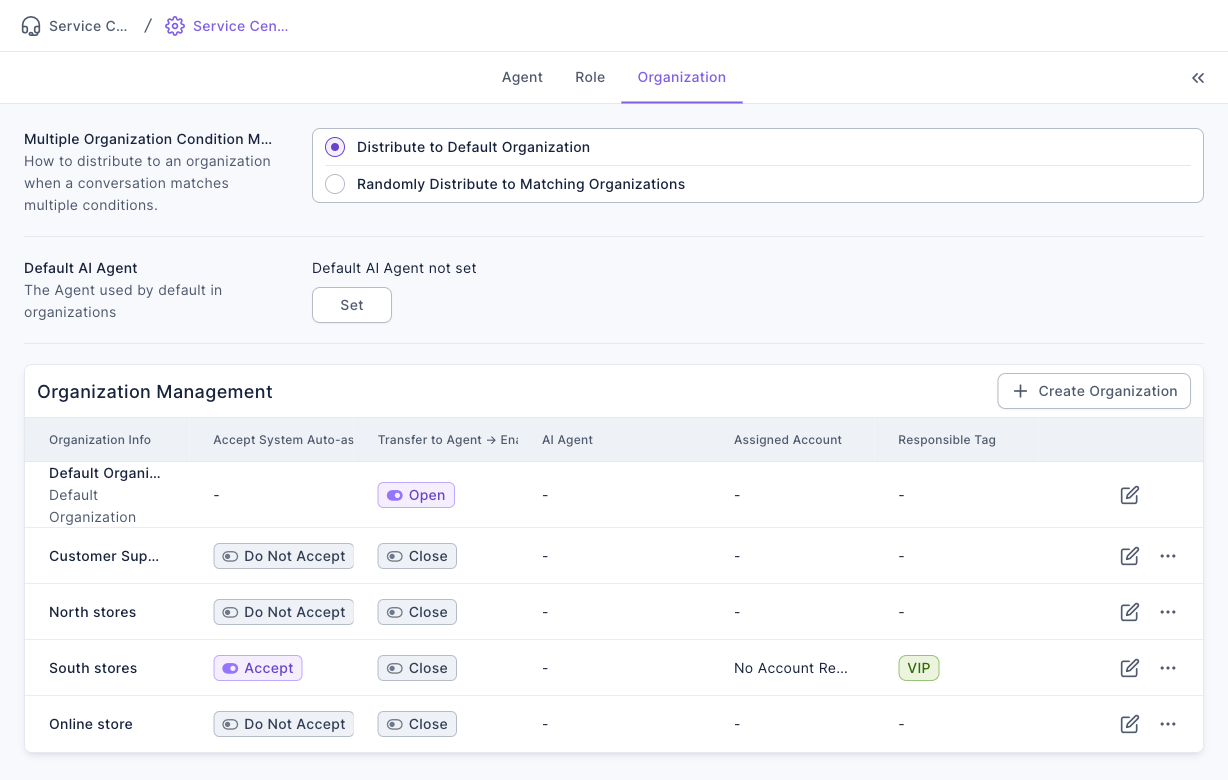
- Switch to the Organization tab, find the organization under Organization Management and click the edit (pencil) icon at the end of its row.
- On the organization's edit page, switch to the Automation tab.
The screenshot below shows the Organization tab. At the top is Multiple Organization Condition Match; below it, Organization Management lists each organization with Accept System Auto-assign, Transfer to Agent → Enable AI Agent, Assigned Account and Responsible Tag.
Set up automatic closing
- On the Automation tab, scroll down to Automatically Close After Resolved.
- Under Resolved → Close, choose Automatically Close and enter the number of hours next to it (0–72 hours).
- Under Automatically Change Organization After Closing below, choose what happens after the conversation closes (see the next section).
- Click Save in the top-right. You'll see "Edit organization successful".
The screenshot below shows these two sections of the Automation tab. Resolved → Close offers Keep Original Status (don't close automatically) or Automatically Close with a number of hours; Close → Change Organization has three options.
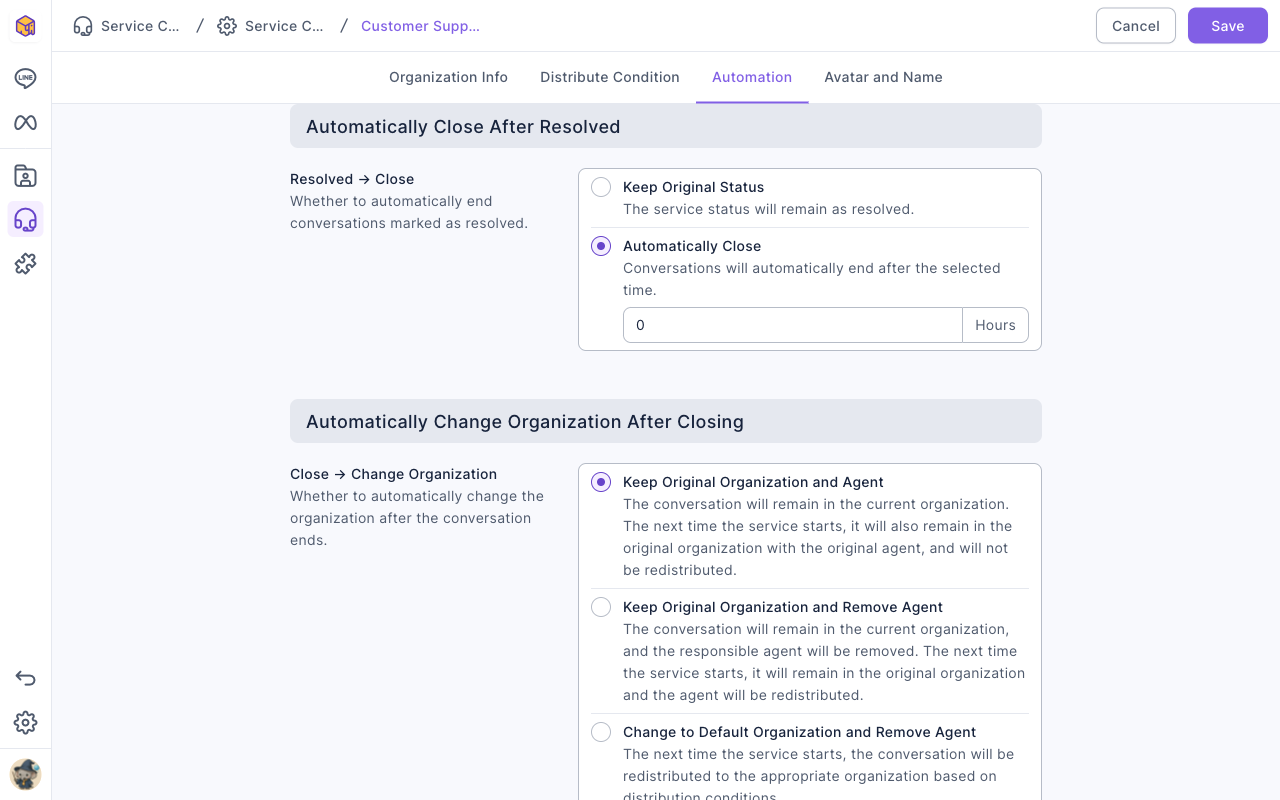
The animation below selects Automatically Close, changes the hours to 24, then switches Close → Change Organization to Change to Default Organization and Remove Agent. (Nothing is saved. While the hours field is empty, a required-field hint appears briefly.)
Who gets the conversation after it closes
Close → Change Organization decides where the conversation goes after it closes, which also decides who picks it up the next time this member writes in:
| Option | After closing | Next time the service starts |
|---|---|---|
| Keep Original Organization and Agent | Stays in the current organization with the same agent | Same organization and agent; not redistributed |
| Keep Original Organization and Remove Agent | Stays in the current organization; the agent is removed | Stays in the organization and a new agent is assigned |
| Change to Default Organization and Remove Agent | Moves to the default organization; the agent is removed | Redistributed to a suitable organization based on distribution conditions |
Conversations in the default organization itself stay there after closing and lose their agent; the next time the service starts they're redistributed based on distribution conditions.
Other automation settings on the same page
The Automation tab also has these settings, which affect whether a conversation stays Resolved:
| Setting | What it does |
|---|---|
| Transfer to Agent → Enable AI Agent | Whether AI Agent reply mode turns on whenever a conversation is transferred to an agent |
| Open → Send Message (agent sends) | After an agent sends a message in an open conversation: Keep Original Status or Change to In Process |
| Resolved → Send Message (agent sends) | After an agent sends a message in a resolved conversation: Keep Original Status or Change to In Process |
| Resolved → Send Message (member sends) | After the member sends a message in a resolved conversation: Keep Original Status, Change to In Process or Change to Open |
How it works
- The time counts from the conversation's last message. The system regularly checks conversations whose status is Resolved, and closes them once "time of the last message + the hours you set" has passed. So 24 hours means "24 hours after anyone last sent a message", not "24 hours after it was marked resolved".
- 0 hours means "close right away". Every resolved conversation is closed at the system's next check.
- Only conversations that are still Resolved are closed. If the member writes again and Resolved → Send Message (member sends) changes the status to In Process or Open, the conversation is no longer resolved and won't close until it's marked resolved again.
- The conversation's current organization decides. Once a conversation moves to another organization, that organization's automation settings apply.
FAQ
Some resolved conversations didn't close automatically
Check in this order:
- In the organization the conversation is in now, is Resolved → Close set to Automatically Close?
- Counting from the last message, have more than the set number of hours passed?
- Is the conversation still Resolved? A later message from the member may have changed it back to In Process or Open.
Missing or incorrect content, please check again
The hours field is empty or outside 0–72. Enter a whole number from 0 to 72 and save again.