
By the end of this article you'll be able to change the name and avatar shown for you in a workspace, and connect the LINE account that receives system notifications.
Before you start
My Account only affects you, so no permissions are needed. Every member of a workspace can change it. Keep in mind that these settings only apply to the current workspace. Your name and avatar in other workspaces are changed separately.
The dashboard's language and time zone aren't here. They're account-wide settings behind the globe icon in the top-right corner of the Workspace list. See Set your language and time zone.
Change your name, avatar and LINE account
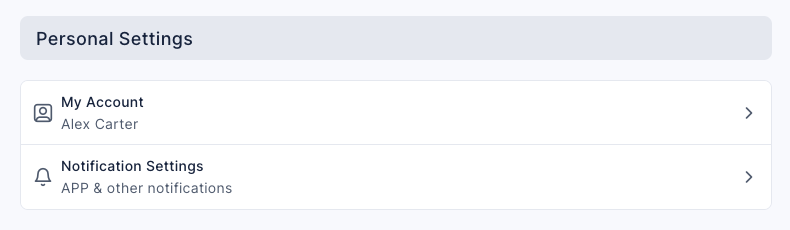
Click Settings at the bottom of the navigation bar, then click My Account under Personal Settings.
The screenshot below shows the Personal Settings section of the Settings page. The first row is My Account, with your current name in small text below it. The second row is Notification Settings.
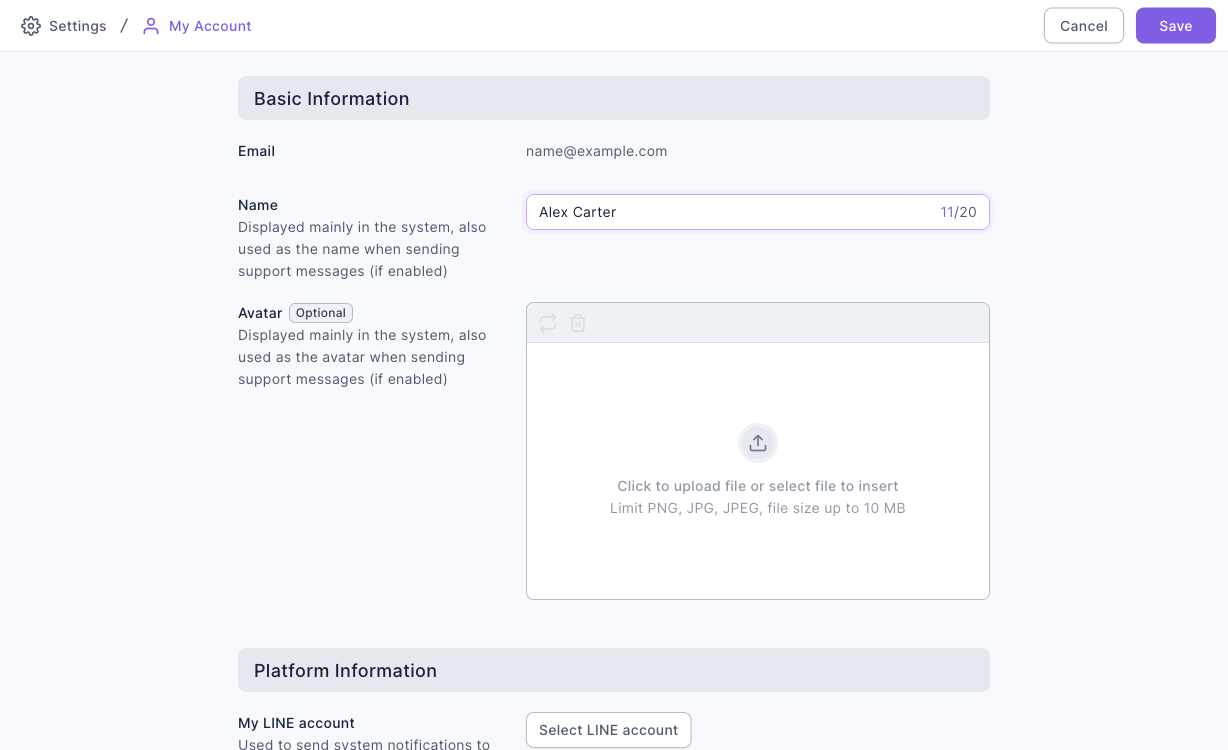
Under Basic Information, edit your Name (required, up to 20 characters). Email is the account you sign in with. It's shown here but can't be changed.
Optionally upload an Avatar. PNG, JPG and JPEG files up to 10 MB are accepted.
Under Platform Information, click Select LINE account, search for and select your own LINE account, then click Confirm.
Click Save in the top-right corner. When Save successfully appears, you're taken back to the Settings page.
The screenshot below shows the My Account page. Basic Information at the top lists Email, Name (with a character count of 11/20 on the right) and the avatar upload area. Platform Information at the bottom has My LINE account and the Select LINE account button. Cancel and Save are in the top-right corner.
This table lists what each field on the page is for and its limits:
| Field | What it's for | Limits |
|---|---|---|
| The account you sign in to OakMega with | View Only; can't be changed here | |
| Name | Shown inside the dashboard. When the matching Service Center setting is on, it's also the name on support messages sent to customers | Required, up to 20 characters |
| Avatar | Shown inside the dashboard. When the matching Service Center setting is on, it's also the avatar on support messages | Optional; PNG, JPG or JPEG, up to 10 MB |
| My LINE account | The LINE account that receives system notifications | Must be a friend of this workspace's LINE Official Account |
How it works
Why name and avatar belong to the workspace
The same person might handle customer service for brand A and marketing for brand B, and it's natural to go by a different name for each brand. So your name and avatar are stored separately in each workspace. Changing your name in workspace A doesn't change it in workspace B.
What My LINE account is for
The interface describes it as "Used to send system notifications to your LINE account": once connected, messages the system needs to send you arrive in your own LINE. You can only choose from friends of this workspace's LINE Official Account, so add the official account as a friend with your own LINE first, or you won't find yourself in the search. This is separate from Settings › Notification Settings, which controls Service Center notifications in the OakMega app. See Set up notifications.
FAQ
This field is required
Name is empty. The name can't be blank. Fill it in, then click Save.
Text exceeds the maximum length
Name is longer than 20 characters. Shorten it to 20 or fewer and save again.
I can't find my LINE account
You can only select friends of this workspace's LINE Official Account. Add the official account as a friend with your own LINE, then search by LINE name, LINE UID or real name. If you see No matching search results, try a different keyword.
I don't want system notifications on LINE anymore
Under My LINE account, click Disconnect, confirm the dialog Are you sure you want to disconnect your LINE account?, then click Save. You can select your LINE account again at any time.
I changed my name but left without saving
When you leave, you'll see Are you sure you want to leave the account settings page?. If you leave, your changes aren't kept. To keep them, stay on the page and click Save.