
By the end of this article you'll be able to save LINE messages you use often (a campaign announcement, answers to common questions) as templates, keep them tidy in folders, and pull them into post articles, group posts and chatbots by choosing Template.
Before you start
- You need the Pro plan or above, and the workspace needs a connected LINE Official Account.
- You need Template Management permission (in the LINE section of Permission Management). View Only lets you browse and preview templates. To create, edit, duplicate, move or delete them you need Editable; otherwise the button shows "No Edit Permission".
- This article covers LINE › Template Management. SMS templates live under Advanced Features and are a separate list.
Get to know Template Management
In the navigation bar, click LINE and choose Template Management.
The screenshot below shows the Template Management page. At the top-left are All Templates and the template count. Below them, Folder List shows every folder with the number of templates in it, and the "+" on the right adds a folder. On the right are the templates in the current folder: each row has Template Name, Template Preview (a summary of the content) and Creation Time, with an edit (pencil) button and "⋯" at the end.
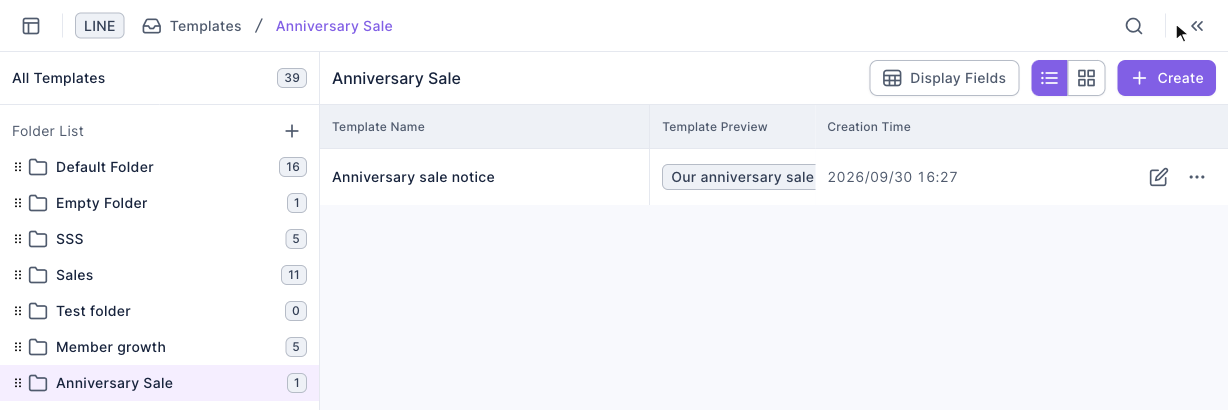
Above the list, Display Fields chooses which columns to show, and the two buttons next to it switch between list and card views. The search icon in the header searches by template name. Click any template to open Message Template Information on the right, showing its parent folder and a full preview.
Create a folder
Every template has to live in a folder, so it helps to set up folders by purpose first (for example "Anniversary Sale" or "FAQ").
- Click "+" to the right of Folder List.
- In Create folder, enter a Folder name (up to 30 characters).
- Click Confirm. If the name matches an existing folder, you'll see "Item name duplicate".
Hover over a folder and use its "⋯" to Rename or Delete it. Deleting a folder also deletes the templates in it (the confirmation says "Items in the folder will be deleted as well"), so move anything you want to keep to another folder first.
Create a template
- Click the folder you want on the left, then click Create in the top-right. If All Templates is selected, you'll be asked to Select Folder first.
- Under Basic Settings, enter a Template Name (up to 100 characters).
- In the Message section, click a message type (for example Text) to add a message.
- Type the message content. Preview on the right shows what friends will see in LINE as you type.
- Click more types to add more messages if you need them. A template can hold up to 5 messages.
- Click Save in the top-right. You'll see "Created successfully" and return to the folder.
The animation below clicks Create in the "Anniversary Sale" folder, enters the template name "Anniversary sale notice", then clicks Text to add a text message.
Next it types into the text message, the same text appears in the preview on the right, and it clicks Save. Back in the folder, the new template is in the list.
The screenshot below shows the edit page filled in but not yet saved. On the left are the template name under Basic Settings and Message (1/5) containing the new text message (its header shows "Message count: 1" plus buttons to move, duplicate and delete that message). Below are the message types you can still add, and Preview on the right shows the text message.
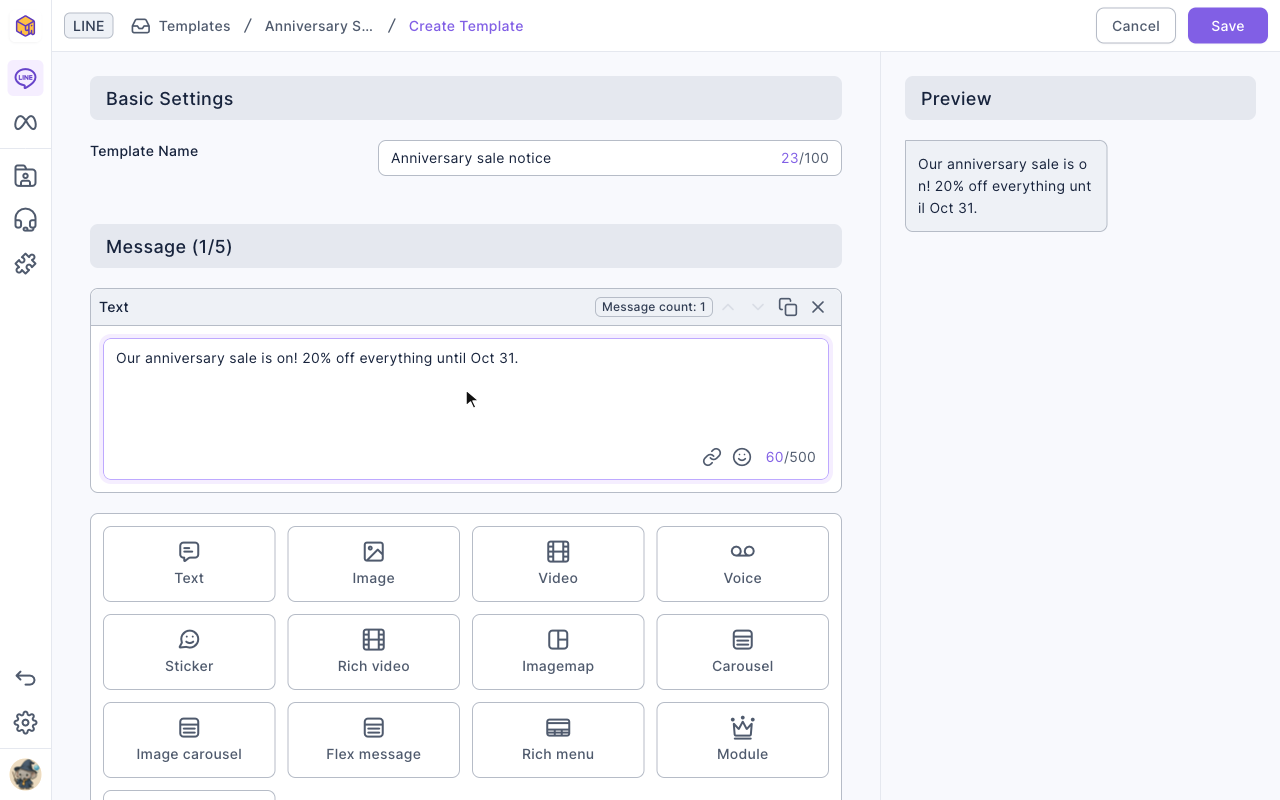
These are the message types a template can hold:
| Message type | Good for |
|---|---|
| Text | Plain text up to 500 characters, with links and emoji |
| Image, Video, Voice, Sticker | A single image, video, audio file or LINE sticker |
| Rich video, Imagemap | A tappable video or image that opens a link or triggers an action |
| Carousel, Image carousel, Flex message | Several cards or images people swipe through, each with its own buttons |
| Richmenu | Pick a Richmenu; friends switch to it when the message is sent |
| Module | OakMega interactive modules such as lucky draws; some modules take up more than one message |
| API | The editor says "This feature is limited to OakMega custom development use", so you normally won't need it |
Duplicate, move and delete templates
Click "⋯" at the end of a template's row:
- Duplicate: makes an identical template in the same folder with "(Copy)" added to the name. Handy for a slightly different version.
- Move: choose the new folder in Select Folder and click Confirm.
- Delete: you'll be asked "Are you sure you want to delete "template name"?". Click Delete to confirm.
To change a template's content, click the pencil at the end of the row, edit, then click Save.
The animation below clicks "⋯" on "Anniversary sale notice", chooses Delete and confirms with Delete; the template disappears from the list.
Use templates in other features
When you edit messages in a Post Article, Group Post or LINE Chatbot, choose the Template message type and pick a template to insert.
- What goes in is a reference to the template, not a copy. That's why deleting a template warns: "Deleting the template will affect features referencing this template."
- To use a template as a starting point and then change it, choose Split into Single Message on the inserted template. It becomes separate messages that no longer follow the original template.
- Each place still holds up to 5 messages. If a template has too many to fit, you'll see a notice that some templates can't be imported until you delete other content.
How it works
- Why use templates? The same campaign message often goes into both a post article and a chatbot. With a template you maintain one copy, and the two are less likely to drift apart.
- Templates and their folders are LINE-only. SMS templates are a separate list, and the two don't share anything.
- The edit page doesn't save automatically. If you click Cancel or go to another page without saving, you'll be asked "Confirm to leave create template?", and your edits won't be kept.
FAQ
Message content cannot be completely empty
The template has no messages yet, or the messages are empty. Add at least one message with content, then click Save.
Update failed. Message limit exceeded.
A template holds up to 5 messages and this one is full. Remove a message you don't need before adding another, or split it into two templates.
No Edit Permission
Your Template Management permission is View Only. Ask a workspace admin to change it to Editable.