
Interface update: a scalable navigation structure
We noticed that as features have been added to the product, the left navigation bar now has 10 major feature pages, and finding a specific feature has started to become difficult.
With several new feature pages planned for the future, that could reach as many as 15 feature pages, making things much harder to find.
So in this update, we've improved the interface and naming of the navigation bar, header categories, settings and more, providing a clearer and more scalable interface.
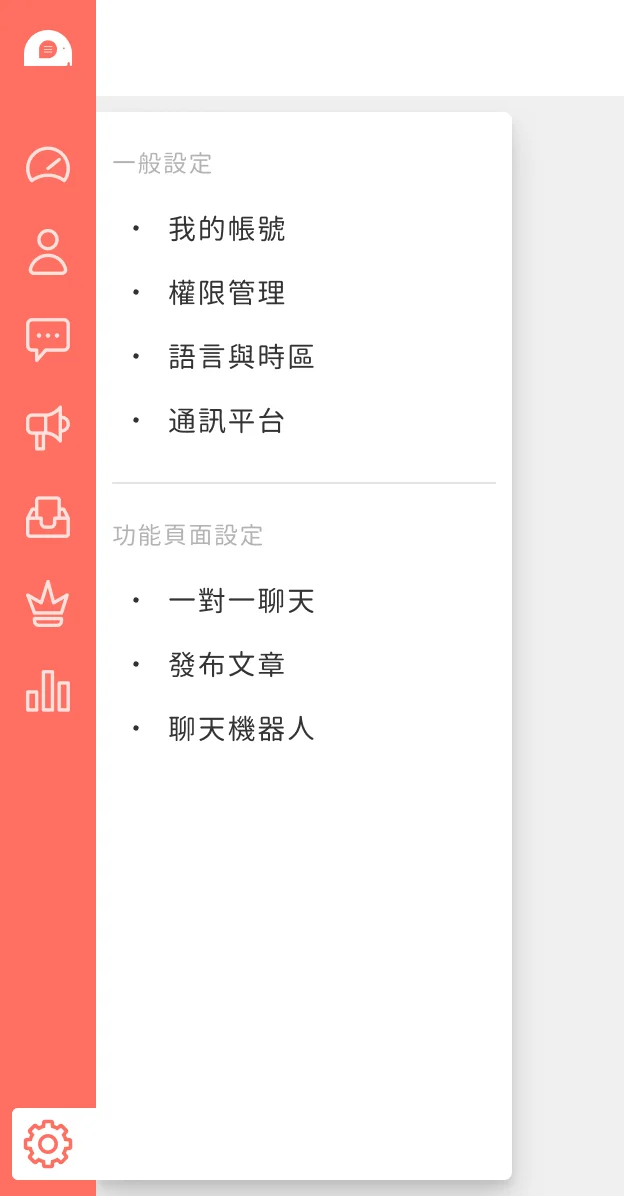
Settings: all settings in one place
The original account settings are now divided into
- My account
- Permission management
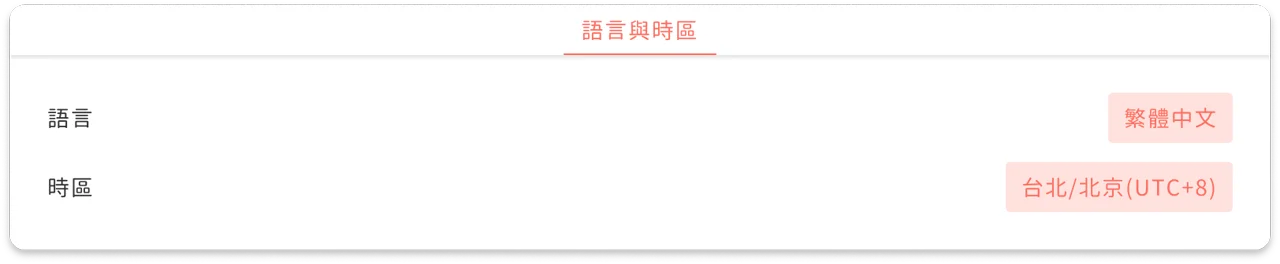
- Language and time zone
- Platforms Feature page settings have also been consolidated, so you can manage all setting options in one place.
Permission management: clearer division of work
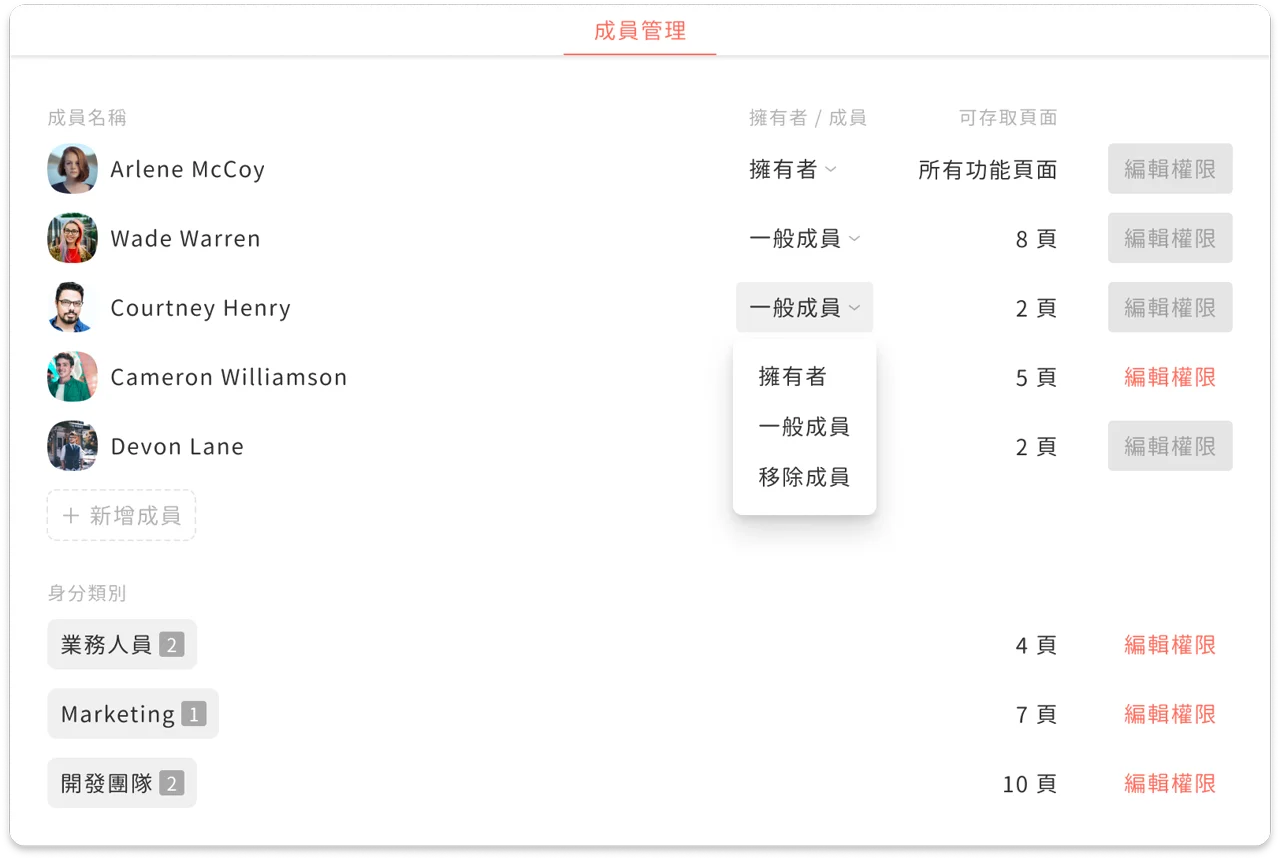
We've defined clear permissions for every feature page. You can set "Standard permission", "View only" or "No permission" for each to manage the different roles on your team. From senior managers to dedicated service agents, everyone sees the right information, with no need to worry about information leaks or mistakes.
Fixes
- One-on-one Chat might load the wrong chat room content
- One-on-one Chat might send to the wrong friend
- Modules might not be inserted in some situations
- Live Chat might not filter out conversations matching tags
- Feature description pages Interface update - a scalable navigation structure
💡
We noticed that as features have been added to the product, the left navigation bar now has 10 major feature pages, and finding a specific feature has started to become difficult. With several new feature pages planned for the future, that could reach as many as 15 feature pages, making things much harder to find.
So in this update, we've improved the interface and naming of the navigation bar, header categories, settings and more, providing a clearer and more scalable interface.
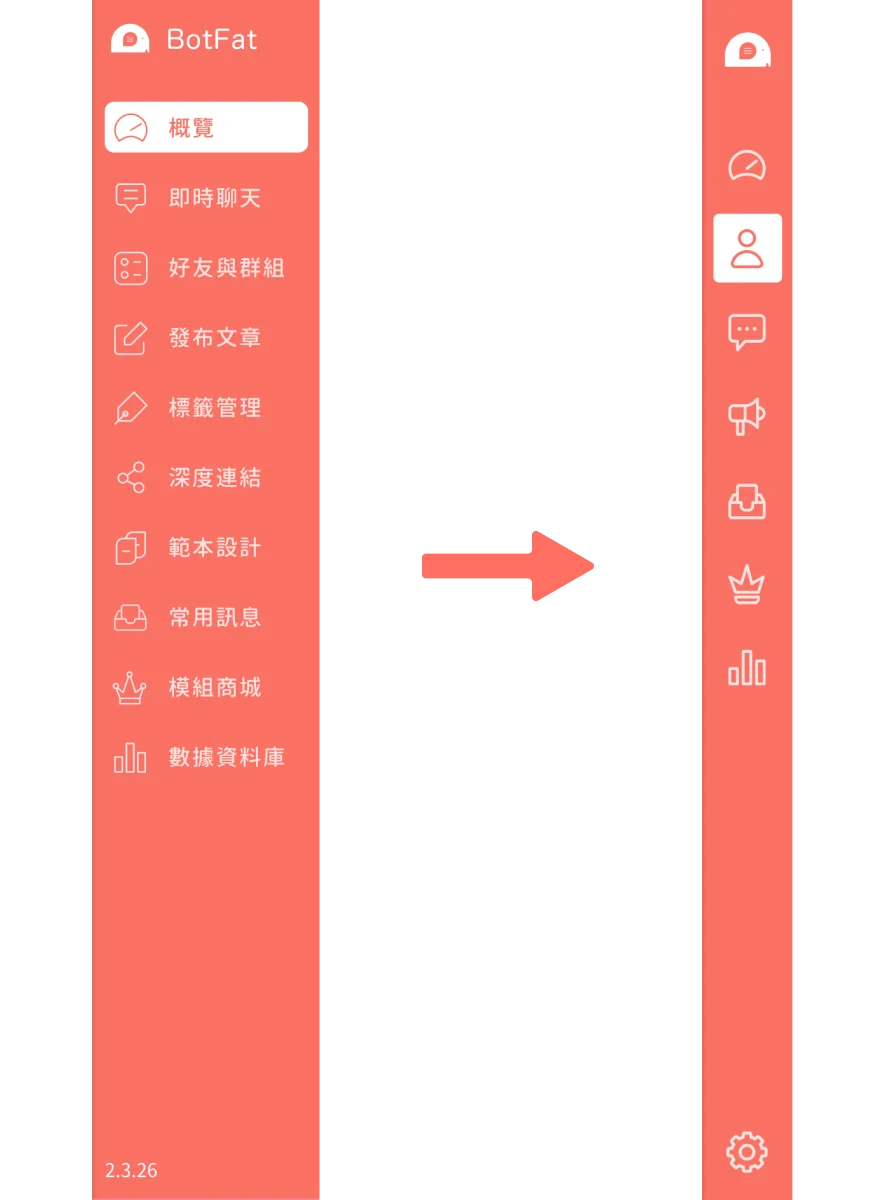
In our user research and interviews, we found that some terms had always been unclear, causing a lot of misunderstanding and confusion. In this update, we've renamed these terms consistently to ensure a consistent experience.
Friends & Groups → member management
Friends & Groups doesn't just contain LINE friend data. It may also include member data from people who filled in forms or clicked links. Within a CRM framework, this valuable personal data is really a Contact (a contact or member), so we renamed Friends & Groups to member management, highlighting the importance of organizing, collecting and systematically analyzing personal data.
Live Chat → One-on-one Chat
To meet the different needs of one-on-one chats and group chats, we separated the official account's one-on-one messaging from group conversations, creating One-on-one Chat for convenient service and sales, and Group Conversations for quickly understanding group status.
Template Design → chatbot
Template Design is for designing the flow of conversations between users and the official account. This question-and-answer process is what everyone knows as a "chatbot". We renamed Template Design to chatbot, and each "keyword template" is now called a "keyword reply".
Saved Messages → message templates
Saved Messages are really templates, a way to help brands quickly build an information library. Most OakMega customers use this feature to create canned messages, or insert a message and then tweak it, so we renamed it message templates.
Deep link (深度連結 → 追蹤連結)
Deep links are OakMega's own redirect (URL shortening) system. They track data accurately across every platform and device, helping brands find the behavior record behind every click and sync it back to individual behavior in the CRM, presenting complete big data and individual browsing history.
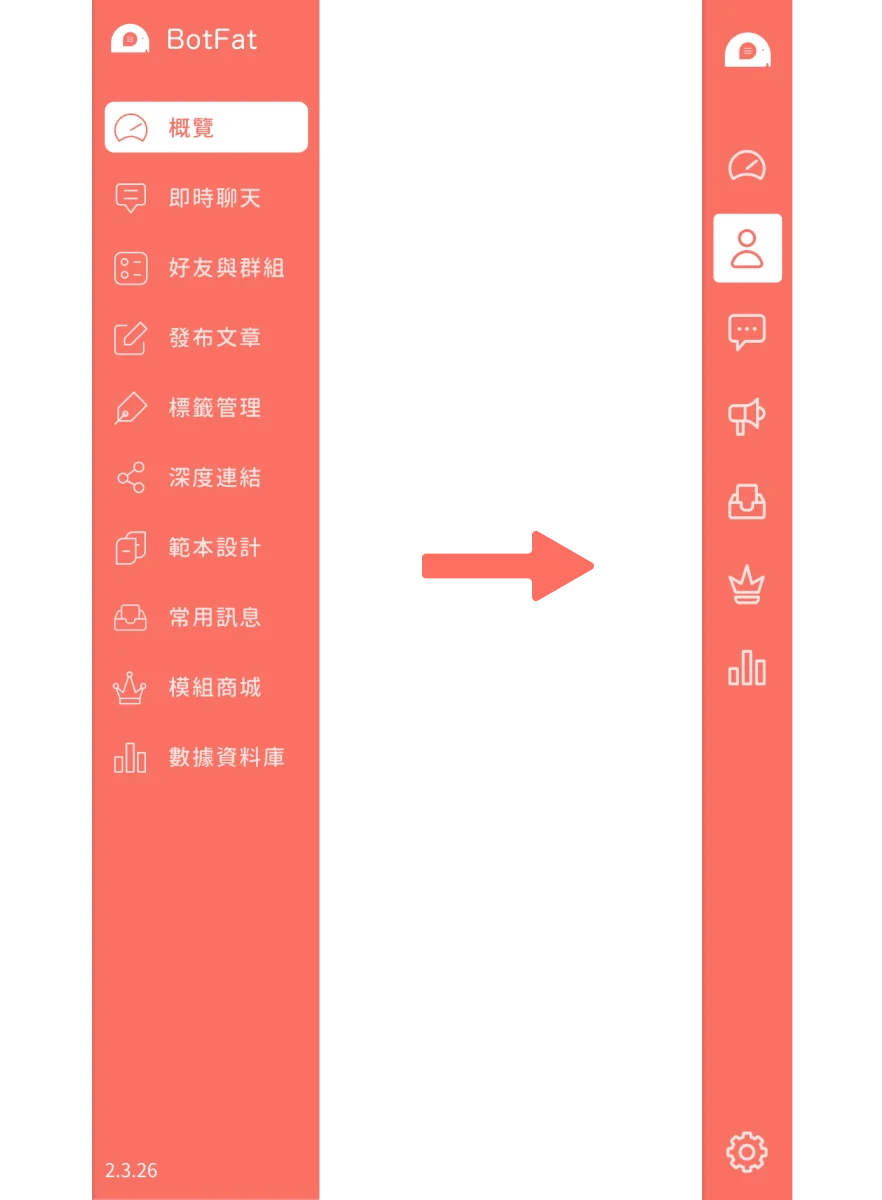
We've merged the original 10 features into 7. Here's the old vs. new comparison:
Counts have been added to the top navigation bar (header), so you can clearly see the number of items in each folder or status, making it easier to use. Categories, sorting and filtering are also clearly separated, keeping the navigation bar's logic and visuals clean and clear.
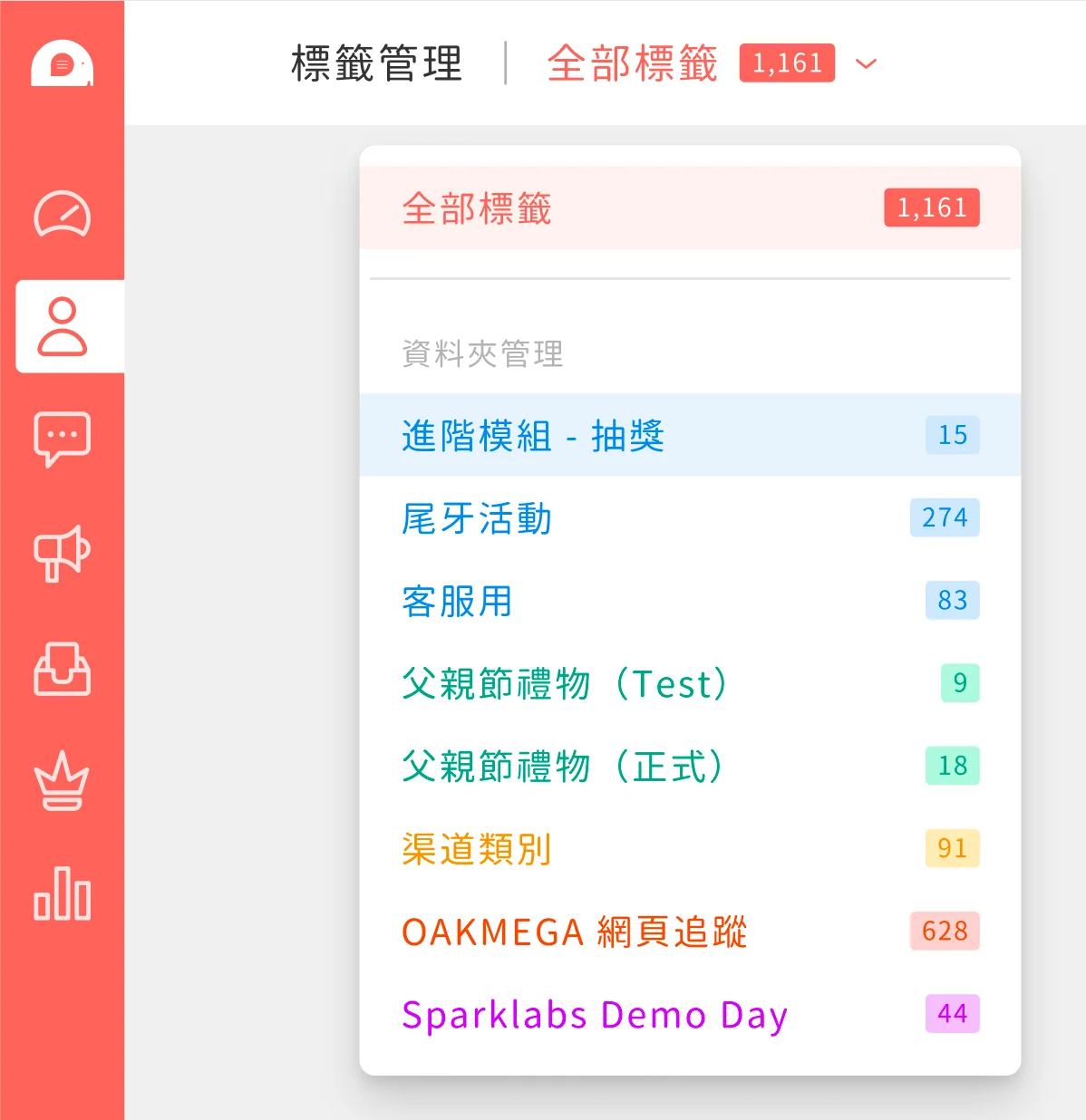
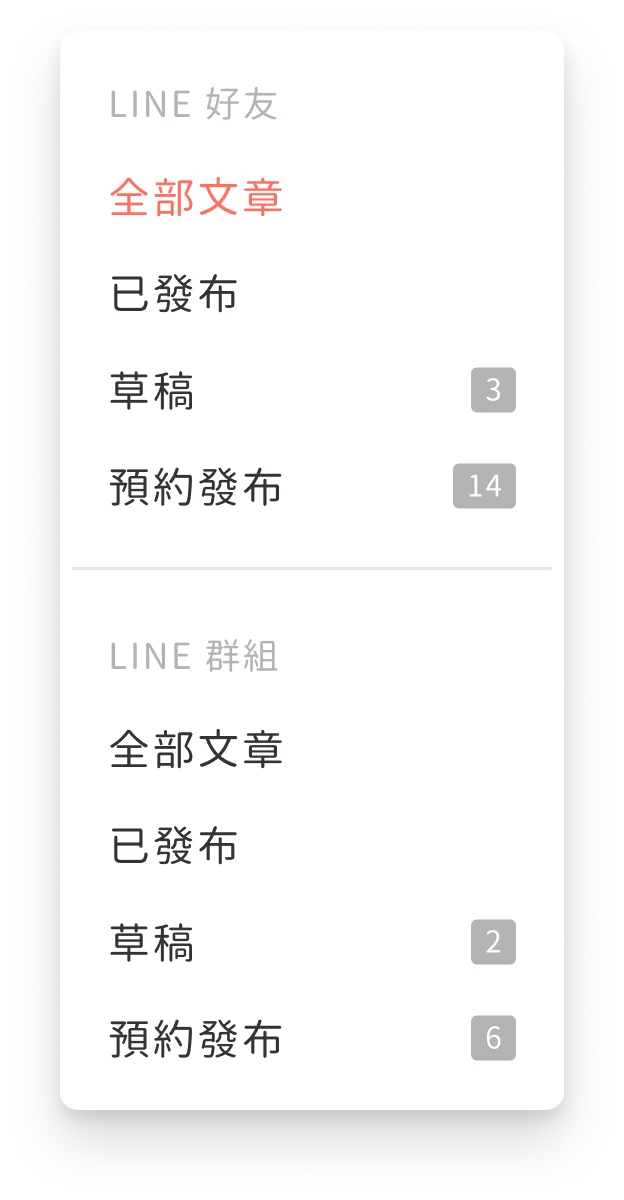
Settings - all settings in one place
💡
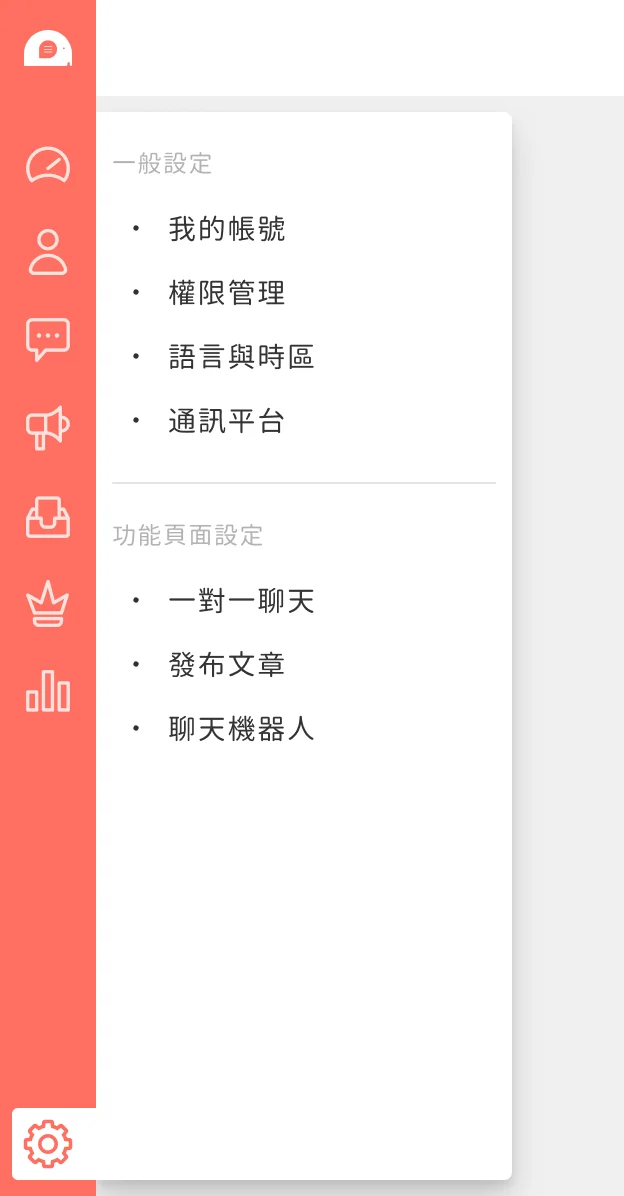
The original account settings are now divided into
- My account
- Permission management
- Language and time zone
- Platforms
Feature page settings have also been consolidated, so you can manage all setting options in one place.
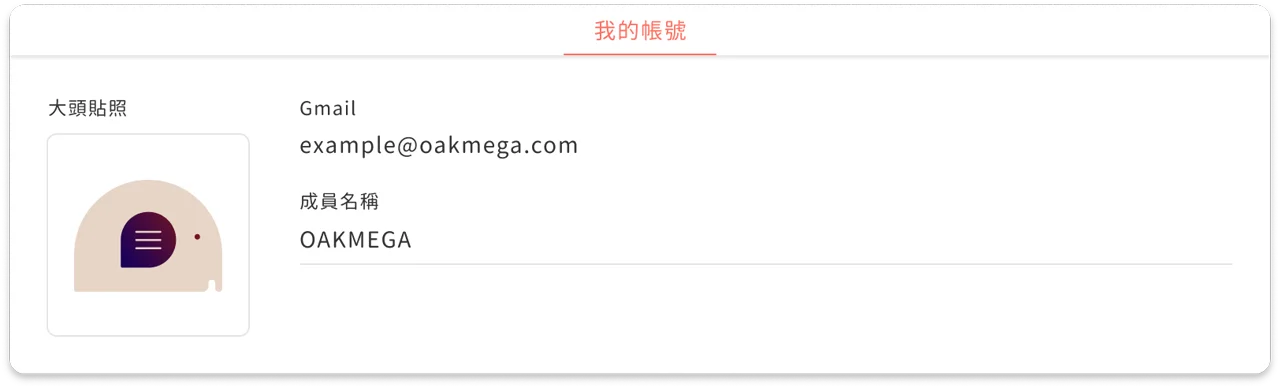
My account
Added profile picture and custom member name settings.
Permission management
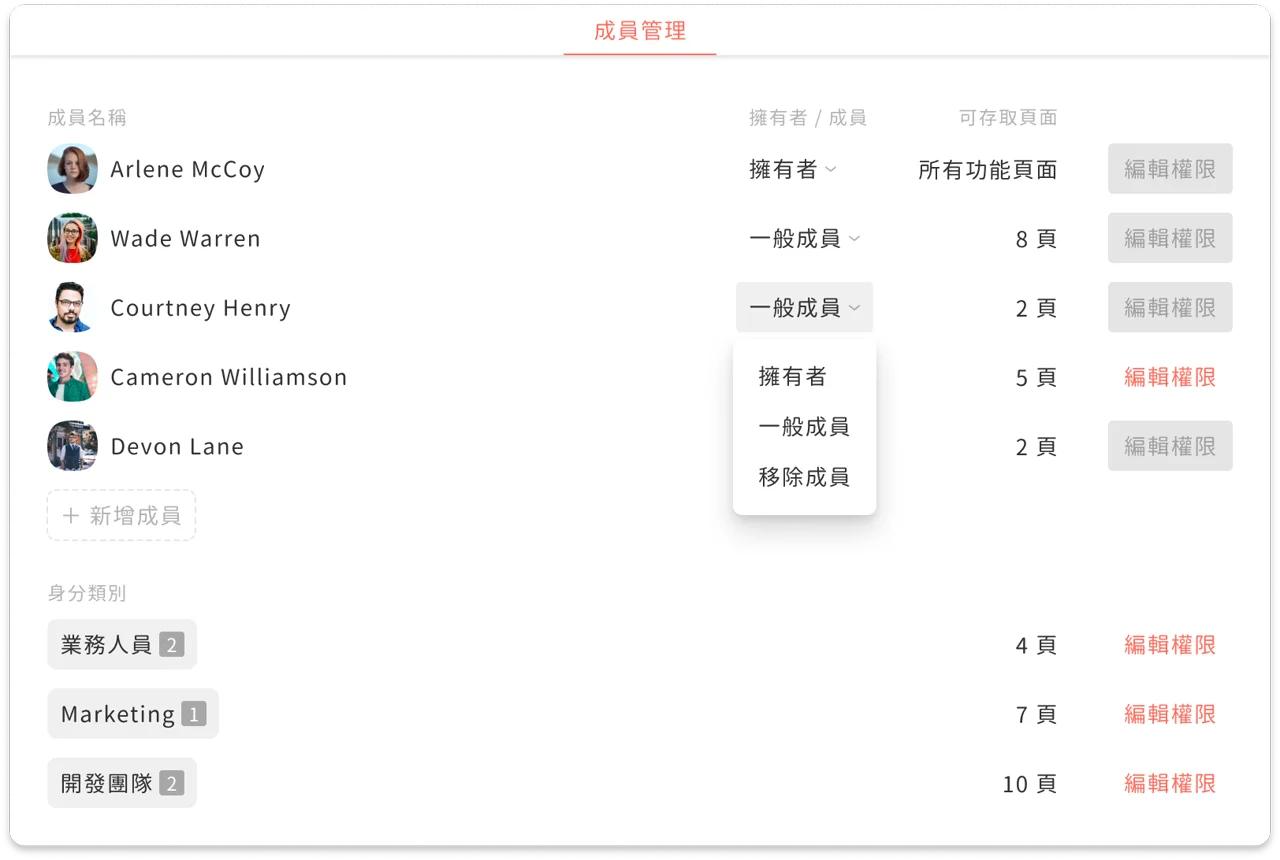
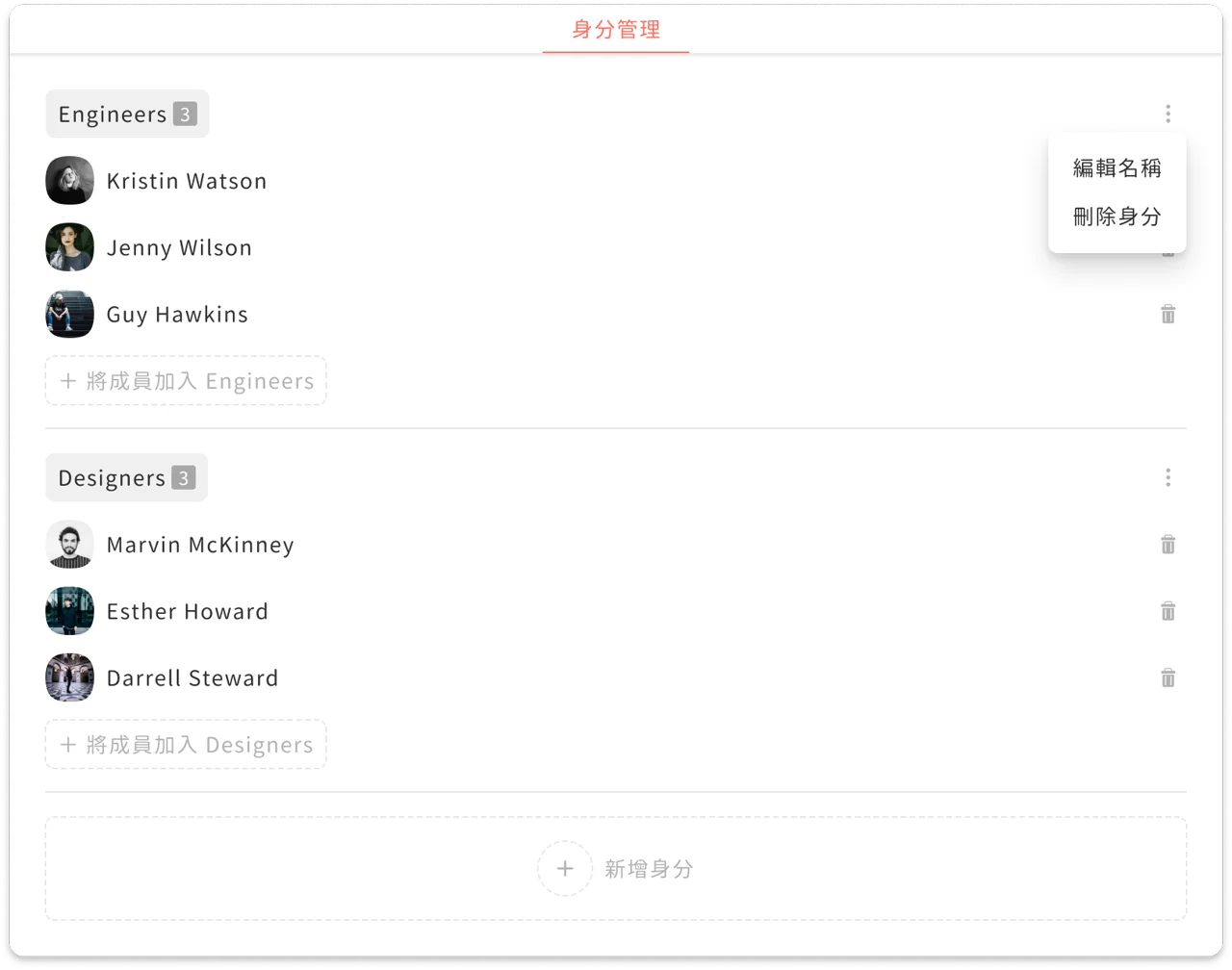
Added agent management and role management to manage agent permissions and roles in one place.
[See full details →](https://oakmega.notion.site/cafedab919d64e35919c971b072bc08a)
Language and time zone
Platforms
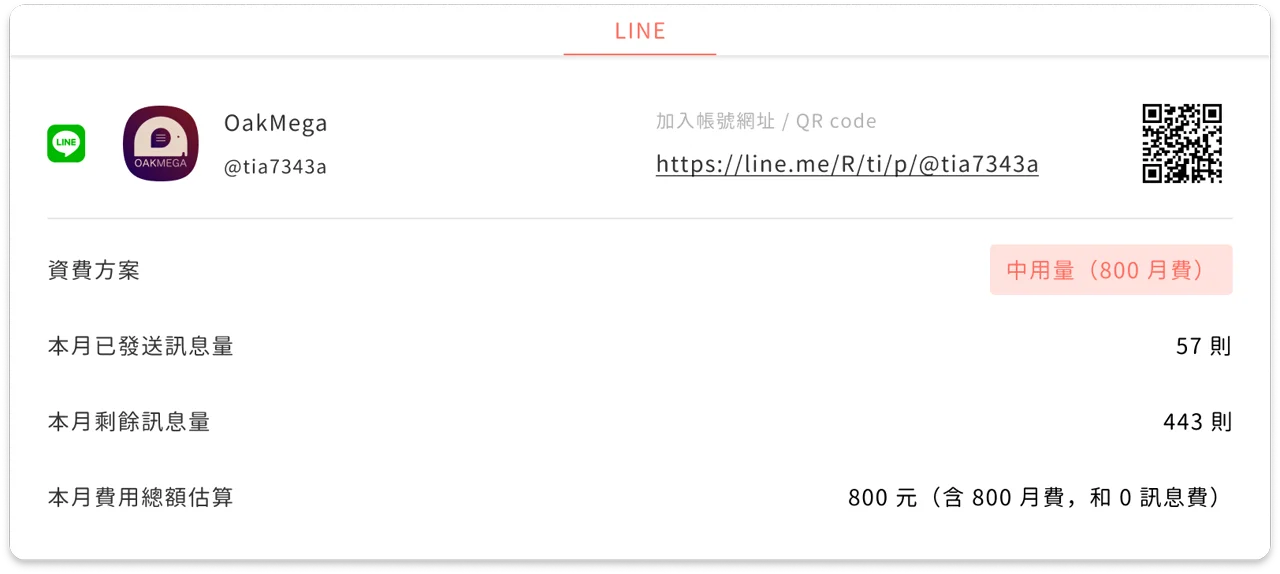
Platforms are the platforms your brand connects. The account's add-friend link / QR code is shown for each platform. For LINE, for example, the pricing plan and message volume / cost estimate are shown.
Permission management - clearer division of work
💡
We've defined clear permissions for every feature page. You can set "Standard permission", "View only" or "No permission" for each to manage the different roles on your team. From senior managers to dedicated service agents, everyone sees the right information, with no need to worry about information leaks or mistakes.
Permission management includes [agent management](https://oakmega.notion.site/cafedab919d64e35919c971b072bc08a) and [role management](https://oakmega.notion.site/cafedab919d64e35919c971b072bc08a), letting you control every user's permissions and access scope.
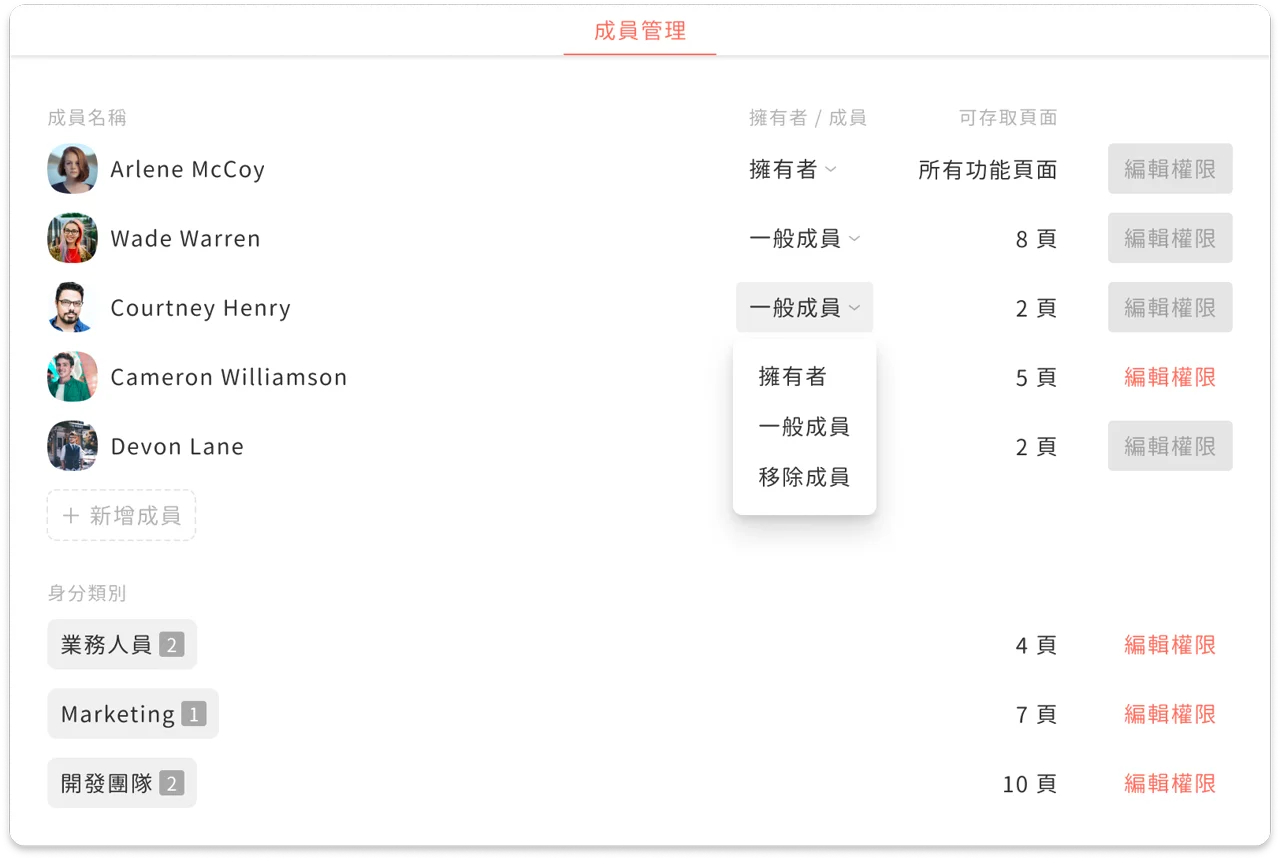
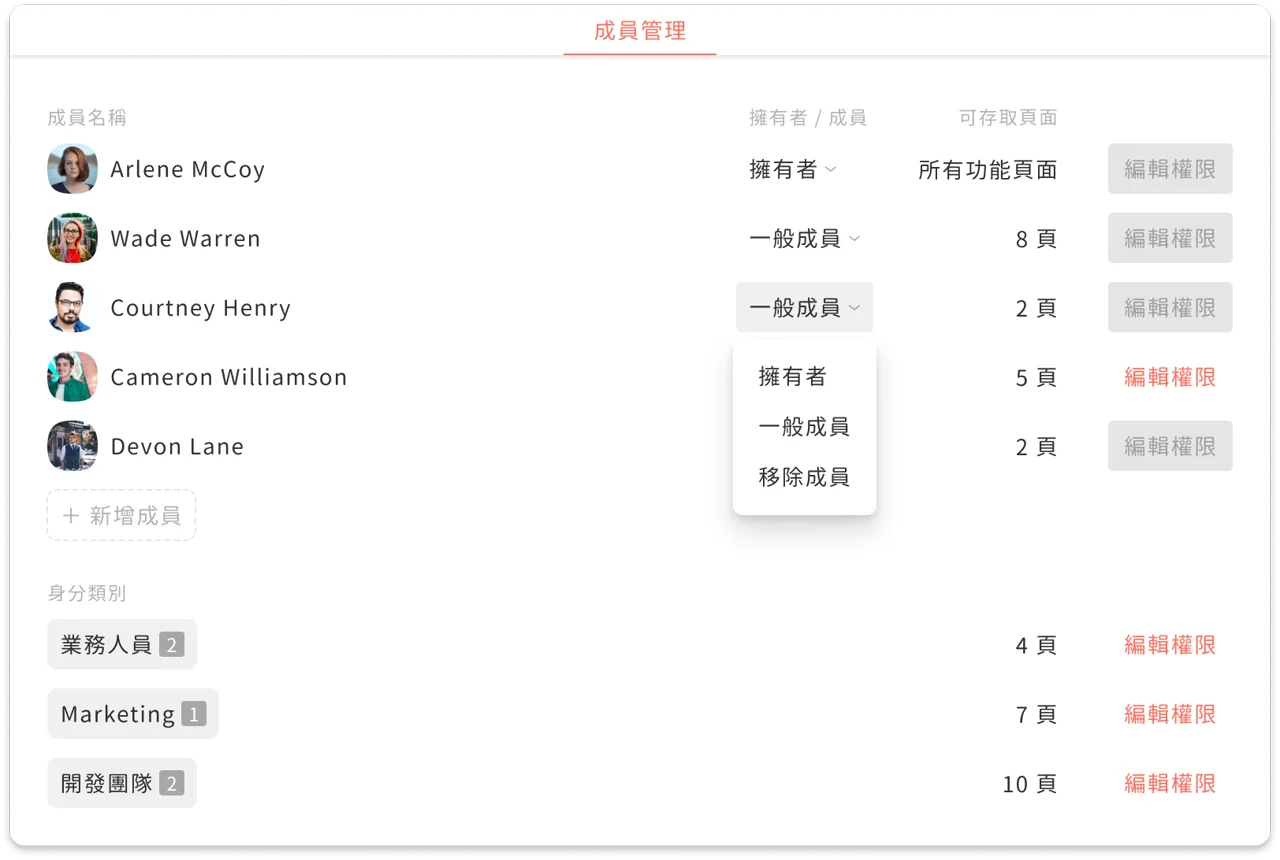
Agent management shows every member of the account, including whether each one is an [owner or a member](https://oakmega.notion.site/cafedab919d64e35919c971b072bc08a) and the [pages they can access](https://oakmega.notion.site/cafedab919d64e35919c971b072bc08a), and lets you edit each member's permissions.
Owner`
The owner is the account's top administrator, who can edit all pages and settings, make other members owners, or remove members.
Member`
Members can't make other members owners and can't edit permissions.
Accessible pages are the pages a member "Can edit" or "Can view"; owners can edit all pages.
Member access is divided into "Can edit", "Can view" and "Hidden", and can be set separately for each feature page.
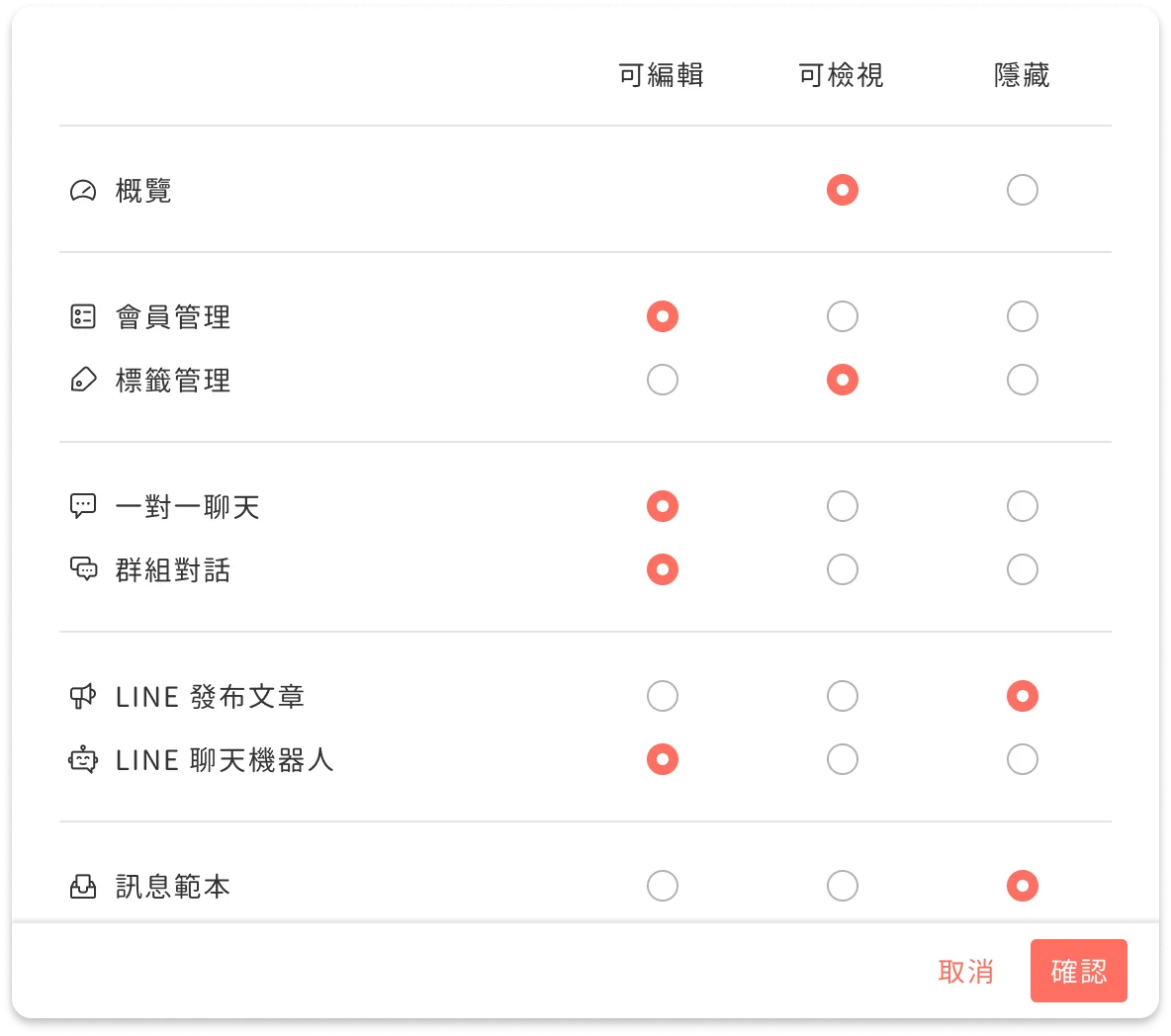
Can edit`
Can fully edit and use the page's features, and edit the page's settings.
Can view`
Can only view the page and can't open its settings.
Hidden`
The member won't see the page.
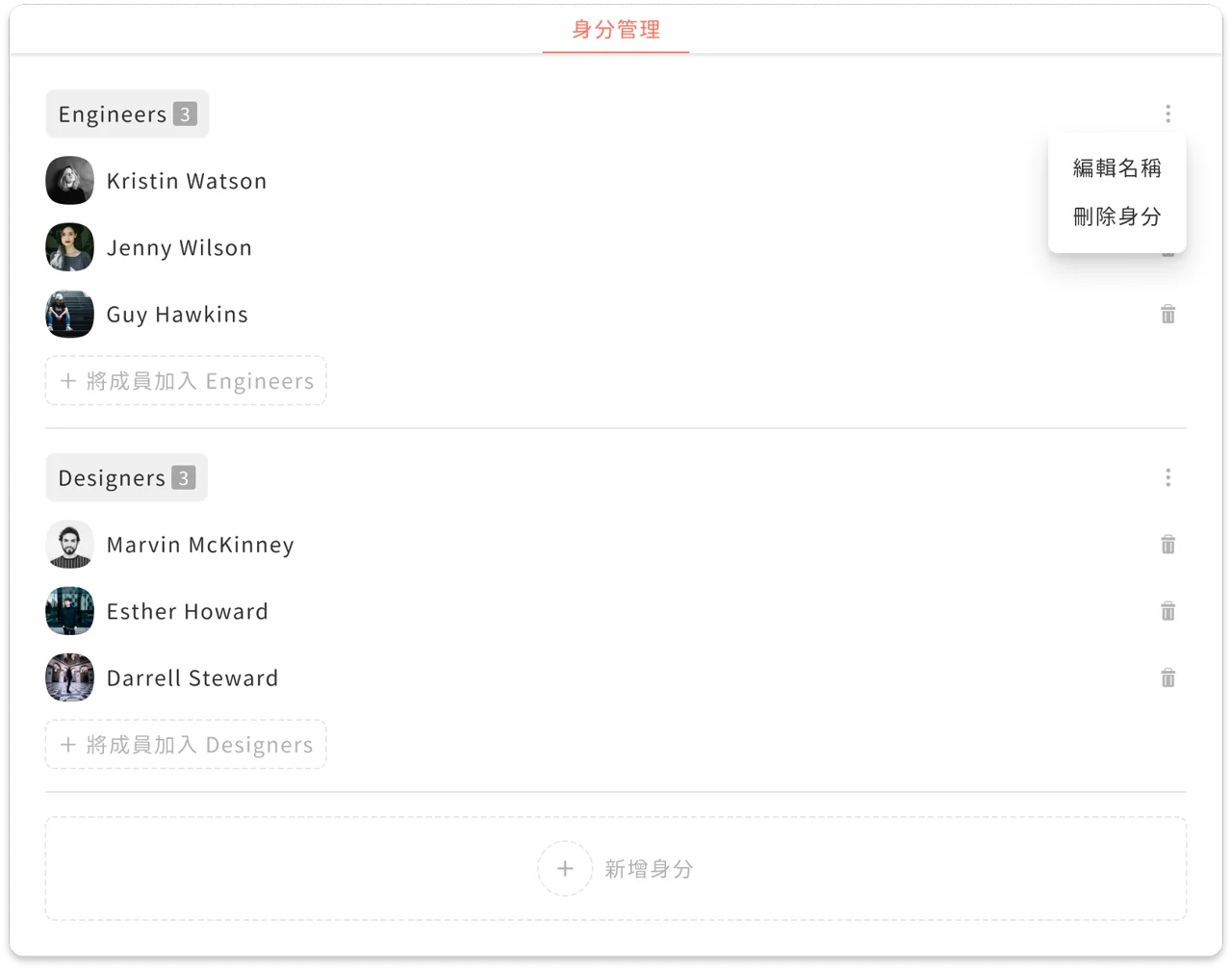
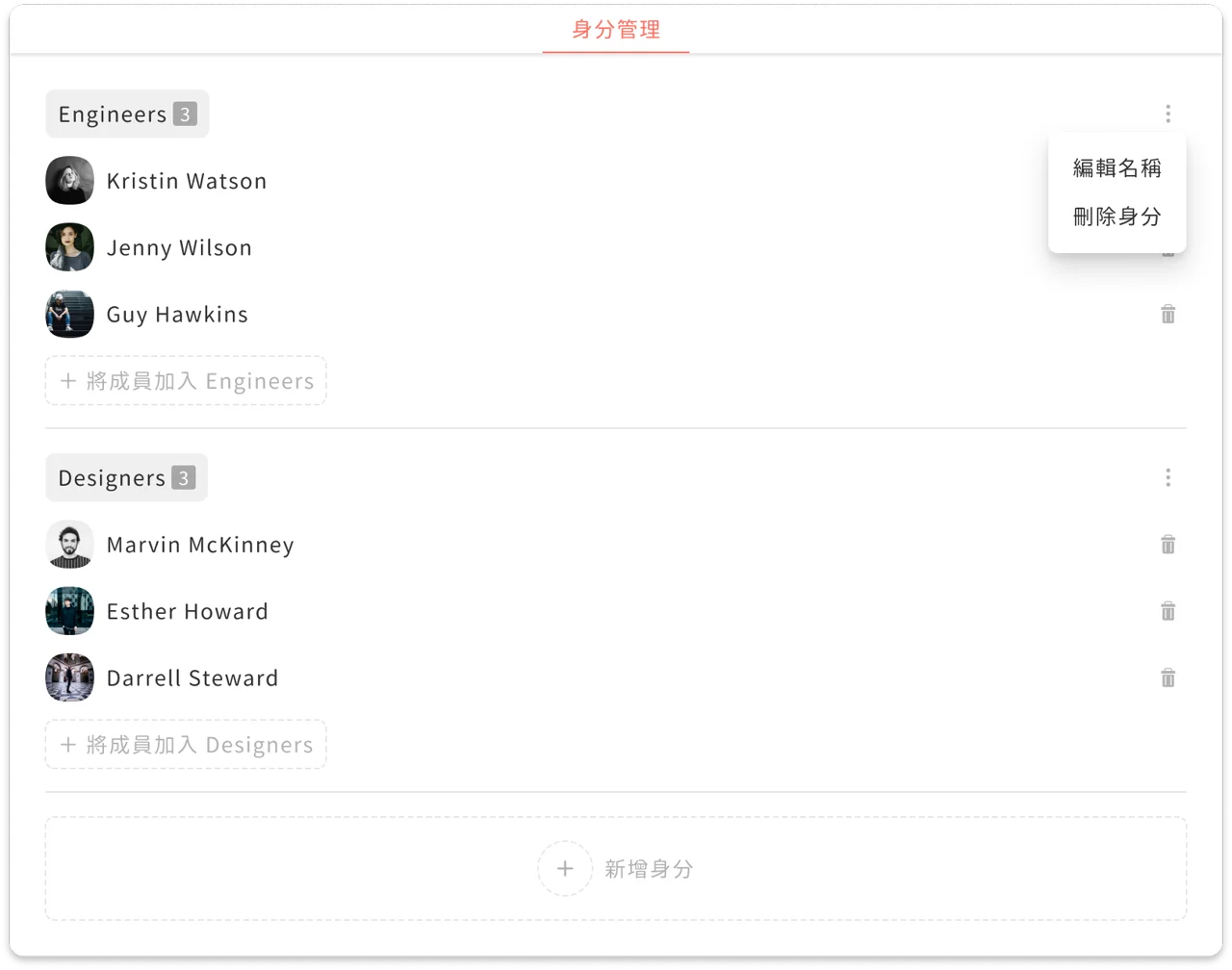
Role management lets members with the same job or position share one set of permission settings.
For example, if all of the company's service agents only need the "One-on-one Chat" feature, you can create a "Service" role and add those members to it to manage their permissions in one place.
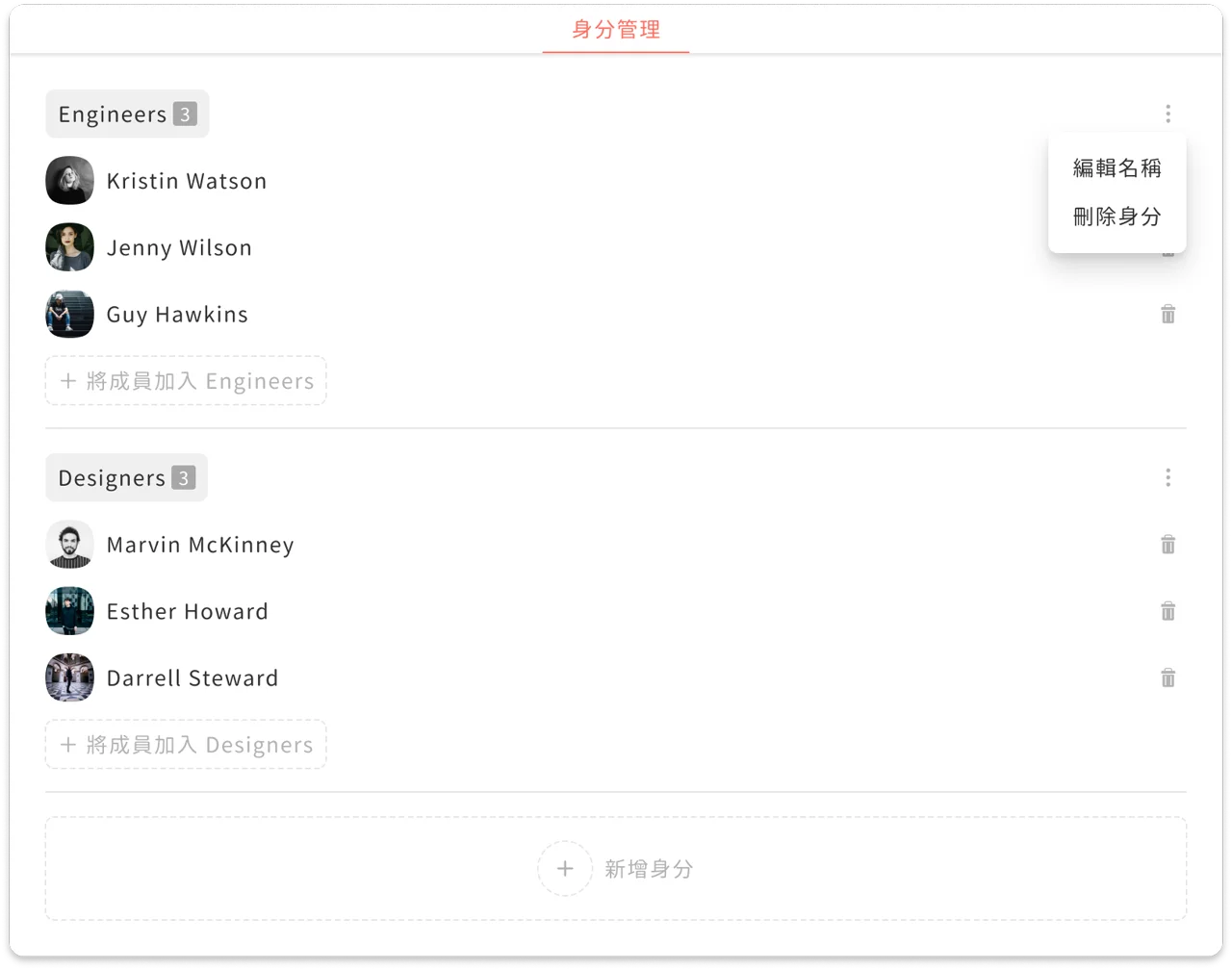
Members with the same role have the same permission settings.
Members who already have a role can't have their permissions edited individually unless they're removed from that role.
Set role permissions at the bottom of agent management; once set, role permissions apply to every member with that role.
On the role management page, click + Add members to (role name) to add members to that role. Members who already have a role can't be added to another one; remove their current role first.
Add roles at the bottom of the role management page.